Lesson 11 of 31
Follow up findings and tune the vendor risk settings
What you will be able to do
This lesson is for the Data Protection Officer. You will update a finding as the vendor works on it, learn what is needed to close one, download the findings list, and go through the settings that decide tiers, review dates, risk weights and reminders.
Before you start
- At least one finding has been raised on a vendor, as in lesson eight.
- You hold the right to approve vendor risk. Without it the Settings tab can be read but not changed.
Steps
- 1
Open the Findings tab
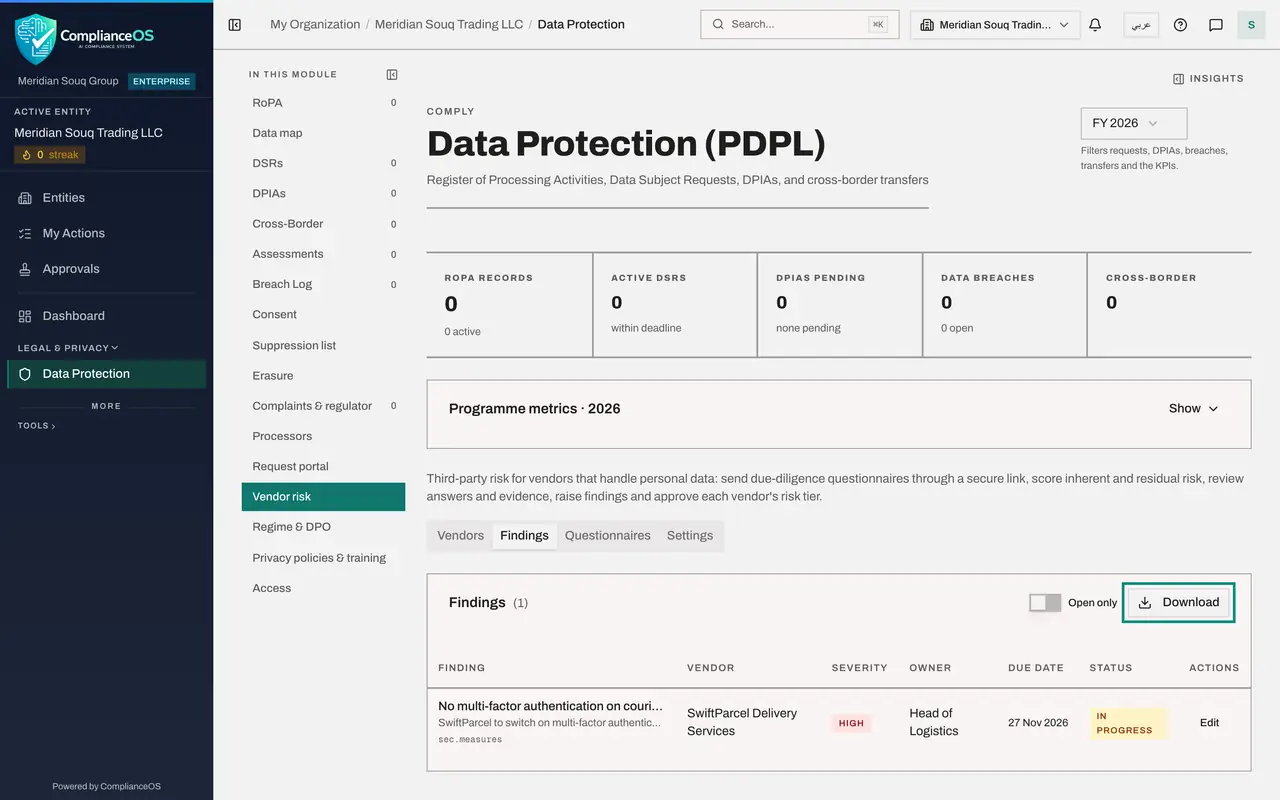
In Vendor risk, select Findings. The list collects the findings of every vendor, with the vendor, severity, owner, due date and status. A finding past its due date is tagged Overdue.
- Select Findings
- 2
Select Edit on the finding
Select Edit. The window shows everything entered when the finding was raised, and adds two fields: Status and Resolution note.
- Select Edit
- 3
See what closing a finding needs
Open Status and choose Resolved. A red line asks you to explain how the finding was closed, and Save is unavailable until Resolution note is filled in. Risk accepted works the same way, for a gap you decide to live with.
- Select Open
- Choose Resolved
- 4
Set the status to In progress and save
The vendor has only started the work, so choose In progress instead and select Save. The finding stays open and keeps counting in Open findings.
- Select Resolved
- Choose In progress
- Select Save
- 5
Switch Open only off and download the list
Open only hides findings that are resolved or accepted. Switch it off to see them all. Then select Download and choose CSV for a spreadsheet of the findings, for a supplier meeting or an audit.
- Select Open only
- Select Download
- Select CSV (Excel, all rows)
- 6
Open Settings and read the tier thresholds
Select the Settings tab. Tier thresholds decide where each tier starts. With the defaults, a residual risk of 25 or more is Medium, 50 or more is High, and 75 or more is Critical. Anything lower is Low. The tag Default means the value has not been changed for this entity.
- Select Settings
- 7
Read the review cadence
Review cadence by tier is the number of months until a vendor must be assessed again. By default a Low vendor is reviewed every 24 months, Medium every 12, High every 6 and Critical every 3.
- 8
Read the inherent-risk weights and the control effect
Inherent-risk weights are the most points each factor can add, such as 20 for data volume. Control effect is how far perfect answers can reduce the inherent risk. At 0.8, a vendor with a perfect control score keeps one fifth of its inherent risk.
- 9
Change a reminder setting and save
Reminders and links sets when reminders start before the due date, how often they repeat, how early you are told that a re-assessment is coming, and how long a link stays valid after the due date. Change Remind every to 2 days and select Save. The whole form is saved, so every block is now tagged Custom.
- Type Remind every (days) Default:
2 - Select Save
- Type Remind every (days) Default:
- 10
Select Reset to defaults
To go back to the standard values, select Reset to defaults. Every setting returns to its default and the tags read Default again. Only people who can approve vendor risk can change these settings.
- Select Reset to defaults
How to check it worked
The finding shows the status In progress in the Findings tab, and the Settings tab shows every block tagged Default again after you selected Reset to defaults.
Common mistakes
- Closing a finding without saying how. Resolved and Risk accepted both need a resolution note, and Save stays unavailable until you write one.
- Changing tier thresholds to make a vendor look better. Thresholds apply to every vendor of the entity, and approved tiers were set under the old values.
- Leaving the Open only switch on and thinking closed findings are lost. Switch it off to see resolved and accepted findings as well.
Check your understanding
1. You try to set a finding to Resolved and Save is greyed out. Why?
- A.You lack permission
- B.The resolution note is empty
- C.The vendor must do it
- D.The due date has passed
Show answer
Answer: B. The resolution note is empty
Closing a finding as Resolved or Risk accepted needs a note that explains how it was closed.
2. Where do you change how often a High tier vendor is reassessed?
- A.On the vendor's profile
- B.In the questionnaire
- C.Under Settings, in Review cadence by tier
- D.In the Findings tab
Show answer
Answer: C. Under Settings, in Review cadence by tier
Review cadence by tier holds the months between assessments for each tier, for every vendor of the entity.