Lesson 10 of 31
Work with the vendor register: overrides, search, filters, download and archive
What you will be able to do
This lesson is for the Data Protection Officer. You will add a second vendor whose risk factors you set by hand, then search and filter the register, download it, and archive and restore a vendor.
Before you start
- The register already holds one assessed vendor, as in lessons three to nine.
- You are signed in with the Data Protection Officer role for the entity.
Steps
- 1
Add a second vendor
Select Add vendor. Type the name of the supplier and its country code. This one is a customer support company based in India, so the code is IN.
- Select Add vendor
- Type Vendor name:
BrightDesk Customer Support - Type Country (ISO code):
IN
- 2
Set criticality and data volume
Choose Medium for Business criticality and High for Data volume. This supplier answers customer calls and can look up every customer account.
- Select Not set
- Choose Medium
- Select Not set
- Choose High (100,000–1 million)
- 3
Override two risk factors by hand
This vendor has no processor or transfer records yet, so set two factors yourself. Under Sensitive or special-category data choose Yes, and under Cross-border processing choose Yes. A value set here overrides the linked records.
- Select Work out from records
- Choose Yes
- Select Work out from records
- Choose Yes
- 4
Add the contact and save
Enter the contact's name and e-mail address and select Save. The register now lists two vendors. The new one is Not rated.
- Type Contact name:
Arjun Mehta - Type Contact email:
arjun.mehta@brightdesk.example.com - Select Save
- Type Contact name:
- 5
Search the register
Type part of a vendor's name in Search vendors. The list narrows as you type. Clear the box to see every vendor again.
- Type Search vendors:
Bright
- Type Search vendors:
- 6
Filter by risk tier
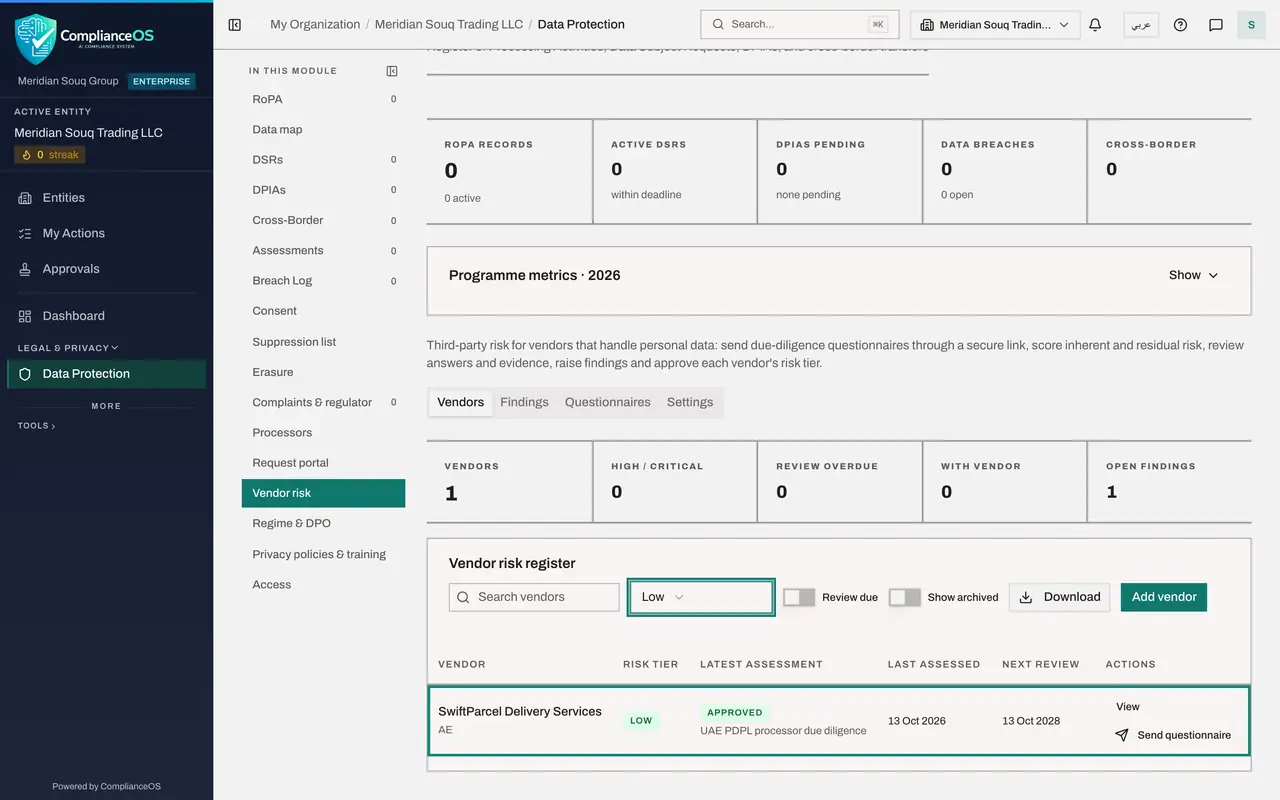
Clear the search. Open the tier list, which reads All tiers, and choose Low. Only vendors approved at that tier are listed. The list also offers Medium, High, Critical and Not rated.
- Select Filter by tier
- Choose Low
- 7
Show only vendors due for review
Set the tier list back to All tiers, then switch on Review due. The register shows only vendors whose next review date has arrived. None is due yet, so the list says No vendors match these filters.
- Select Filter by tier
- Choose All tiers
- Select Review due
- 8
Download the register
Switch Review due off again. Select Download and choose CSV to get the whole register as a spreadsheet file. JSON gives the same content for another system. The download follows the tier filter.
- Select Review due
- Select Download
- Select CSV (Excel, all rows)
- 9
Open the second vendor's profile
Select the new vendor's name. Its inherent risk is higher than the courier's. The Source column shows Set on the vendor for the two factors you set by hand.
- 10
Archive the vendor
Select Archive at the top right. The vendor is marked Archived, and Send questionnaire disappears. Its history is kept.
- Select Archive
- 11
Find it with Show archived
Select Back to vendor risk. The archived vendor has gone from the register. Switch on Show archived and it is listed again, greyed out.
- Select Back to vendor risk
- Select Show archived
- 12
Restore the vendor
Select the vendor's name and select Restore. The vendor is active again and can be sent a questionnaire.
- Select Restore
How to check it worked
The register lists two vendors, the second one Not rated. You have downloaded the register as a file, and the vendor you archived and restored is back in the list at full strength.
Common mistakes
- Archiving a vendor you still use because its review is overdue. Archive is for suppliers you have stopped using. For an overdue review, send a new questionnaire.
- Forgetting a filter is on. If the register looks short, check the tier filter and the Review due switch before assuming a vendor is missing.
- Overriding a risk factor and forgetting it. A value set on the vendor wins over the linked records for as long as it stays, so note why you set it.
Check your understanding
1. You stop using a supplier. What do you do with its record?
- A.Delete it
- B.Archive it from the vendor's profile
- C.Set its tier to Low
- D.Nothing
Show answer
Answer: B. Archive it from the vendor's profile
Archive takes the vendor out of the active register but keeps its assessments and findings. Show archived brings it back into view, and Restore reactivates it.
2. What does the Review due switch show?
- A.Vendors with open findings
- B.Only vendors whose next review date has arrived or passed
- C.Vendors added this month
- D.Archived vendors
Show answer
Answer: B. Only vendors whose next review date has arrived or passed
Review due narrows the register to vendors that need a new assessment now.