Lesson 20 of 31
Change a published policy, compare versions, retire a policy and filter the library
What you will be able to do
This lesson is for the Data Protection Officer who looks after the policy library. You will start a new version of a published policy, compare two versions line by line, write a short policy from a blank page, retire a policy that is no longer needed, and use the library filter to find policies by state.
Before you start
- One policy is published, as in lesson nineteen.
- A second person is available to approve new versions. In this lesson that approval happens between two steps, exactly as in lesson nineteen.
Steps
- 1
Open the published policy
In Privacy policies and training, select Policy library and select the name of the published policy. Above the published text is a box titled Start a new version.
- Select Meridian Souq acceptable use of personal data
- 2
Choose the kind of change and select Start draft
The list offers Minor change, no re-attestation, and Major change, everyone attests again. Leave it on Minor change, because you are only adding a clarification, and select Start draft. A draft of version 1.1 opens with the published text.
- Select Minor change — no re-attestation
- Choose Minor change — no re-attestation
- Select Start draft
- 3
Make the change and describe it
Add the new sentence to the English text, and set the effective date. Under What changed, say what is different. That note appears in the version history. Keep the Arabic text in step in the same way.
- Type Text (English):
## Rules for everyone at Meridian Souq Trading LLC - Use personal data… - Type Text (Arabic):
## قواعد لجميع العاملين في Meridian Souq Trading LLC - استخدم البيانات… - Type Effective date:
2026-11-03 - Type What changed:
Added a rule for cases of doubt.
- Type Text (English):
- 4
Select Submit for approval
Select Submit for approval. Version 1.0 stays published and in force while version 1.1 waits. A second person now approves it, as in the previous lesson.
- Select Submit for approval
- 5
See the new published version
Once your colleague has approved it, reload the page. The policy shows Published version 1.1. Because the change was minor, people who acknowledged version 1.0 are not asked again.
- 6
Compare the two versions
Scroll to Version history. Select From on version 1.0 and To on version 1.1. The comparison shows how many lines were added and removed, with each added line listed.
- Select From
- Select To
- 7
Start a policy from a blank page
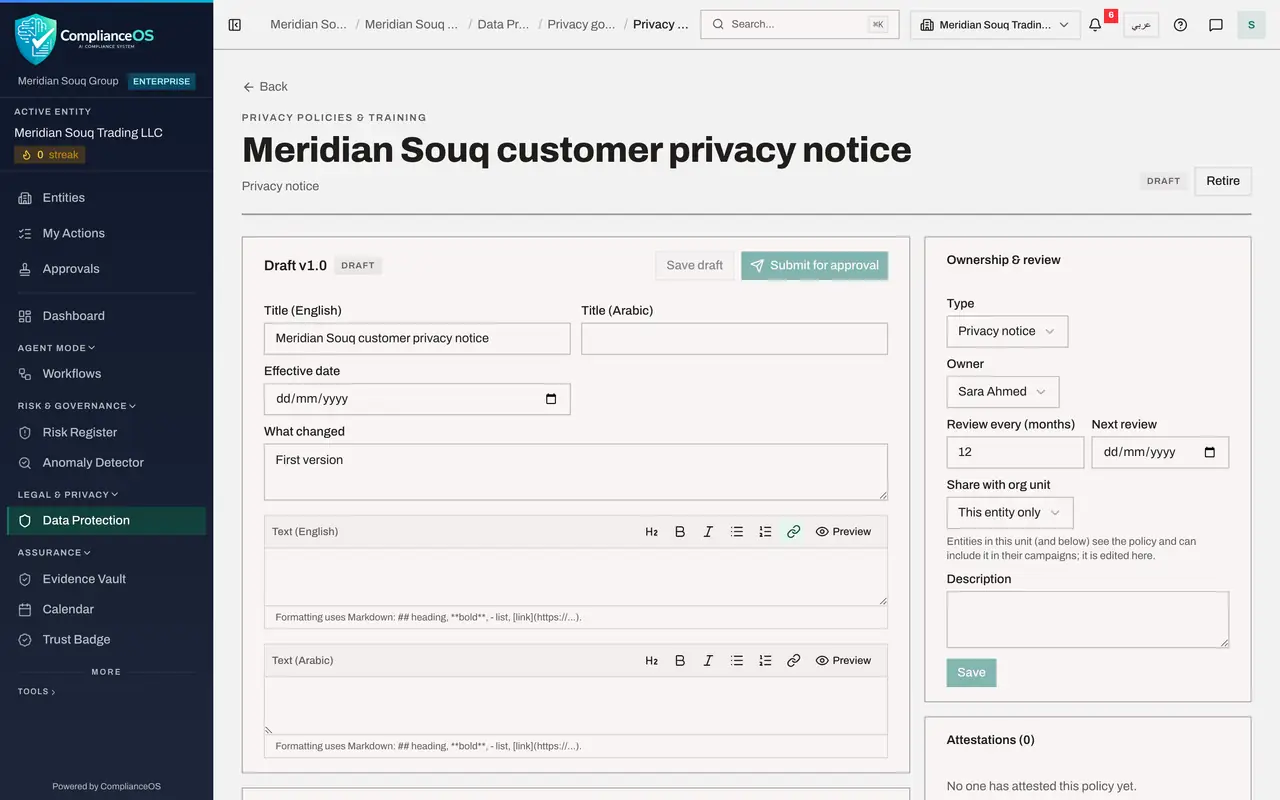
Select Back, then New policy. In Start from, choose Blank policy. Type the title and choose the type Privacy notice. A blank policy has no template text, so it needs no separate legal review record. Select Create draft.
- Select Back
- Select New policy
- Select Privacy notice
- Choose Blank policy
- Type Title (English):
Meridian Souq customer privacy notice - Select Other
- Choose Privacy notice
- Select Create draft
- 8
Write the notice and submit it
Type the Arabic title, then the notice in English and in Arabic, set the effective date, and select Submit for approval. Your colleague approves it in the same way as before. This notice is used in the next lesson.
- Type Title (Arabic):
إشعار الخصوصية لعملاء ميريديان سوق - Type Text (English):
## What we collect Your name, delivery address, phone number and order… - Type Text (Arabic):
## ما الذي نجمعه اسمك وعنوان التوصيل ورقم هاتفك وسجل طلباتك. ## لماذا… - Type Effective date:
2026-10-21 - Select Submit for approval
- Type Title (Arabic):
- 9
Create a policy that is no longer needed
To see how retiring works, create one more blank policy. Select Back, then New policy, choose Blank policy, type the title Visitor Wi-Fi sign-in notice, and select Create draft.
- Select Back
- Select New policy
- Select Privacy notice
- Choose Blank policy
- Type Title (English):
Visitor Wi-Fi sign-in notice - Select Create draft
- 10
Select Retire
Select Retire at the top right. A window asks Retire this policy? and warns that acknowledgements still to do for it are cancelled. Select Confirm. The policy is marked Retired and can no longer be edited.
- Select Retire
- Select Confirm
- 11
See that the library hides retired policies
Select Back. The library opens on the filter Current, not retired, so the retired policy is not listed. The two published policies are.
- Select Back
- 12
Filter by Retired
Open the filter and choose Retired. Only the retired policy is listed. The filter also offers Drafts, Published and All policies.
- Select Filter policies
- Choose Retired
- 13
Show all policies
Choose All policies to see everything together. Each row shows the type, the status, the version, the owner and the next review date. Set the filter back to Current when you have finished.
- Select Filter policies
- Choose All policies
How to check it worked
The acceptable use policy shows Published version 1.1 with two versions in its history. The library shows two published policies under Current, and the retired one only under Retired or All policies.
Common mistakes
- Choosing Major change for a spelling correction. A major change asks everyone to acknowledge the policy again. Use Minor change when the meaning is the same.
- Retiring a policy that is still in a live campaign. Retiring cancels the acknowledgements that are still to do for it.
- Thinking a retired policy has been deleted. It is only hidden by the default filter. Choose Retired or All policies to see it.
Check your understanding
1. You fix a typing mistake in a published policy. Which kind of change do you choose?
- A.Major change
- B.Minor change
- C.Retire and recreate
- D.No new version is needed
Show answer
Answer: B. Minor change
A minor change publishes the correction without asking people who already acknowledged the policy to do so again.
2. Where has a retired policy gone?
- A.It is deleted
- B.It is hidden by the Current filter and shown under Retired or All policies
- C.It moves to the vendor register
- D.It becomes a draft
Show answer
Answer: B. It is hidden by the Current filter and shown under Retired or All policies
The library opens on Current, not retired. The filter list also offers Drafts, Published, Retired and All policies.