Lesson 22 of 31
Ask staff to read and acknowledge a policy
What you will be able to do
This lesson is for the Data Protection Officer. You will create an attestation campaign, which asks a group of people to read a published policy and confirm that they have understood it. You will choose the audience by org unit, set the due date, the reminders and the escalation, and launch the campaign.
Before you start
- The policy is published, as in lesson nineteen.
- Your administrator has set up the org units and roles you want to address. Course three covers that.
Steps
- 1
Open Attestation campaigns
In Privacy policies and training, select Attestation campaigns. To attest means to confirm that you have read and understood a policy. A campaign sends that request to a group of people and tracks who has done it.
- Select Attestation campaigns
- 2
Select New campaign and name it
Select New campaign. Under Name, type a name staff will recognise in their task list. Under Description, add a line for your own records.
- Select New campaign
- Type Name:
Acceptable use policy 2026 - Type Description:
All staff read and acknowledge the acceptable use policy.
- 3
Tick the policy to acknowledge
Under Policies to attest, tick the policy. Its published version is shown beside it. A policy marked not published cannot be acknowledged yet. You can tick several policies. Each becomes a separate task for every person.
- 4
Clear Everyone in the organisation
Under Audience, Everyone in the organisation is ticked to begin with. Clear it to choose who receives the campaign. Three boxes appear: Org units, Roles and People.
- Select Everyone in the organisation
- 5
Choose the audience by org unit
In Org units, tick the unit whose people should acknowledge the policy. Include sub-units, underneath, adds the units below it. The line under the boxes shows how many people match, with some of their names.
- Select Head office
- 6
Know the other two ways to choose people
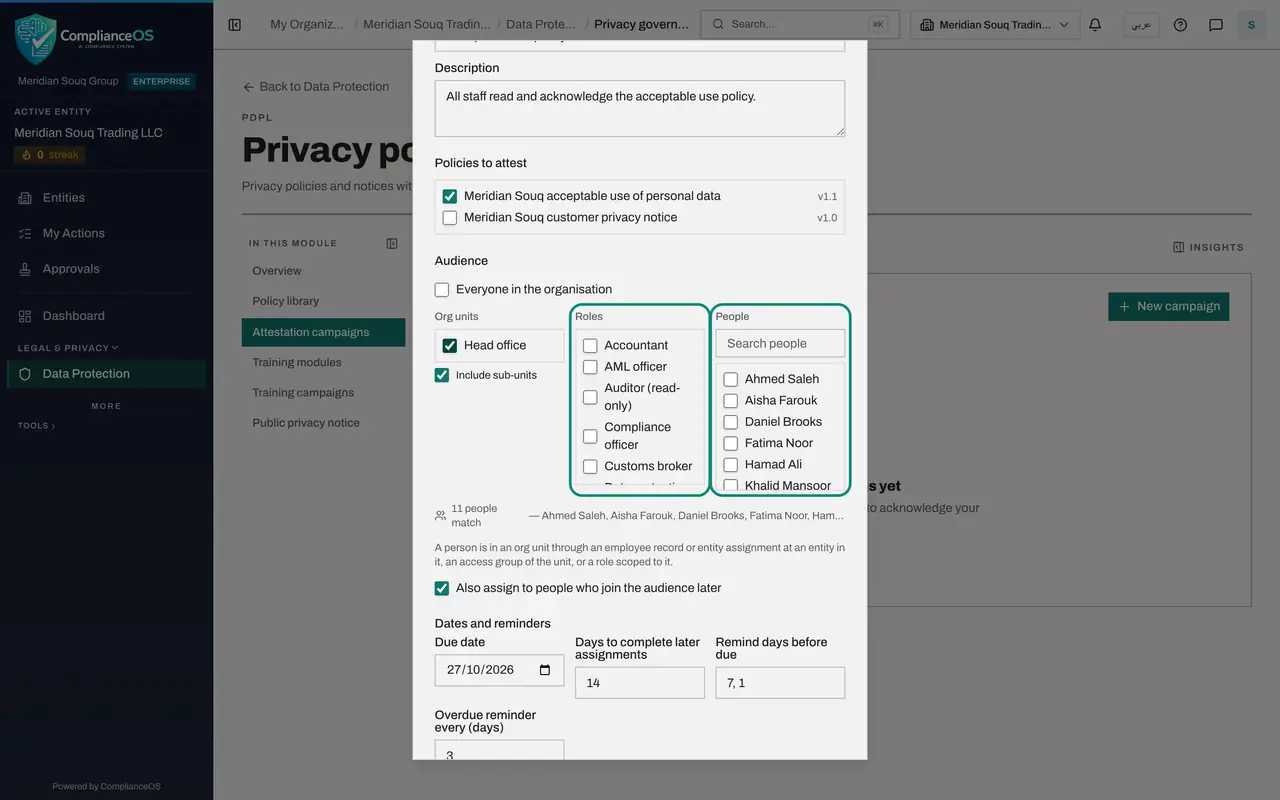
Roles adds everyone who holds a role, such as Employee or Tax manager. People adds named individuals: type in Search people to find them. A person who matches more than one box is still asked only once.
- 7
Decide about people who join later
The paragraph explains how a person counts as being in an org unit. Also assign to people who join the audience later is ticked. Leave it ticked so that new joiners are asked too.
- 8
Set the due date and the reminders
Under Dates and reminders, set the Due date, here three weeks from today. Days to complete later assignments is how long a later joiner gets. Remind days before due lists the days on which reminders go out, and Overdue reminder every sets how often a late person is reminded.
- Type Due date:
2026-11-03
- Type Due date:
- 9
Check who is told when someone is late
Under Escalation, Escalate after is the number of days overdue before someone else is told. The person's line manager is told first. If the item is still overdue after the same delay again, the entity's data protection officer, the org unit administrators and the campaign owner are told, as ticked.
- 10
Select Save draft
Select Save draft. The campaign opens as a Draft. Nothing has been sent yet. The Set-up box shows what you chose, Edit settings reopens the form, and Delete removes the draft.
- Select Save draft
- 11
Select Launch
Select Launch. Each person in the audience is notified inside ComplianceOS and finds the policy in My privacy tasks. The campaign becomes Active and lists everyone with the status To do.
- Select Launch
- 12
Read the tiles
The tiles at the top show the completion percentage, how many tasks are assigned, how many are completed, how many are overdue, and the due date. Re-sync audience assigns the campaign to people who have newly joined the audience, and Close ends the campaign and cancels what is still to do.
How to check it worked
The campaign shows Active, the Assigned tile shows the number of people in the audience, and each person is listed with the status To do.
Common mistakes
- Ticking a policy marked not published. Only a published version can be acknowledged, so publish first.
- Leaving Everyone in the organisation ticked for a policy meant for one team. Clear it and choose org units, roles or named people.
- Trying to change the policies after launch. The items of a live campaign are fixed. Start a new campaign instead.
Check your understanding
1. What does the line under the audience boxes tell you before you save?
- A.The cost of the campaign
- B.How many people match the audience, with some of their names
- C.Who has already acknowledged
- D.The due date
Show answer
Answer: B. How many people match the audience, with some of their names
The count updates as you tick org units, roles and people, so you can check the audience before anything is sent.
2. Someone joins the org unit a month after launch. Are they asked to acknowledge the policy?
- A.Never
- B.Yes, if Also assign to people who join the audience later is ticked
- C.Only if you create a new campaign
- D.Only administrators are
Show answer
Answer: B. Yes, if Also assign to people who join the audience later is ticked
With that box ticked, new members of the audience are assigned automatically and get the number of days you set to complete it.