Lesson 15 of 31
Draft the notice to the people affected, in English and Arabic
What you will be able to do
This lesson is for the Data Protection Officer who prepares the notices. You will draft the plain-language notice to the people affected by the breach, translate the Arabic text, see how ComplianceOS checks the Arabic for passages left in English, add the recipients, and submit the notice for approval.
Before you start
- You have opened the breach's notifications page, as in lesson fourteen.
- You have the Arabic wording for the facts of the incident, or a colleague who can translate them.
Steps
- 1
Look at the subject notice template
At the top right of Notifications, select Subject notice template. This is the wording used whenever a notice to data subjects is drafted. Leave a field blank to use the built-in text. The words in curly brackets are placeholders that are filled in from the breach. Select Cancel to leave it unchanged.
- Select Subject notice template
- Select Cancel
- 2
Select Draft from the breach record
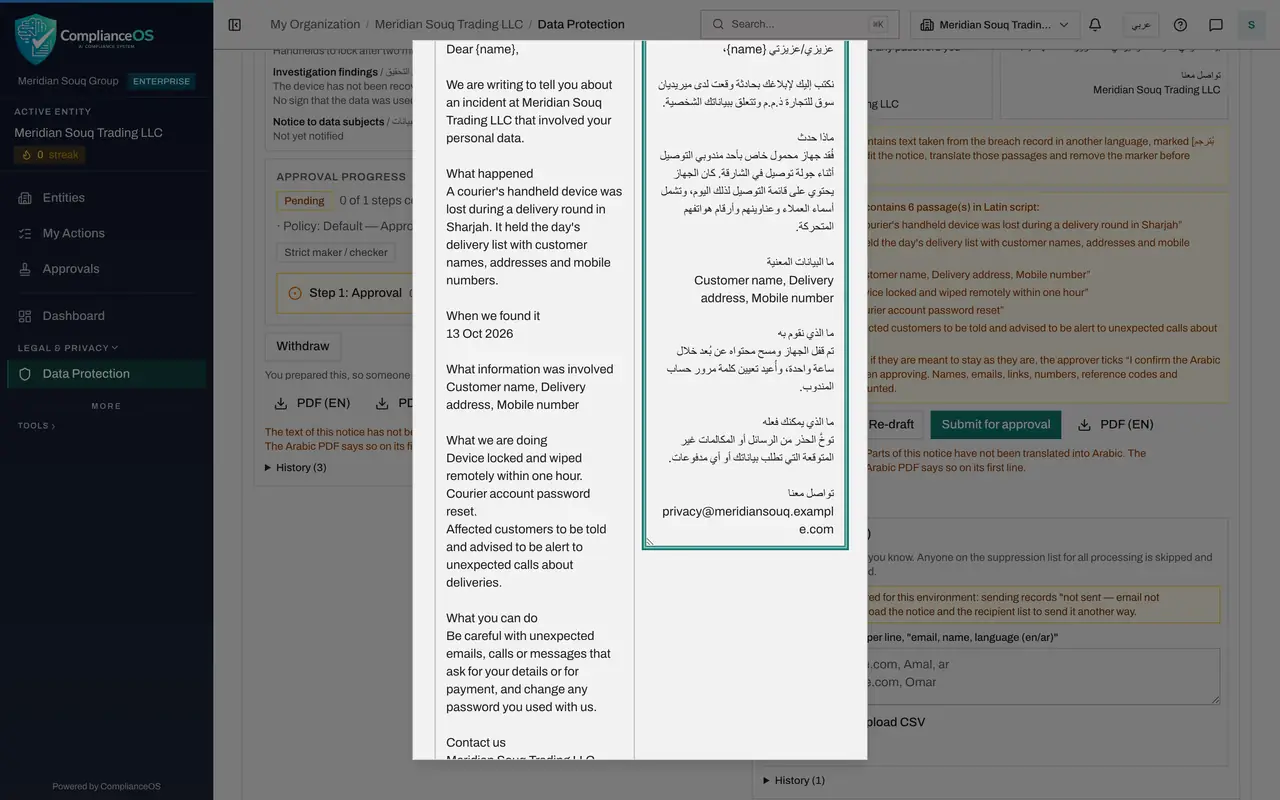
Under Notice to affected data subjects, select Draft from the breach record. The notice appears in English and, underneath, in Arabic. It says what happened, when it was found, what information was involved, what you are doing, what the reader can do and how to contact you.
- Select Draft from the breach record
- 3
Read the Arabic check
The facts of the incident were copied from the breach record in English, so the Arabic half still contains them, each under a marker in square brackets. The amber note explains the marker. Below it, the check lists every passage of the Arabic text that is still in Latin script: six of them.
- 4
Select Edit
Select Edit under the text. The window has four boxes: the subject and the message, each in English and in Arabic. The word name in curly brackets is replaced with each recipient's name when the notice is e-mailed.
- Select Edit
- 5
Add a contact address to the English message
In Message, English, go to the end, where the text gives your company name under Contact us, and add the address that customers should write to.
- Type Message (English) *:
Dear {name}, We are writing to tell you about an incident at Meridian…
- Type Message (English) *:
- 6
Replace the Arabic message with the translation
In Message, Arabic, replace the text with the full translation, without the markers. Here one line is left in English on purpose: the three data categories, because that is how they are labelled on the customer's account page.
- Type Message (Arabic) *:
عزيزي/عزيزتي {name}، نكتب إليك لإبلاغك بحادثة وقعت لدى ميريديان سوق لل…
- Type Message (Arabic) *:
- 7
Select Save and read the check again
Select Save. The preview shows the translated notice. The amber note about the marker has gone, and the check now lists one passage in Latin script: the line you kept in English. The approver will have to confirm that this is intended.
- Select Save
- 8
Add the recipients
Under Recipients, list the people whose e-mail address you know: one per line, as e-mail, name and language, where the language is en or ar. Then select Add. For a long list, select Upload CSV and choose a file in the same layout.
- Type Add recipients: one per line, "email, name, language (en/ar)":
huda.salim@example.com, Huda Salim, ar omar.nasser@example.com, Omar N… - Select Add
- Type Add recipients: one per line, "email, name, language (en/ar)":
- 9
Check the recipient list
Each recipient is listed with a delivery state, now Not sent yet. Anyone on your suppression list is skipped and shown as Suppressed. The bin removes a recipient, and Recipient list, CSV, downloads the list.
- 10
Download the recipient list
Select Recipient list, CSV. You get a file of the recipients with their delivery states. Use it when you send the notice by letter or text message instead of e-mail.
- Select Recipient list (CSV)
- 11
Download the notice in both languages
Select PDF, EN, and then PDF, AR, to read the notice as the customer will. The note beside the buttons says that parts of the notice have not been translated into Arabic, and the Arabic PDF says so on its first line.
- Select PDF (EN)
- Select PDF (AR)
- 12
Select Submit for approval
Select Submit for approval. The notice changes to Awaiting approval. Both notices are now with the approver, which is the next lesson.
- Select Submit for approval
How to check it worked
Notice to affected data subjects shows Awaiting approval. The check under the text lists exactly one passage left in Latin script, and Recipients lists two people as Not sent yet.
Common mistakes
- Submitting the Arabic notice with the marker still in it. The marker in square brackets flags text copied from the breach record that still needs translating. Translate the passage and remove the marker.
- Assuming the check blocks every English word. Names, e-mail addresses, links, numbers, reference codes and acronyms are not counted. Whole phrases in Latin script are.
- Removing the name placeholder. The word name in curly brackets is replaced with each recipient's name when the notice is e-mailed.
Check your understanding
1. The Arabic text still has one English phrase that must stay. What happens at approval?
- A.Nothing special
- B.The approver must tick a confirmation that the Arabic text is complete, and the tick is logged
- C.The notice cannot be approved at all
- D.The phrase is deleted automatically
Show answer
Answer: B. The approver must tick a confirmation that the Arabic text is complete, and the tick is logged
Passages in Latin script are listed, and the approver confirms that the Arabic text is complete. The confirmation is recorded in the notice's history.
2. How do you list the people who should receive the notice?
- A.They are found automatically
- B.Paste one per line as e-mail, name and language, or upload a CSV file
- C.Only by typing each into a form
- D.They cannot be listed
Show answer
Answer: B. Paste one per line as e-mail, name and language, or upload a CSV file
Recipients are pasted one per line, or uploaded as a CSV file. Anyone on the suppression list is skipped.