Lesson 28 of 31
How this connects: put the vendor's agreement into Contracts
What you will be able to do
This lesson is for legal counsel, and for the privacy team who work with them. The data processing agreement that the courier attached to its questionnaire also belongs in the Contracts module. You will open Contracts and upload the signed agreement, so that it can be read, scored and, in the last lesson of this course, linked to the vendor you assessed.
Before you start
- The vendor is in the vendor risk register, as in lesson three.
- You have the signed agreement as a PDF or Word file, and the Contracts module is open to you.
Steps
- 1
Open Contracts
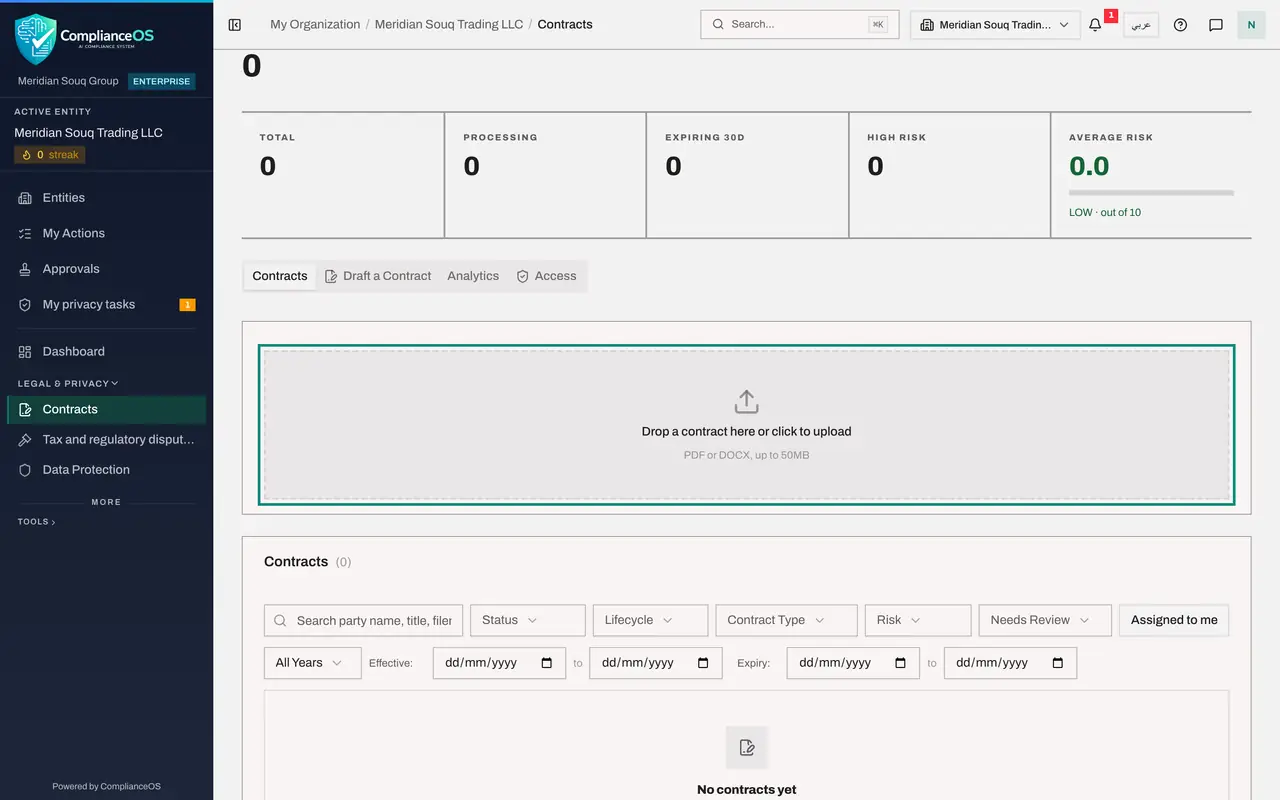
In the left menu, under Legal and Privacy, select Contracts. This module reads a contract, extracts its key terms and scores its risk. The tiles count the active contracts and those that need attention.
- Select Contracts
- 2
Look at the upload area
Scroll to the upload area. It accepts a PDF or Word file of up to 50 megabytes. You can drop a file on it, or select it to choose a file. Below it, the Contracts list has a search box and filters for status, lifecycle, type and risk.
- 3
Upload the signed agreement
Select Upload contract and choose the data processing agreement signed with the courier. This is the same document the vendor attached to its questionnaire. The page shows that the contract is being processed.
- Upload file:
swiftparcel-data-processing-agreement.pdf
- Upload file:
- 4
Wait for the contract to be read
The contract joins the list with its file name. It is read in the background, which takes one to three minutes: the key terms are extracted, the clauses are checked and a risk score is worked out. You can leave the page meanwhile. The last lesson of this course returns to this contract.
How to check it worked
The Contracts list shows the agreement's file name. Its status moves from Processing to Complete within a few minutes.
Common mistakes
- Uploading the same file twice. ComplianceOS recognises a file that is already there and says so, without uploading it again.
- Opening Edit details straight away. A contract cannot be edited while it is still being read. Wait until its status is Complete.
- Treating the risk score of the contract as the vendor's risk tier. The contract score rates the clauses of this document. The vendor's tier comes from its questionnaire.
Check your understanding
1. What happens after you upload a contract?
- A.Nothing until someone types its details
- B.It is read automatically: key terms are extracted and a risk score is worked out
- C.It is sent to the vendor
- D.It is published
Show answer
Answer: B. It is read automatically: key terms are extracted and a risk score is worked out
The contract is processed in the background. When the status is Complete, its key details, summary and risk score are ready.
2. Can legal counsel delete a contract from the list?
- A.Yes, always
- B.No. The legal counsel role uploads and edits, and deleting is left to an administrator
- C.Only on Fridays
- D.Only before processing
Show answer
Answer: B. No. The legal counsel role uploads and edits, and deleting is left to an administrator
The list shows no delete button for legal counsel. Deleting a contract needs a role that holds that permission.