Lesson 5 of 31
What the vendor sees: answering the questionnaire
What you will be able to do
This lesson shows the questionnaire from the vendor's side, so that you can guide a supplier through it. The vendor's contact opens the secure link without signing in, answers each section, uploads a contract and a photographed certificate as evidence, and submits the answers.
Before you start
- A questionnaire has been sent to the vendor and its link is live, as in lesson four.
- The vendor's contact has the secure link, and has the signed agreement and the security certificate to hand.
Steps
- 1
Open the secure link
The vendor's contact opens the link you sent. No sign-in is needed. The page shows who is asking, the questionnaire's name, which vendor it is for, the due date, the articles of law it refers to, and the message you wrote.
- 2
Switch the language if needed
The button at the top right changes the whole questionnaire to Arabic, and back to English. Each question was written in both languages.
- Select Change language
- Select تغيير اللغة
- 3
Enter your name and e-mail address
The contact types their name under Your name. It is recorded against the answers they give and is required before submitting. The e-mail address is optional.
- Type Your name:
Nadia Haddad - Type Your email (optional):
nadia.haddad@swiftparcel.example.com
- Type Your name:
- 4
Answer the first two questions about the organisation
Questions marked with a red star are required. The first section asks for the legal name of the organisation and the country where it is incorporated.
- Type Legal name of your organisation*:
SwiftParcel Delivery Services LLC - Type Country where your organisation is incorporated*:
United Arab Emirates
- Type Legal name of your organisation*:
- 5
Answer a question that opens a follow-up
Some answers open a follow-up question. Selecting Yes to having appointed a data protection officer asks for that person's name and contact details.
- Select Yes
- Type Name and contact details of that person*:
Tariq Mahmoud, Compliance Lead, privacy@swiftparcel.example.com
- 6
Confirm the instructions and upload the signed agreement
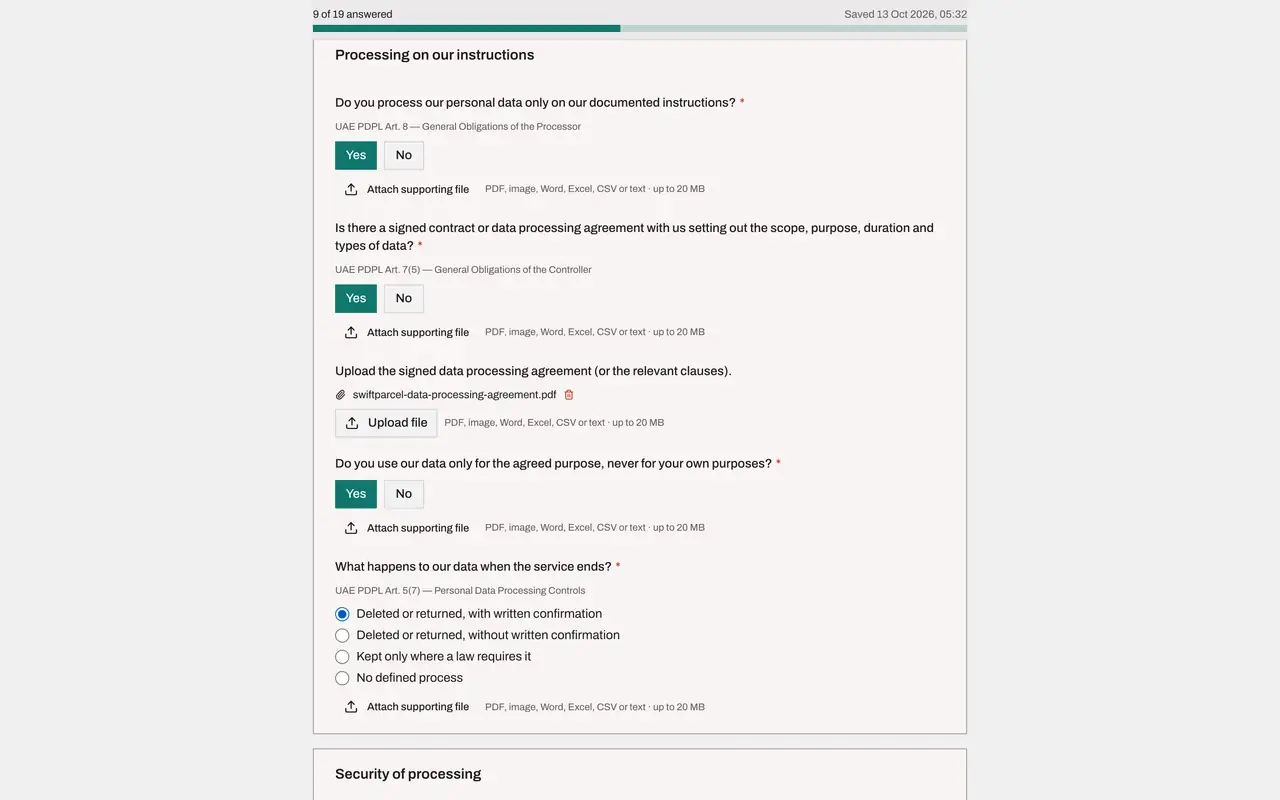
The vendor confirms that it processes your data only on your instructions and that a signed agreement exists. That second Yes opens an upload. Select Upload file and choose the signed data processing agreement, a PDF. Its name appears under the question.
- Select Yes
- Select Yes
- Select Upload file
- Upload file:
swiftparcel-data-processing-agreement.pdf
- 7
Answer how the data is used and what happens at the end
The vendor confirms that it uses your data only for the agreed purpose, and chooses what happens to the data when the service ends. The best answer is Deleted or returned, with written confirmation.
- Select Yes
- Select Deleted or returned, with written confirmation
- 8
Tick the security measures in place
Under Security of processing, the vendor ticks every measure it really has. Each tick adds to the score, so an honest partial answer is better than ticking everything. Here five of the six are ticked.
- Select Encryption at rest
- Select Encryption in transit (TLS 1.2 or later)
- Select Role-based, least-privilege access
- Select Access logging and monitoring
- Select Tested backups and recovery
- 9
Choose the certificate and upload a photograph of it
The vendor chooses ISO/IEC 27001 certificate. Two follow-ups open. Select Upload file and choose the certificate. An image is accepted as well as a PDF, so a photograph or a scan will do. Then enter the date the certificate expires.
- Select ISO/IEC 27001 certificate
- Select Upload file
- Upload file:
swiftparcel-iso27001-certificate.png - Type When does the certificate expire (or when does the report period end)?:
2027-06-30
- 10
Answer the confidentiality and breach questions
The vendor confirms that staff are bound by confidentiality, and that it will tell you without delay about a breach. That opens a follow-up asking within how many hours. This vendor answers 72, and that it has had no reportable breach in the last 24 months.
- Select Yes
- Select Yes
- Type Within how many hours of becoming aware will you notify us?*:
72 - Select No
- 11
Answer the sub-processor and transfer questions
The vendor answers No to using sub-processors and No to storing or reaching your data from outside the United Arab Emirates. A Yes to either would open more questions.
- Select No
- Select No
- 12
Answer the last section on rights and accountability
The vendor confirms that it will help you answer requests from the people the data is about, give you the information needed to show compliance, and keep a record of the processing it does for you.
- Select Yes
- Select Yes
- Select Yes
- 13
Check the progress bar and the saved time
The bar that stays at the top counts the answered questions and shows when the answers were last saved. Answers save automatically. Save progress at the bottom saves at once, and is greyed out when everything is already saved. Any question can also carry an extra document through Attach supporting file.
- 14
Tick the confirmation and select Submit answers
The vendor ticks the confirmation that the answers are accurate and selects Submit answers. Until every required question is answered, the page says how many are missing and the button stays unavailable. After submitting, the page thanks the vendor and names who submitted and when. The answers are now locked.
- Select Submit answers
How to check it worked
The page shows Thank you, your answers have been submitted, with the name of the person who submitted and the date. The answers are locked and the questionnaire is back with you to review.
Common mistakes
- Submitting before a colleague has added their part. The link can be shared inside the vendor's organisation, and each person enters their own name. Submitting locks every answer.
- Answering Yes to a question without the evidence it opens. Some answers open a follow-up, such as a file upload or a date. A required follow-up left empty blocks Submit answers.
- Uploading a file in a format that is not accepted. The page accepts PDF, image, Word, Excel, CSV and text files of up to 20 megabytes.
Check your understanding
1. The vendor's contact closes the browser halfway through. What happens to the answers?
- A.They are lost
- B.They are saved automatically and are there when the link is opened again
- C.They are submitted as they are
- D.The link stops working
Show answer
Answer: B. They are saved automatically and are there when the link is opened again
Answers save automatically. The bar at the top shows when they were last saved, and Save progress saves at once.
2. Which of these can the vendor upload as evidence?
- A.Only PDF files
- B.PDF, image, Word, Excel, CSV or text files, up to 20 megabytes each
- C.Only files signed with a digital certificate
- D.Nothing: evidence must be e-mailed
Show answer
Answer: B. PDF, image, Word, Excel, CSV or text files, up to 20 megabytes each
The upload accepts PDF, image, Word, Excel, CSV and text files, so a photograph of a certificate is fine.