Lesson 21 of 31
Publish your privacy notice on a public page
What you will be able to do
This lesson is for the Data Protection Officer. You will choose which published policy is your public privacy notice, switch its public page on, copy the link for your website, and look at the page as a member of the public sees it, in English and Arabic.
Before you start
- A privacy notice has been published in the Policy library, as in lesson twenty.
- You hold the right to approve policies. Without it, this section can be read but not changed.
Steps
- 1
Open Public privacy notice
In Privacy policies and training, select Public privacy notice. One published notice can be shown on a public page, in English and Arabic. The link stays the same for this entity, so your website and your request portal can link to it.
- Select Public privacy notice
- 2
Choose the notice to show
Open Notice to show. It lists every published policy with its version. Choose the customer privacy notice.
- Select None
- Choose Meridian Souq customer privacy notice · v1.0
- 3
Switch the public page on and save
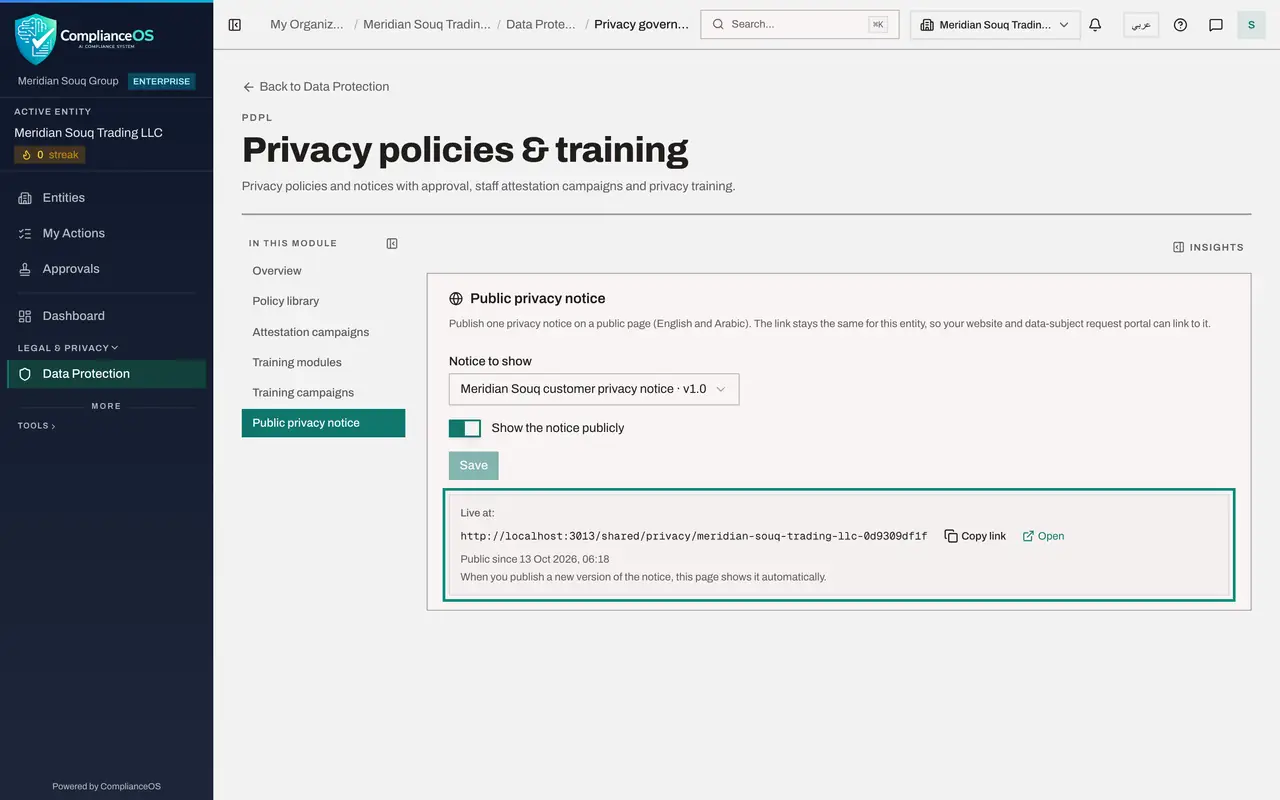
Switch on Show the notice publicly, then select Save. The box underneath changes to Live at, followed by the link, and shows since when the page has been public.
- Select Show the notice publicly
- Select Save
- 4
Copy the link
Select Copy link, and paste the link into your website's footer or your request portal. Open, beside it, shows the page in a new browser tab.
- Select Copy link
- 5
See the page as the public sees it
This is the page behind the link, opened without signing in. It shows your company name, the notice, its version and its effective date.
- 6
Switch the notice to Arabic
The language button at the top right changes the notice to Arabic, and back to English. If a notice has no Arabic text, the page says that it is only available in English.
- Select Switch language
How to check it worked
The Public privacy notice section shows Live at, with the link, and opening the link without signing in shows your notice with its version and effective date.
Common mistakes
- Choosing a policy meant for staff. The public page shows whichever published policy you pick, so choose the notice written for customers.
- Forgetting to switch the page on. Until Show the notice publicly is on and saved, the link shows not found.
- Changing the link on your website for every new version. The link stays the same for the entity, and the page always shows the latest published version.
Check your understanding
1. You publish version 2 of the privacy notice. What must you do to the public page?
- A.Create a new link
- B.Nothing: the page shows the new version automatically
- C.Switch it off and on
- D.Ask an administrator
Show answer
Answer: B. Nothing: the page shows the new version automatically
The link is stable for the entity, and the page shows the latest published version of the chosen notice.
2. Does a visitor need a ComplianceOS account to read the public notice?
- A.Yes
- B.No, the page is public
- C.Only for the Arabic version
- D.Only on mobile
Show answer
Answer: B. No, the page is public
The public page needs no sign-in, so your website and your data subject request portal can link to it.