Lesson 9 of 31
Approve a vendor's risk tier as the second person
What you will be able to do
This lesson is for the second Data Protection Officer, who approves. You will find the request in your Approvals inbox, open the assessment, check the score and the findings your colleague raised, approve the vendor's risk tier, and see when the vendor must be assessed again.
Before you start
- A colleague has reviewed the vendor's answers and selected Request approval, as in lesson eight.
- You are signed in as a person who can approve vendor risk and who did not prepare this review.
Steps
- 1
Open Approvals
In the left menu, select Approvals. The number beside it is how many requests are waiting for you. The To decide tab lists them. My requests lists the ones you asked for yourself.
- Select Approvals1
- 2
Read the request
The request shows what is being asked, the entity, who submitted it and when. For a vendor risk assessment it shows the residual risk tier, the vendor's criticality and the number of open findings. Strict maker and checker means the people who prepared the review cannot approve it.
- 3
Select Open record
Select Open record. The assessment opens. For you, the box at the top holds the Reject and Approve buttons.
- Select Open record
- 4
Check the score and the tier
Read the four tiles and the calculation underneath. Residual risk gives the tier that the vendor will carry if you approve. Controls by section shows where the vendor lost marks.
- 5
Read the findings your colleague raised
Scroll to Findings at the bottom. Check that each gap has an owner, a due date and a clear action for the vendor. As an approver you read the answers but do not change them.
- 6
Select Approve
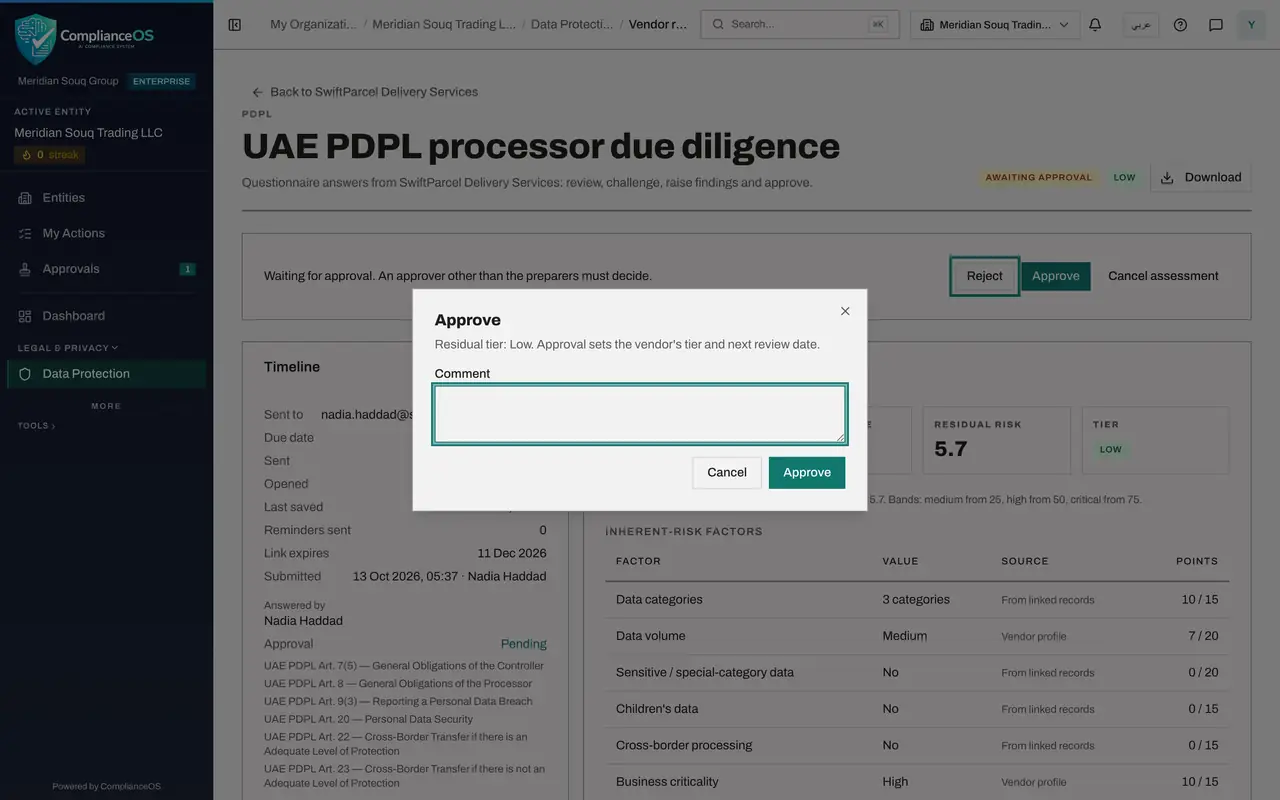
Go back to the top and select Approve. The window states the residual tier that approval will set. If the review is not good enough, close it and select Reject instead, which sends the assessment back to review with your reason.
- Select Approve
- 7
Add a comment and confirm
Under Comment, write a short note for the record. Then select Approve in the window.
- Type Comment:
Low residual risk. Agreed, with the multi-factor authentication findin… - Select Approve
- Type Comment:
- 8
See the next review date
The assessment now shows Approved, and your comment is kept as the Decision note. In the Timeline, Approved shows the time of your decision and Next review is the date by which the vendor must be assessed again.
- 9
Check the vendor's risk status
Select Back to SwiftParcel Delivery Services. Risk status now shows the tier Low, the date it was set, Last assessed and Next review. Open findings still shows one: the finding stays on the vendor until it is closed.
- 10
Check the register
Select Back to vendor risk. The vendor's row shows the tier Low, the latest assessment as Approved, the dates it was last assessed and is next due, and one open finding.
- Select Back to vendor risk
- 11
See where the review schedule comes from
Select the Settings tab. Review cadence by tier holds the number of months between assessments for each tier. The higher the tier, the sooner the vendor is assessed again. Further down, Re-assessment notice sets how many days before the next review date you are reminded.
- Select Settings
How to check it worked
The assessment shows Approved. The vendor's Risk status shows the tier, the date it was set, Last assessed and Next review, and the register shows the same tier and review date.
Common mistakes
- Approving without reading the findings. Approval sets the vendor's tier for the whole review period, so check that each gap has an owner, a due date and a clear action.
- Thinking that approval closes the findings. Open findings stay on the vendor until someone records how each was resolved.
- Looking for the request under Data Protection first. The quickest route is Approvals in the left menu, which lists everything waiting for your decision across modules.
Check your understanding
1. What does approving the assessment set?
- A.Only the status
- B.The vendor's risk tier and its next review date
- C.The vendor's contract value
- D.Nothing until the findings are closed
Show answer
Answer: B. The vendor's risk tier and its next review date
Approval sets the vendor's tier and works out the next review date from the review cadence for that tier.
2. A low-tier vendor was approved today. When is it assessed again?
- A.Never
- B.After the number of months set for Low under Review cadence by tier
- C.Next week
- D.Only after a breach
Show answer
Answer: B. After the number of months set for Low under Review cadence by tier
Settings holds a review cadence in months for each tier. The higher the tier, the sooner the next review.