Lesson 24 of 30
White-label branding
What you will be able to do
This lesson is for administrators. White-label means showing your own organisation's name, logo and colours in place of the standard ones. You will go through every section of the branding page, set the organisation name, a tagline and a support email address, save, and see where the change shows.
Before you start
- You are signed in as an organisation administrator. Branding needs the permission Organisation, Manage.
- You have agreed the wording and look with your communications team. Saving here changes what everyone in the organisation sees.
Steps
- 1
Open White-label branding from the menu under your initial
Open the menu under your initial and select White-label branding. The page has six sections: Brand Identity, Brand Colors, Custom Domain, Feature Toggles, Email Branding and a Preview.
- Select Account menu
- Select White-label branding
- 2
Type the organisation name and a tagline
Under Brand Identity, type the Organization Name as it should appear in the side menu, and a short Tagline. If you leave the name blank, your organisation's registered name is used.
- Type Organization Name:
Meridian Souq Group - Type Tagline:
Compliance for every store
- Type Organization Name:
- 3
Find the logo upload
Logo takes a PNG, JPG or SVG file of up to 2 megabytes. Select Upload to choose it. The logo is shown in the side menu and on the login page. No logo is uploaded in this lesson.
- 4
Read Brand Colors and the Preview
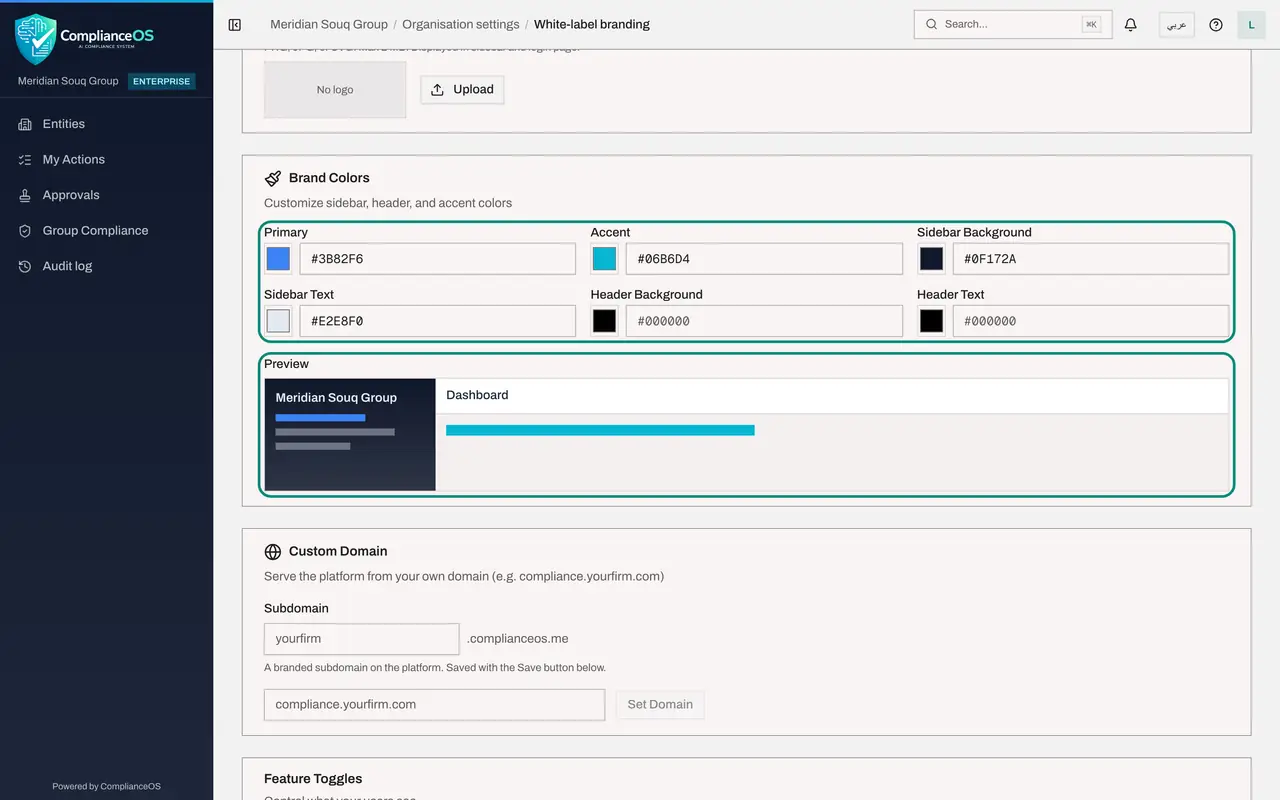
Brand Colors has six colours: Primary, Accent, Sidebar Background, Sidebar Text, Header Background and Header Text. Select a swatch to pick a colour, or type its code. The Preview panel shows the side menu and header as they would look. Nothing changes for other people until you save.
- 5
Read Custom Domain
Custom Domain lets people reach the platform at your own address. Subdomain gives you a branded address ending in complianceos.me and is saved with the Save button. A full domain of your own is set with Set Domain and needs your IT team. Leave both empty for now.
- 6
Set the support email under Feature Toggles
Feature Toggles controls what your users see. The switch Hide Powered by ComplianceOS removes the platform's name from the footer. Below it you can give your own support email, support page, terms of service and privacy policy addresses. Type your support email.
- Type Support Email:
compliance-help@meridian-souq.example
- Type Support Email:
- 7
Read Email Branding
Email Branding sets the From Name on outgoing emails, the heading on the login page and the footer text of emails. They are optional.
- 8
Select Save Changes
Select Save Changes at the bottom of the page. A message confirms the save, and the button is greyed out again.
- Select Save Changes
How to check it worked
After Save Changes a message confirms the save, the button is greyed out again, and the values you typed are still there when you open the page again.
Common mistakes
- Experimenting with colours and saving. Everyone sees the result at once. Use the Preview panel, and save only the agreed look.
- Typing a custom domain before your IT team is ready. A domain needs changes on your side as well.
- Uploading a very large logo. The page accepts PNG, JPG or SVG up to 2 megabytes.
Check your understanding
1. Where can you see the effect of new colours before anyone else does?
- A.In the audit log
- B.In the Preview panel on the branding page
- C.On the login page
- D.In Billing
Show answer
Answer: B. In the Preview panel on the branding page
Preview shows the side menu and header with the colours you have chosen, before you save.
2. Who sees the branding you save?
- A.Only you
- B.Only administrators
- C.Everyone in the organisation
- D.Only external auditors
Show answer
Answer: C. Everyone in the organisation
Branding is an organisation-wide setting. Once saved, it applies to every person who signs in.