Lesson 21 of 30
Organisation settings: your profile and the alert defaults
What you will be able to do
This lesson is for administrators. You will go through the General section of Organisation settings: your own profile, with the windows for changing your name and password, the shared alert settings, where you will set and save the organisation default, the alerts for one entity, partner network mode, the list of organisation administrators, and the danger zone.
Before you start
- You are signed in as an organisation administrator. Saving the organisation's alert default needs the permission Notifications, Configure, which the Organisation administrator role now includes.
- You know which shared mailbox should receive deadline reminders.
Steps
- 1
Open Organisation settings
Open the menu under your initial and select Organisation settings. The settings menu on the left has the sections General, Entity, Billing, Team, Webhooks, VAT Groups, and API keys and audit log, followed by links to Access control and the Approvals inbox. The page opens on General.
- Select Account menu
- Select Organisation settings
- 2
Read your profile
The Profile card shows your name, your sign-in email, your organisation, and Your roles with the place each role covers. Roles are not changed here. They are granted by an access administrator in Access control.
- 3
Select Change name
Select Change name. The window shows the name colleagues see in lists, approvals and the audit log. Save stays greyed out until you change it. Select Cancel.
- Select Change name
- Select Cancel
- 4
Select Change password
Select Change password. You enter your current password, then a new one twice. The list shows the rules: at least 12 characters, with an uppercase letter, a lowercase letter, a number and a symbol. Changing it signs out every other device.
- Select Change password:
(your password)
- Select Change password:
- 5
Select Cancel and scroll to Alert settings
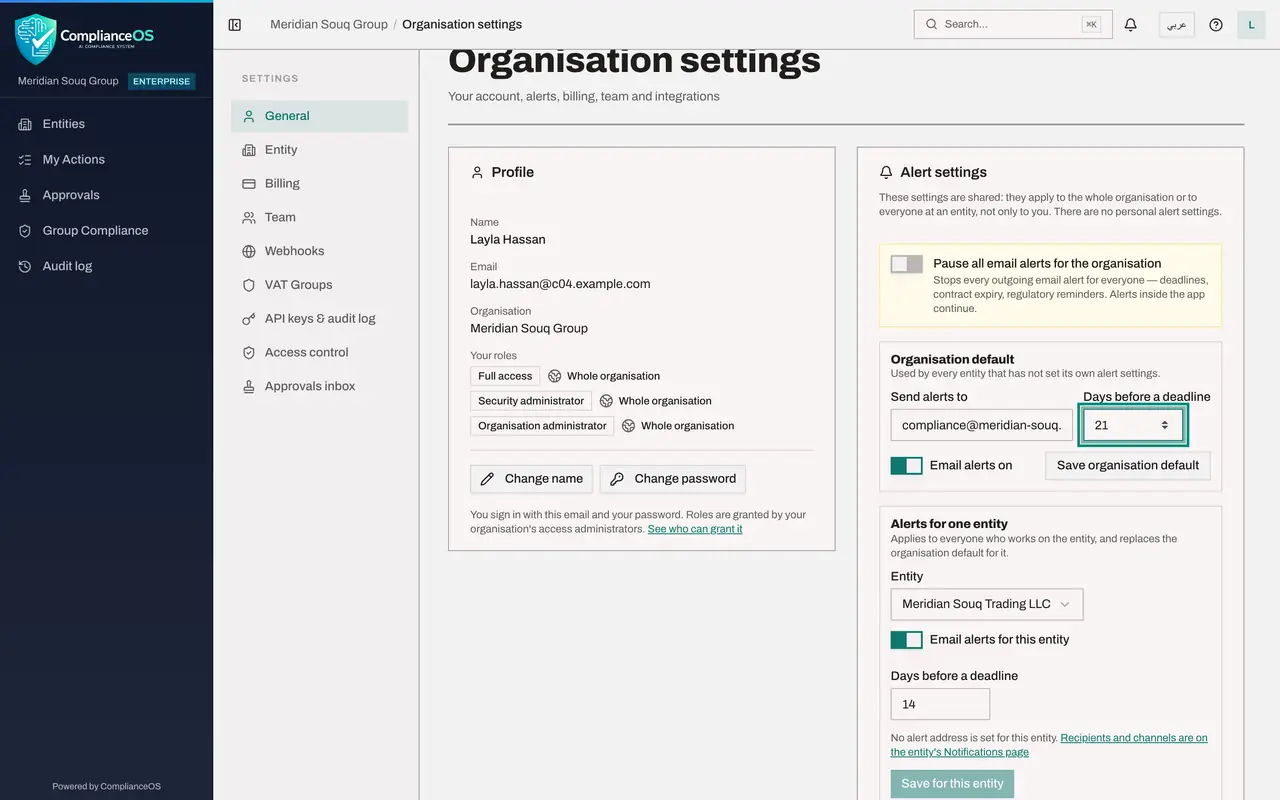
Select Cancel. Scroll down to Alert settings. The first line says these settings are shared: they apply to the whole organisation or to everyone at an entity. The first switch, Pause all email alerts for the organisation, stops every outgoing email alert while alerts inside the app continue. Leave it off.
- Select Cancel
- 6
Set the organisation default
Under Organisation default, type the shared mailbox in Send alerts to, and enter 21 in Days before a deadline, so reminders start three weeks ahead. Keep Email alerts on. Every entity that has not set its own alert settings uses these.
- Type Send alerts to:
compliance@meridian-souq.example - Type Days before a deadline:
21
- Type Send alerts to:
- 7
Select Save organisation default
Select Save organisation default. The button lights up once a value has changed. A message confirms: Organisation default saved. Entities without their own settings now use it.
- Select Save organisation default
- 8
Read the alerts for one entity
Under Alerts for one entity, choose the entity in the Entity box. Email alerts for this entity and Days before a deadline then apply to everyone who works on that entity, and replace the organisation default for it. The note says no alert address is set for this entity, and links to the entity's Notifications page, where recipients and channels are kept. Set the address there before you save email alerts for an entity here.
- 9
Read about partner network mode
Below is Partner Network Mode. When Enable per-entity tenant isolation is ticked, each new entity gets its own isolated data area, for partner networks, franchises or groups with several brands. Leave it unticked unless your implementation contact has asked for it.
- 10
Check who the organisation administrators are
The card Organisation administrators lists the people who can change these settings, with their roles. See everyone in Team opens the Team section.
- 11
Read the danger zone
At the bottom is the Danger Zone. Delete Account is greyed out: deleting an account is permanent, and the note says to contact support to request it.
How to check it worked
After Save organisation default a message confirms the save, and the mailbox and the 21 days are still shown when you open the page again.
Common mistakes
- Treating the alert settings as personal. They are shared: they apply to the whole organisation or to everyone at an entity.
- Pausing all email alerts and forgetting to switch them back on. While paused, nobody receives deadline reminders by email.
- Ticking partner network mode to see what it does. It changes how new entities store their data. Decide it with your implementation contact first.
Check your understanding
1. An entity has no alert settings of its own. Which settings does it use?
- A.None
- B.The organisation default
- C.The administrator's personal settings
- D.The platform's fixed settings
Show answer
Answer: B. The organisation default
The organisation default is used by every entity that has not set its own alert settings. Settings saved for one entity replace the default for that entity only.
2. What happens to your other devices when you change your password?
- A.Nothing
- B.Every other device is signed out
- C.They are signed in automatically
- D.Your account is locked
Show answer
Answer: B. Every other device is signed out
The window states that you stay signed in where you are and every other device is signed out.