Lesson 22 of 30
Entity details and the Email-to-Vault inbox
What you will be able to do
This lesson is for administrators. In the Entity section of Organisation settings you will check an entity's registered details, change one value and save it. Then you will set up Email-to-Vault, the entity's own email address that turns forwarded supplier bills into draft bills: who may send to it, what happens to mail from anyone else, and the size and daily limits.
Before you start
- You are signed in as an organisation administrator. Editing an entity's profile needs the permission Entity, Edit, which the Organisation administrator role includes.
- You have the entity's trade licence and tax registration details to hand.
- You know which supplier addresses should be allowed to send bills by email.
Steps
- 1
Open Organisation settings and select Entity
Open the menu under your initial, select Organisation settings, then select Entity in the settings menu. Select Entity at the top chooses which company you are looking at. It shows Meridian Souq Trading LLC.
- Select Account menu
- Select Organisation settings
- Select Entity
- 2
Read Business Identity
Business Identity holds the entity name in English and Arabic, the legal structure, the jurisdiction and an industry description. Legal Structure and Jurisdiction are greyed out. The notes under them say to contact support to change the first, and that the second cannot be changed after creation.
- 3
Read Registration Numbers
Registration Numbers holds the tax registration number, or TRN, the corporate tax registration number, the trade licence number and the date the trade licence expires. These are used on tax returns and feed the compliance calendar, so check them against the certificates.
- 4
Choose the revenue bracket
Under Financial Profile and Workforce, open Revenue Bracket and choose the band that matches the entity's yearly revenue. The other boxes are the month the fiscal year starts, the total number of employees and the number of Emirati employees.
- Select Revenue Bracket
- Choose AED 5M – 25M
- 5
Select Save Changes
Scroll to the top and select Save Changes. The button lights up only after you edit something. A message confirms the save.
- Select Save Changes
- 6
Find the entity's inbound email address
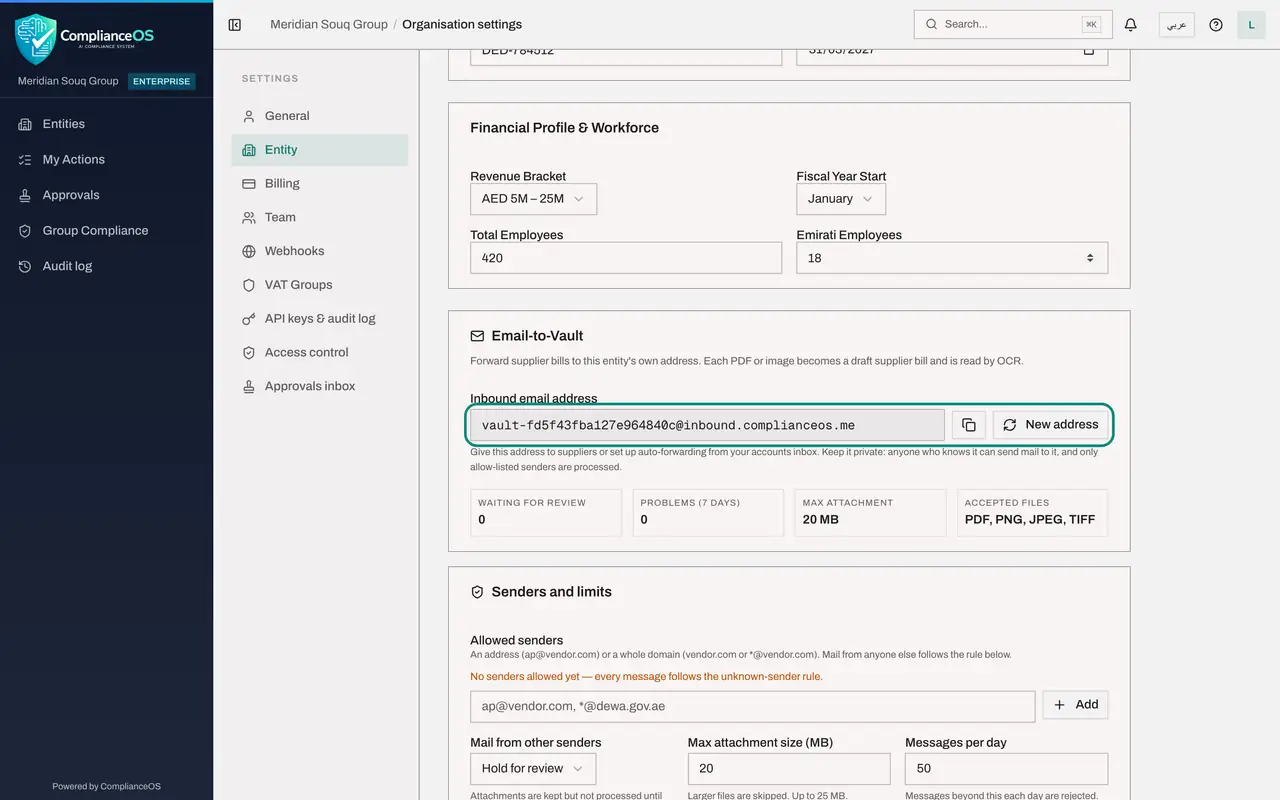
Scroll down to Email-to-Vault. Each entity has its own inbound address. Suppliers, or a forwarding rule in your accounts mailbox, send bills to it, and each PDF or image becomes a draft supplier bill that is read automatically. The copy button copies the address. New address replaces it with a fresh one.
- 7
Read the four figures
Four figures follow. Waiting for review counts messages held for an administrator. Problems counts failures in the last seven days. Max attachment is the largest file accepted. Accepted files lists the file types: PDF, PNG, JPEG and TIFF.
- 8
Add an allowed sender
Under Allowed senders, type a supplier's address, or a whole domain, and select Add. Only mail from allowed senders is processed automatically.
- Type ap@example.com, *@dewa.gov.ae:
accounts@jebelnajm.example.com - Select Add
- Type ap@example.com, *@dewa.gov.ae:
- 9
Choose what happens to mail from other senders
Open Mail from other senders to see the choices. Hold for review keeps the attachments but does not process them until an administrator releases the message. Reject refuses the message. Keep Hold for review.
- Select Mail from other senders
- 10
Check the limits and select Save
Close the list. Max attachment size is in megabytes, up to 25, and larger files are skipped. Messages per day is the daily limit, and messages beyond it are rejected. Select Save to store the senders and limits. Reset, beside it, puts back the values that were saved before.
- Select Save
- 11
Find the inbound email log
Below is the Inbound email log. Every message sent to the address is listed with what happened to each attachment. The buttons filter by outcome: waiting for review, failed, partly processed, processed or rejected. The search box finds a sender or a subject. No email has been received yet.
- 12
Read Entity Status
The last card is Entity Status. This entity is Active. To deactivate an entity, contact support.
How to check it worked
The revenue bracket you chose is still shown after saving, and under Allowed senders the supplier address you added is listed.
Common mistakes
- Giving the inbound address to everyone. Anyone who knows it can send mail to it. Share it with suppliers you trust, and keep the allow list short.
- Selecting New address without warning suppliers. The old address stops working, so everyone who forwards bills needs the new one.
- Expecting to change the legal structure or the jurisdiction here. Both are greyed out. The legal structure is changed by support, and the jurisdiction cannot be changed after the entity is created.
Check your understanding
1. A bill arrives at the inbound address from a sender who is not on the allow list. What happens with the rule Hold for review?
- A.It becomes a draft bill immediately
- B.It is deleted
- C.Its attachments are kept but not processed until an administrator releases the message
- D.It is forwarded to the supplier
Show answer
Answer: C. Its attachments are kept but not processed until an administrator releases the message
Hold for review keeps the attachments safe and waits for an administrator. Only mail from allowed senders is processed automatically.
2. Which of these can you change in the Entity section?
- A.Jurisdiction
- B.Legal structure
- C.Revenue bracket and registration numbers
- D.The entity's unique ID
Show answer
Answer: C. Revenue bracket and registration numbers
Names, the industry description, registration numbers and the financial profile can be edited. Legal structure and jurisdiction are greyed out.