Lesson 26 of 30
Notification settings for an entity
What you will be able to do
This lesson is for administrators. Each entity has its own Notifications page with three tabs. You will read the list of notifications, set who is alerted for one module, on which channels and how far ahead, and set the entity's delivery preferences: the mailbox for alerts and the reminder window.
Before you start
- You are signed in as an organisation administrator and have chosen the entity.
- You know which roles should hear about each module, and which shared mailbox should receive the entity's deadline alerts.
Steps
- 1
Open Notification preferences from the menu under your initial
With one of the entity's pages open, select the round button with your initial and select Notification preferences. The entity's Notifications page opens on the Preferences tab. You can also reach the page from Notifications under Tools in the left menu.
- Select Account menu
- Select Notification preferences
- 2
Select the Notifications tab
Select the Notifications tab. It lists what has happened in this entity. On the left, All notifications, Unread and Muted categories filter the list, and the figures count unread, delivered and high-severity notifications. Mark All Read clears the unread marks.
- Select Notifications2
- 3
Select Module Configuration
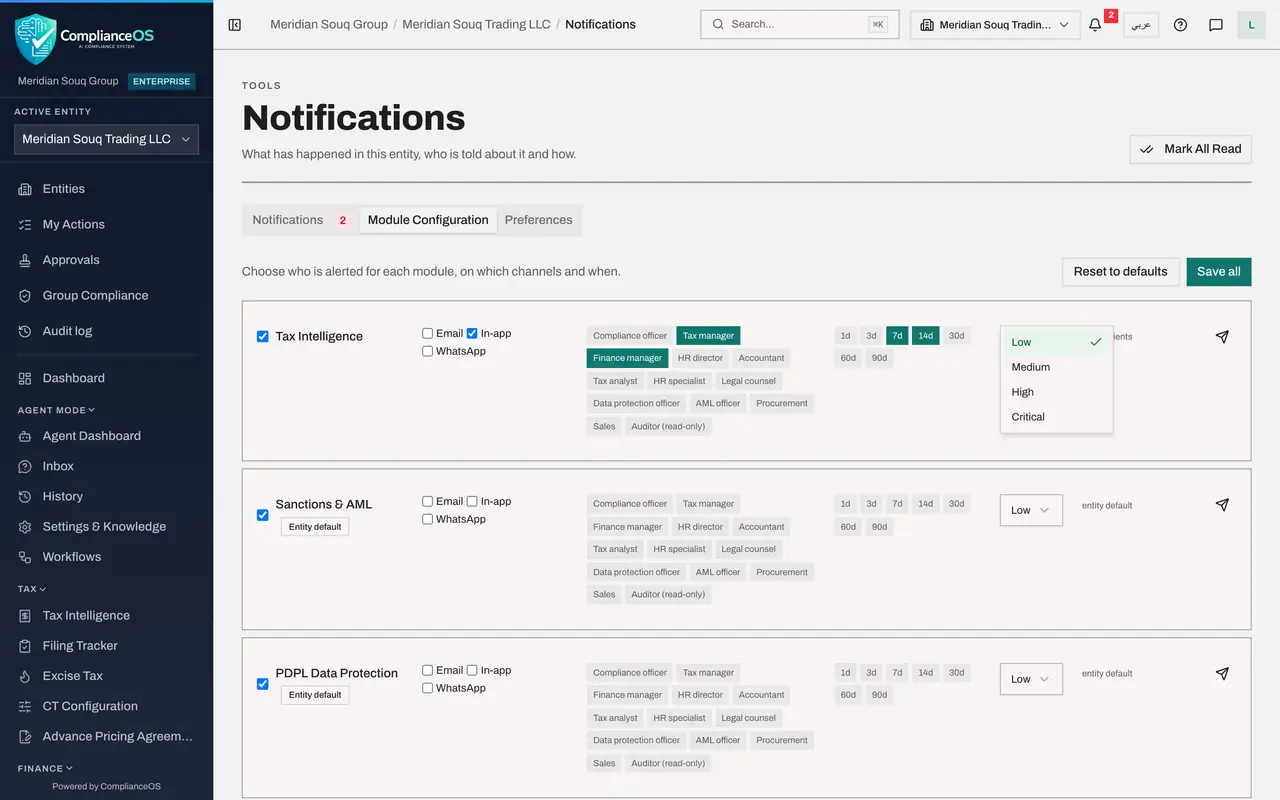
Select Module Configuration. There is one line for each module. The tick at the start switches alerts for the module on or off. Then come the channels, Email, In-app and WhatsApp, the roles to alert, the number of days before a deadline, the lowest severity that triggers an alert, and where the settings come from.
- Select Module Configuration
- 4
Choose the channel for Tax Intelligence
On the Tax Intelligence line, tick In-app, so alerts appear under the bell at the top of the screen.
- Select In-app
- 5
Choose the roles and the days
Select the roles that should be alerted: Tax manager and Finance manager. Then select 7d and 14d, so alerts go out 7 and 14 days before a tax deadline. A selected choice is highlighted.
- Select Tax manager
- Select Finance manager
- Select 7d
- Select 14d
- 6
Look at the severity list
Open the list at the end of the line. It sets the lowest severity that triggers an alert for this module. Keep Low, so every alert is sent.
- Select Low
- 7
Select Save all
Close the list and select Save all at the top right. The message Module configuration saved confirms it. The note at the end of the Tax Intelligence line no longer reads entity default, because this module now has its own settings. Reset to defaults puts every module back to the standard settings.
- Select Save all
- 8
Select Preferences
Select the Preferences tab. The note at the top says these delivery settings belong to this entity and decide where its deadline alerts go for everyone. The first card is Email Alerts.
- Select Preferences
- 9
Type the mailbox and switch on email alerts
In Email address for alerts, type the shared mailbox that should receive this entity's deadline reminders. Then switch on Send email alerts. The switch cannot be turned on while the address is empty.
- Type Email address for alerts:
tax-team@meridian-souq.example
- Type Email address for alerts:
- 10
Read the WhatsApp and push cards
WhatsApp Alerts is marked Requires Twilio setup. It needs a messaging provider that is not set up for this organisation, so its controls are greyed out. Push notifications are personal: they send alerts addressed to you to the device you are using. Here the card says push delivery is not set up on the server yet.
- 11
Choose the reminder window
Under Reminder timing, open Send alerts this many days before a deadline and choose 30 days before. The note says alerts go out once a day, at noon UAE time, for every deadline inside the window.
- Select 14 days before (recommended)
- Choose 30 days before
- 12
Select Save Preferences
Select Save Preferences at the bottom. The word Saved appears beside the button. Send a test alert is next to it, and it sends an email, so it is not used here. The panel How deadline alerts work explains that the compliance calendar is checked every day and that an alert names the framework, the deadline date and the days remaining.
- Select Save Preferences
How to check it worked
On Module Configuration, the Tax Intelligence line shows the channel, roles and days you chose after Save all. On Preferences, the mailbox you typed and the 30-day window are still shown when you open the tab again.
Common mistakes
- Thinking these are your personal settings. Module Configuration and the delivery settings belong to the entity and apply to everyone. Only push notifications are personal to you and your device.
- Switching on email alerts before entering an address. The switch cannot be turned on until an address is entered.
- Selecting every role for every module. People stop reading alerts that are not for them. Choose the roles that act on the module.
Check your understanding
1. Where do you choose which roles are alerted about tax deadlines for an entity?
- A.Organisation settings, General
- B.The entity's Notifications page, Module Configuration
- C.Access control
- D.Billing
Show answer
Answer: B. The entity's Notifications page, Module Configuration
Module Configuration has one line for each module, with its channels, the roles to alert, how many days ahead and the severity.
2. Which notification setting is personal to you?
- A.The email address for alerts
- B.The reminder window
- C.Push notifications to your device
- D.The roles alerted for a module
Show answer
Answer: C. Push notifications to your device
The Preferences tab says the delivery settings belong to the entity, and that push notifications are personal to you and the device you are using.