Lesson 4 of 30
Approve the first step of a two-step request
What you will be able to do
This lesson is for the first approver, here the second data protection officer, Yusuf Rahman. You will find the request in your Approvals inbox, open the record, approve step 1 with a comment, and see the request move on to the compliance officer instead of being published.
Before you start
- A colleague has submitted a privacy notice for approval (previous lesson).
- You hold the approve permission for privacy policies on the entity, and you did not write or edit the version.
Steps
- 1
Open Approvals in the left menu
Select Approvals. The number beside it counts the requests waiting for you. The inbox opens on To decide.
- Select Approvals1
- 2
Read the request card
The card names the action, the record, its entity and when it was submitted. Waiting on step 1, Data protection officer, tells you why it is in your inbox. The facts the policy tested and the two steps are listed underneath.
- 3
Select Open record
Select Open record on the card. The privacy notice opens with the Awaiting approval box at the top and the text below it.
- Select Open record
- 4
Read the text you are approving
Scroll down and read the notice in Text, English. As the approver you are confirming that this exact wording may be published.
- 5
Select Approve
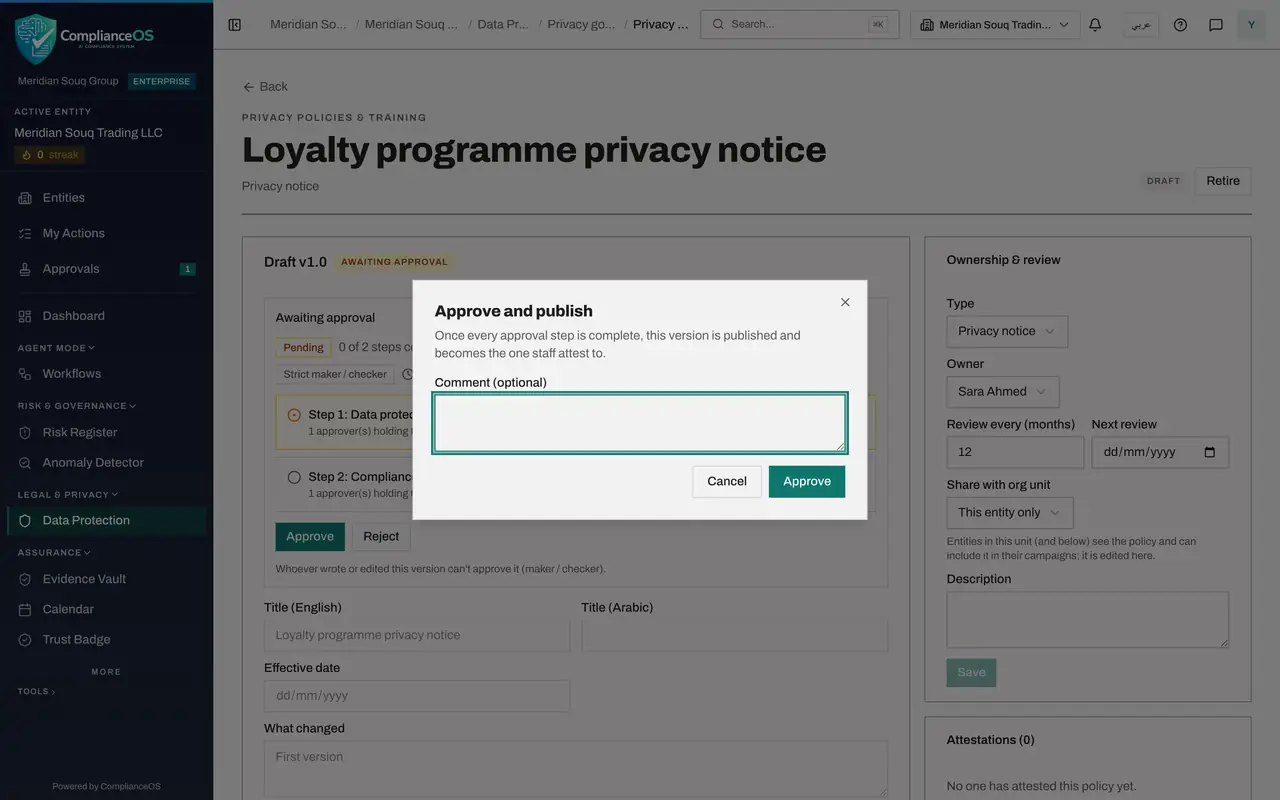
Scroll back up to the Awaiting approval box and select Approve. A box titled Approve and publish opens. Reject, beside it, sends the version back to the author with your reason.
- Select Approve
- 6
Add a comment
Type a short comment in Comment. It is optional, but it is kept with your decision and shown to the next approver.
- Type Comment (optional):
Wording checked against the loyalty programme terms.
- Type Comment (optional):
- 7
Confirm with Approve
Select Approve in the box. Your approval is recorded. Because the policy has a second step for major changes, the notice is not published yet.
- Select Approve
- 8
See whose turn it is now
Step 1 is marked complete with your name, the time and your comment. Step 2, Compliance officer sign-off, is now the current step. The version stays Awaiting approval until the compliance officer decides.
- 9
Check that your inbox is clear
Open Approvals again. The request has left To decide, because the step you could decide is complete.
- Select Approvals
How to check it worked
The Awaiting approval box shows 1 of 2 steps complete, step 1 is marked complete with your name and comment, and step 2, Compliance officer sign-off, is the current step. The notice is not published yet.
Common mistakes
- Approving from memory without opening the record. Select Open record and read the text you are approving.
- Expecting the notice to be published after your approval. With a two-step policy your approval only completes step 1.
- Leaving the comment empty when you checked something specific. The comment is kept with your decision and shown to the next approver.
Check your understanding
1. After Yusuf approves, the request shows 1 of 2 steps complete. Who acts next?
- A.Sara, the author
- B.Yusuf again
- C.A person holding Compliance tasks, Approve on the entity
- D.Nobody, it is published
Show answer
Answer: C. A person holding Compliance tasks, Approve on the entity
Step 2 of the policy asks for one approver holding Compliance tasks, Approve on the same entity. That is the compliance officer.
2. Where does an approver find requests waiting for them?
- A.Under To decide in the Approvals inbox
- B.In Organisation settings
- C.On the Access control page
- D.In the audit log
Show answer
Answer: A. Under To decide in the Approvals inbox
To decide lists the requests that are waiting on a step you can decide. The number on Approvals in the left menu counts them.