Lesson 25 of 30
Entity settings and what the compliance score covers
What you will be able to do
This lesson is for administrators. You will tour the Entity settings page with its four tabs, run the cross-module check, and look at departments and module readiness. Then you will open the score settings on the entity's overview, see which modules count toward the entity's compliance score, and switch on a module that applies to the entity but has no records yet.
Before you start
- You are signed in as an organisation administrator, and the entity has some records from the earlier lessons.
- Changing what the score covers needs the permission to edit compliance tasks on the entity.
Steps
- 1
Open Entity settings from the menu under your initial
With the entity's overview open, select the round button with your initial and select Entity settings. The page has four tabs: General, Team, Departments and Module Readiness.
- Select Account menu
- Select Entity settings
- 2
Scan the General tab
General is one long form. From the top it holds Entity Details, Registration Numbers, the Financial Profile, Tax Attribution and Elections, the ERP Write-Back box, the audited financial statements, Workforce counts, and the company's contact details and address. The tax sections are explained in the tax courses. Save Changes at the bottom stores the whole form.
- 3
Run the cross-module check
Scroll down to Cross-Module Compliance Check. It compares records between modules for a period, for example tax figures against sanctions and data protection records. Period Start and Period End are set to this year. Select Run Check. The result shows the number of blocking problems and warnings, the time it ran, and the detail of each check.
- Select Run Check
- 4
Select the Team tab
Scroll to the top and select Team. It lists everyone who has access to this entity, the roles they hold and how each role reaches the entity: granted directly on it, or organisation-wide. The list is read-only. Manage in Access control opens the place where access is granted.
- Select Team13
- 5
Select Departments, then New Department
Select Departments. A department is a unit under the entity in the organisation structure. Seed Defaults adds a standard set. Select New Department to see the form: a name, a description, the department head, the modules it handles and an optional escalation email. Select Cancel.
- Select Departments
- Select New Department
- Select Cancel
- 6
Select Module Readiness
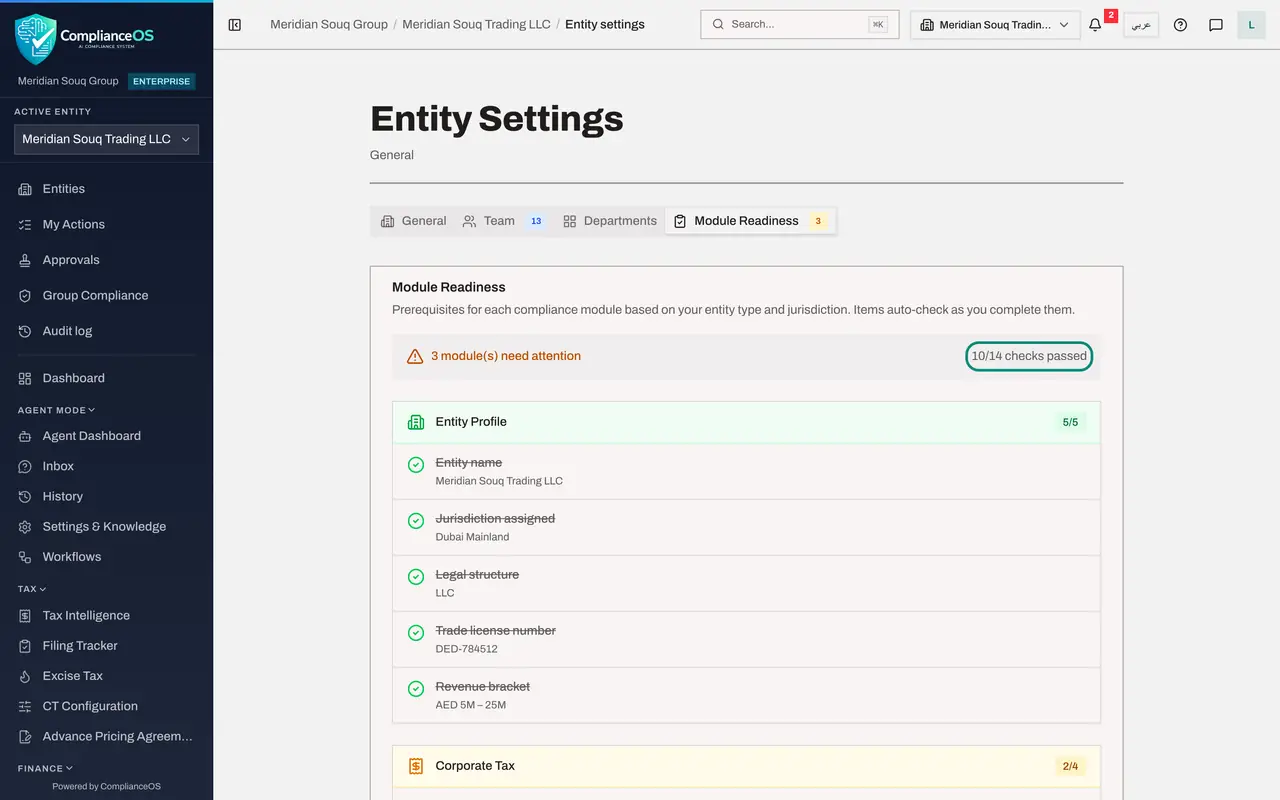
Select Module Readiness. For each module it lists the things that must be in place before the module can work, such as the trade licence number or uploaded transactions. Items are ticked automatically as you complete them. The line at the top counts the checks passed.
- Select Module Readiness3
- 7
Go back to the entity's overview and find the score
Select Dashboard in the left menu. Overall Compliance shows the entity's score and its risk level, and under it the line Based on, with the number of modules counted out of 7.
- 8
Read which modules are counted
Scroll down to the panel that begins Based on. It lists the modules that are not counted and why: no data, and not switched on for this entity. The button Modules and risk levels opens the settings.
- 9
Select Modules and risk levels
Select Modules and risk levels. The window is titled What the compliance score covers. A module that holds data is ticked and greyed out, with the note Has data, always counted, and its score. A module with no data can be ticked by you.
- Select Modules and risk levels
- 10
Switch on a module that applies
This entity signs supplier and lease contracts, but none has been recorded yet. Tick Contracts. Its note changes to Switched on, counted as 0 per cent until data is added.
- 11
Read the risk levels
Under Risk levels are three numbers: the score at or above which a result is low risk, medium risk or high risk. Anything below the high-risk mark is critical. They are left as they are in this lesson.
- 12
Select Save
Select Save. The panel now counts one more module, and a new line reads Switched on with nothing recorded yet, so counted as 0 per cent: Contracts. The overall score has gone down, because the entity is now measured on contracts too. That is a more honest picture.
- Select Save
How to check it worked
After you save the score settings, the line under the overall score on the entity's overview counts one more module, and the module you switched on is shown as counted at 0 per cent.
Common mistakes
- Leaving out a module that applies to the entity because it has no records yet. The score then looks better than the facts. Switch on every module that applies.
- Switching on modules that do not apply, for example Free Zones for a mainland company. They count as 0 per cent and drag the score down for no reason.
- Typing the entity's name in the Danger Zone to see what happens. Deleting an entity removes it and all its data.
Check your understanding
1. A module has no records and is not switched on in the score settings. How does it affect the overall score?
- A.It counts as 0 per cent
- B.It counts as 100 per cent
- C.It is not counted at all
- D.It halves the score
Show answer
Answer: C. It is not counted at all
A module counts only when it holds data or is switched on. Switched on with nothing recorded, it counts as 0 per cent until work starts.
2. Why can some modules not be unticked in the score settings?
- A.They are not in your plan
- B.They already hold data, so they are always counted
- C.Only support can change them
- D.They are switched off for everyone
Show answer
Answer: B. They already hold data, so they are always counted
A module that has data is always counted. Its line reads Has data, always counted, with its current score.