Lesson 7 of 30
Give one entity its own rule and allow self-approval with a justification
What you will be able to do
This lesson is for administrators. The small E-Commerce entity has one person doing privacy work, so the two-step organisation policy cannot be met there. You will save a separate one-step policy for that entity only, switch it from strict maker and checker to self-approval with justification, and then test it for real by publishing a notice you wrote yourself.
Before you start
- The organisation-wide policy from the earlier lesson is saved.
- You are signed in as an organisation administrator, and your role covers the E-Commerce entity.
- Your organisation has agreed that self-approval is acceptable for this entity. It weakens the control, so keep it to small teams.
Steps
- 1
Select Publish a privacy policy version
In Settings, Access control, Approval policies, select Publish a privacy policy version. Saved policies for this action lists one policy, for the whole organisation, with two steps.
- 2
Choose the entity in Policy for
Open the Policy for box and choose Meridian Souq E-Commerce FZ-LLC. The badge reads Inherited from the organisation policy, and the editor shows the two-step rule the entity follows today. Nothing changes until you save.
- Select Whole organisation
- Choose Meridian Souq E-Commerce FZ-LLCHead office
- 3
Select Start from the default
Select Start from the default at the top right of Steps and rules. The editor is reset to the built-in rule with one step, which is a quick way to clear the inherited steps.
- Select Start from the default
- 4
Name the entity's policy
Scroll up and type a Policy name that says which entity it is for and why it differs.
- Type Policy name:
E-Commerce: small-team privacy sign-off
- Type Policy name:
- 5
Select Self-approval with justification
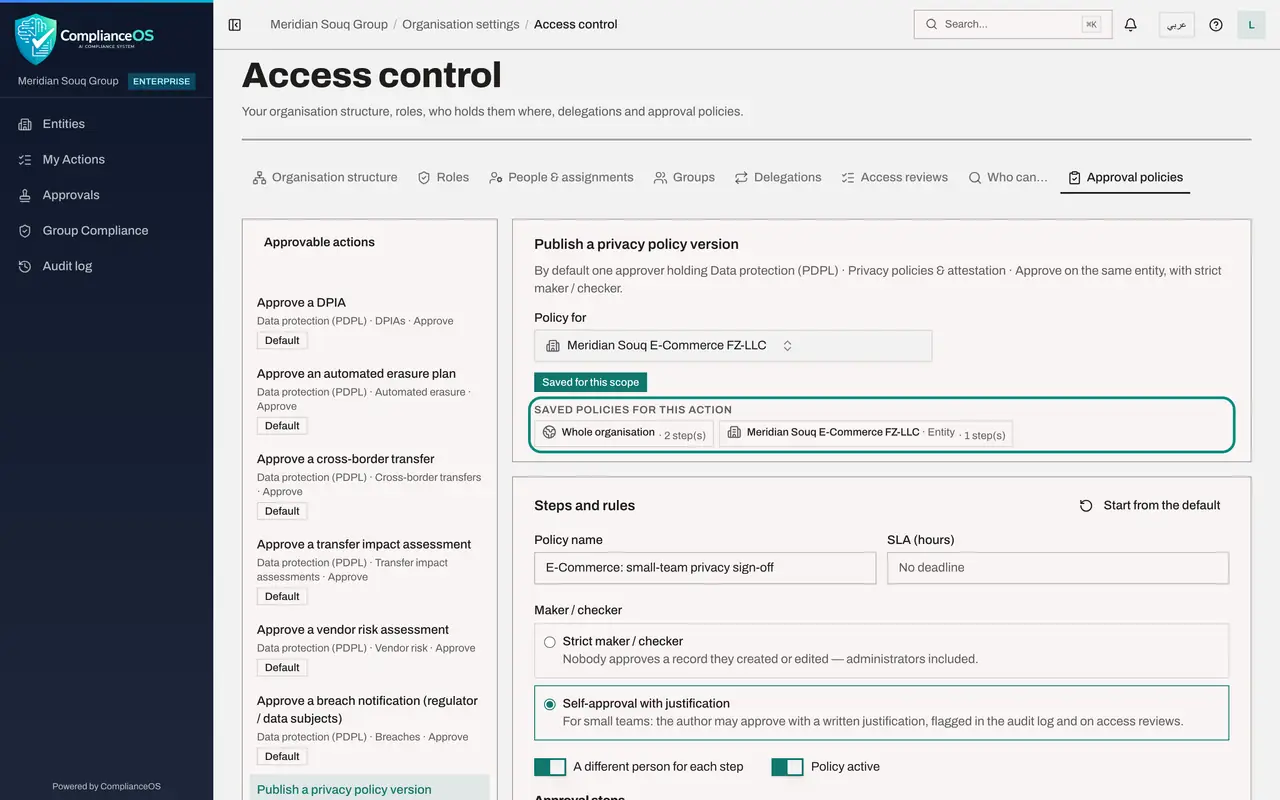
Under Maker / checker, select Self-approval with justification. The author may then approve their own record, but only with a written justification, which is flagged in the audit log and on access reviews.
- 6
Check the place, then select Save policy
Beside Save policy, the note reads Saves the policy for Meridian Souq E-Commerce FZ-LLC, Entity. Select Save policy. The badge at the top changes to Saved for this scope, and the list of saved policies now shows two: the entity and the whole organisation.
- Select Save policy
- 7
Open the E-Commerce entity's Policy library and select New policy
Now test it. Choose Meridian Souq E-Commerce FZ-LLC in the entity box at the top, open Data Protection, Privacy policies and training, Policy library, and select New policy.
- Select New policy
- 8
Create a blank privacy notice
Choose Blank policy, type the title, choose the type Privacy notice and select Create draft.
- Select Privacy notice
- Choose Blank policy
- Type Title (English):
Online store cookie notice - Select Other
- Choose Privacy notice
- Select Create draft
- 9
Write the text and select Submit for approval
Type the notice in Text, English, then select Submit for approval. The Awaiting approval box names the entity's own policy, shows Self-approval with justification, and has one step. Because of that mode, you see Approve and Reject on a version you wrote yourself.
- Type Text (English):
Our online store uses cookies to keep your basket and to measure visit… - Select Submit for approval
- Type Text (English):
- 10
Select Approve and try without a justification
Select Approve. The box Approve and publish has an extra field, Self-approval justification. Leave it empty and select Approve in the box. The approval is refused with the message You created or edited this record: give a justification to self-approve.
- Select Approve
- Select Approve
- 11
Write the justification and select Approve
Select Approve again. This time type your reason in Self-approval justification, then select Approve in the box. This was the only step, so the notice is published as version 1.0.
- Select Approve
- Type Self-approval justification:
Only one privacy lead works on the E-Commerce entity this quarter; tex… - Select Approve
- 12
Find the self-approval in the audit log
Open the menu under your initial and select Audit log. Find the line Approval request: Approved for the notice and select Details. The details show the step, the action, the status approved, and Self-approval, Yes. That flag is what a reviewer looks for.
- Select Account menu
- Select Audit log
- Select Details
How to check it worked
Publish a privacy policy version shows 2 saved. With Policy for set to the E-Commerce entity, the badge reads Saved for this scope and the mode is Self-approval with justification. The notice on the E-Commerce entity shows Published version 1.0 after you approved it with a written justification.
Common mistakes
- Saving for the whole organisation by mistake. Check the note beside Save policy, which names the place the policy is saved for, before you select it.
- Thinking self-approval removes the record of who approved. The author's justification is kept with the decision and the approval is flagged for reviewers.
- Leaving the justification empty. The approval is refused until the author writes one.
Check your understanding
1. The E-Commerce entity has its own saved policy. Which policy does Meridian Souq Trading LLC follow?
- A.The E-Commerce entity's policy
- B.The organisation policy, because it has none of its own
- C.The platform default
- D.No policy
Show answer
Answer: B. The organisation policy, because it has none of its own
A place with no policy of its own follows the nearest one above it: its unit, then the organisation, then the platform default. The entity policy applies only to the E-Commerce entity.
2. Under Self-approval with justification, what must the author do to approve their own record?
- A.Nothing extra
- B.Write a justification in the approval box
- C.Ask an administrator to switch the policy off
- D.Wait 72 hours
Show answer
Answer: B. Write a justification in the approval box
The author may approve, but only with a written justification, which is kept with the decision and flagged in the audit log and on access reviews.