Lesson 23 of 30
Billing, Team, VAT Groups and the audit log link
What you will be able to do
This lesson is for administrators. You will read the Billing section, with entity licences, AI credits and the plans. You will see where the Team list and its invitation form are, where a VAT group is created, and how to reach the audit log from the settings.
Before you start
- You are signed in as an organisation administrator. Billing needs the permission Organisation, View, and changes need Organisation, Manage.
- Nothing is bought or changed in this lesson.
Steps
- 1
Open Organisation settings and select Billing
Open the menu under your initial, select Organisation settings, then select Billing. The first card, Entity licences, shows the number of entities in use, how licences are billed on your plan, and the list of licensed entities.
- Select Account menu
- Select Organisation settings
- Select Billing
- 2
Read the AI Credits card
AI Credits pay for the work the assistant does, such as classifying transactions or screening names. The card shows the credits left, the date the count resets, the monthly allocation, the credits used this month, bonus credits and the share per entity. Usage by Module shows which module used them.
- 3
Select Cost Calculator
Select Cost Calculator. A table opens with the approximate number of credits for each kind of work, for example about 2 for classifying one transaction and about 25 for a full report. The line under it says one credit is one hundredth of a dirham of AI computing.
- Select Cost Calculator
- 4
Select Buy More Credits to see the packs
Select Buy More Credits. The window lists three packs with their prices. Purchased credits never expire and are used after the monthly allocation runs out. Choosing a pack sends you to the payment provider, so this lesson selects Cancel.
- Select Buy More Credits
- Select Cancel
- 5
Read your plan and the available plans
Below the credits is your plan, here Enterprise, marked Active, with the button Manage Payment, which opens the payment provider's own pages. Available plans lists every plan with its credits, entities and users. Your own plan is marked Current.
- 6
Select Team
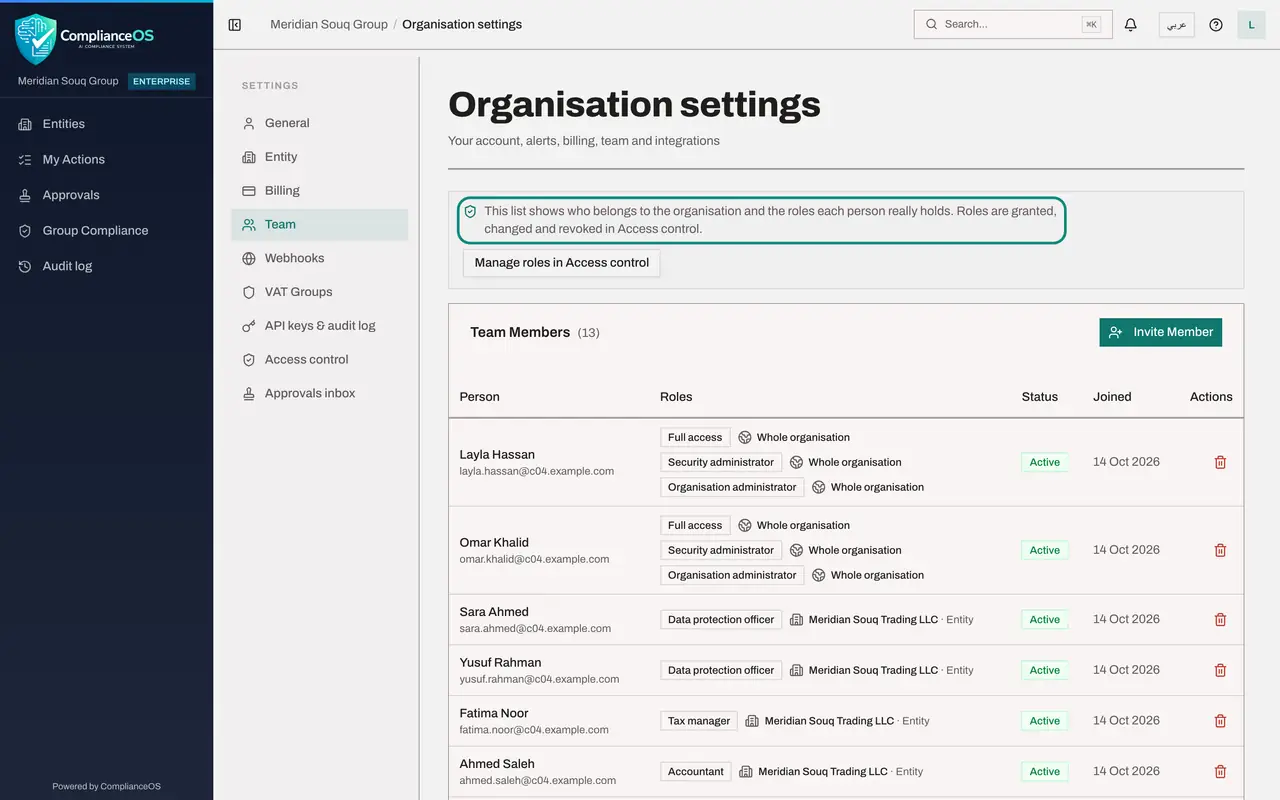
Select Team in the settings menu. Everyone who belongs to the organisation is listed with the roles they hold, their status and the date they joined. The note at the top says roles are granted, changed and revoked in Access control.
- Select Team
- 7
Select Invite Member to see the form
Select Invite Member. The form asks for the person's email address, an optional name and a first role. The note says you can only grant a role whose permissions you hold yourself, and that a role needing approval is granted once a second administrator approves. Inviting people is covered in the course on organisation and access. Select Cancel.
- Select Invite Member
- Select Cancel
- 8
Select VAT Groups
This section is for tax groups. A group lets several entities file one consolidated return for value added tax. None exists yet.
- Select VAT Groups
- 9
Select Create Group to see the form
Select Create Group. The form asks for the group name, the group's tax registration number issued by the Federal Tax Authority, and optionally the representative entity that submits the consolidated return. Create Group stays greyed out until the two required boxes are filled. Select Cancel.
- Select Create Group
- Select Cancel
- 10
Select API keys and audit log, then View Audit Log
Select API keys and audit log, then View Audit Log. The audit log is the complete history of actions taken in your organisation: when, which action, on what kind of record, in which entity and by whom. Search finds an action, and the two lists filter by record type and by entity.
- Select API keys & audit log
- Select View Audit Log →
- 11
Open the details of one entry
Select Details at the end of a line to see what changed. Hide closes it again. The audit log cannot be edited by anyone.
- Select Details
How to check it worked
You can say how many entities are in use, how many AI credits were used this month and by which module, and when the credit count resets.
Common mistakes
- Buying credits when the monthly allocation has simply not reset yet. Check the reset date first.
- Changing someone's role from the Team list. The list only shows roles. Roles are granted, changed and revoked in Access control.
- Creating a VAT group here before the Federal Tax Authority has issued the group's tax registration number. The form asks for that number.
Check your understanding
1. Where do you see which module used AI credits this month?
- A.In the audit log
- B.Under Usage by Module in the AI Credits card
- C.In Team
- D.In Webhooks
Show answer
Answer: B. Under Usage by Module in the AI Credits card
The AI Credits card shows the monthly allocation, the amount used, and a breakdown by module once credits have been used.
2. You want to give a new colleague a sign-in. Where do you start?
- A.Billing
- B.Team, with Invite Member
- C.VAT Groups
- D.API keys and audit log
Show answer
Answer: B. Team, with Invite Member
Invite Member in the Team section sends an invitation. The person's roles are then managed in Access control.