Lesson 28 of 30
Invite an external auditor for a fixed period
What you will be able to do
This lesson is for administrators. You will invite an external auditor to one entity, choose which modules they may read and how long the access lasts, create the invitation without sending an email, and see where the expiring access appears in Access control.
Before you start
- You are signed in as an organisation administrator.
- You have the auditor's name and email address, and you know which modules they need to see and for how long.
Steps
- 1
Open Auditor Portal and select Invite auditor
In the left menu, under Assurance, select Auditor Portal. External auditors get read-only access here. Select Invite auditor.
- Select Invite auditor
- 2
Type the auditor's name and email
Type the auditor's name and their email address. The invitation is tied to that address.
- Type Auditor name:
Hessa Al Marri - Type Auditor email:
hessa.almarri@albarsha-audit.example.com
- Type Auditor name:
- 3
Select the modules the auditor may see
Under Scoped modules, select the modules the auditor needs, here Tax and Workforce. If you select none, the auditor sees every standard module.
- Select Tax
- Select Workforce
- 4
Choose the access duration
Open Access duration. This is how long the invitation and the access last. Choose the shortest period that covers the audit.
- Select 30 days
- Choose 7 days
- 5
Tick the box to share the link yourself
Tick Don't email the auditor, I'll share the link myself. No message is sent. The button changes to Create invitation link. Select it.
- Select Create invitation link
- 6
Copy the sign-in link
The window Auditor access token shows the sign-in link and the access token. They are shown only once. Select Copy link and pass the link to the auditor through a secure channel. If it is lost, revoke the invitation and create a new one. Then select I've copied the token.
- Select I've copied the token
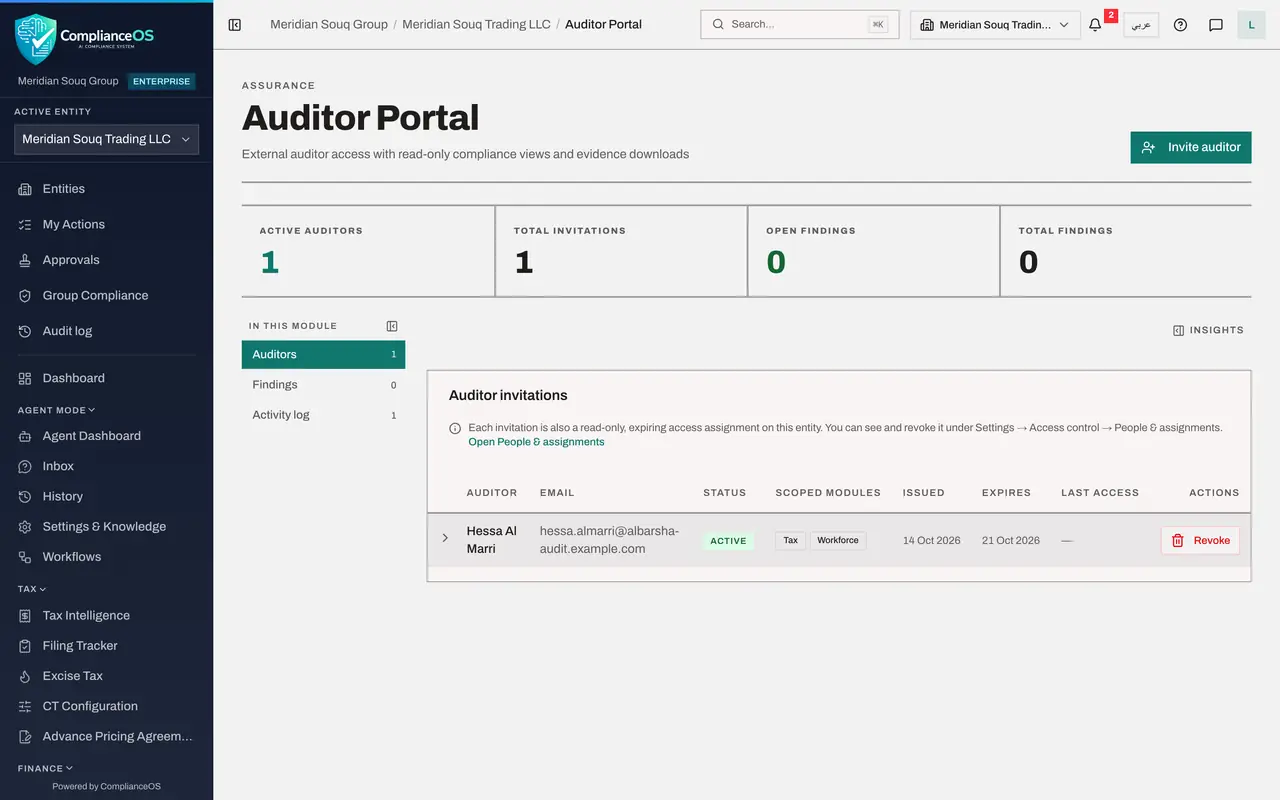
- 7
Read the invitation in the list
The auditor is listed with the status Active, the modules you chose, the date the invitation was issued and the date it expires, seven days later. Last access shows when the auditor last opened the portal. The tiles above count active auditors and invitations.
- 8
Open People and assignments
The note above the list says each invitation is also a read-only, expiring access assignment on this entity. Select Open People and assignments to see it in Access control.
- Select Open People & assignments
- 9
Find the auditor's expiring access
Under External auditors, at the bottom of the list of people, select the auditor. The card shows the email address, the entity, the modules, the status Active and the date the access expires. Under Granted directly is one read-only assignment on the entity, valid from now until the expiry date, with the source Auditor invitation.
- 10
Select Revoke invitation
To end the access before it expires, select Revoke invitation. A box explains that the auditor loses portal access immediately and the read-only assignment is revoked, while the invitation and its access log stay on record.
- Select Revoke invitation
- 11
Confirm with Revoke invitation
Select Revoke invitation in the box. The auditor disappears from the list of external auditors and no access remains. Switch on Show expired and revoked to see the ended assignment again.
- Select Revoke invitation
How to check it worked
After you create the invitation it is listed on the Auditor Portal as Active with the date it expires, and the same access is listed under People and assignments in Access control. After you revoke it, the access is gone.
Common mistakes
- Giving an auditor all modules for the longest period by habit. Select the modules they need and the shortest duration that covers the audit.
- Sending the sign-in link in an open channel. Anyone holding the link can use it until it expires. Pass it on securely.
- Forgetting that the access ends by itself. If the audit runs over, invite the auditor again.
Check your understanding
1. What happens when an auditor's access duration runs out?
- A.Nothing, access continues
- B.The invitation expires and the read-only access ends by itself
- C.The auditor becomes an administrator
- D.Their findings are deleted
Show answer
Answer: B. The invitation expires and the read-only access ends by itself
Each invitation is also a read-only, expiring access assignment on the entity. When the duration ends, the access ends without anyone having to remove it.
2. You tick Don't email the auditor. How does the auditor get in?
- A.They cannot
- B.You copy the sign-in link shown to you and pass it on securely
- C.An email is sent anyway
- D.They use your password
Show answer
Answer: B. You copy the sign-in link shown to you and pass it on securely
With the box ticked no message is sent. You are given a sign-in link to copy and share yourself.