Lesson 1 of 30
Read the approval policies
What you will be able to do
This lesson is for administrators. You will open the approval policies, read the list of actions that can need approval, and read one policy with confidence: where it applies, who can approve each step, when a step applies, and whether people may approve their own work.
Before you start
- You are signed in as an organisation administrator. In this course that is Layla Hassan.
- You know which action you want to check, for example granting a role or publishing a privacy policy.
Steps
- 1
Open the menu under your initial and select Organisation settings
Select the round button with your initial at the top right, then select Organisation settings. The settings page opens with a menu of sections on the left.
- Select Account menu
- Select Organisation settings
- 2
Select Access control
Select Access control in the settings menu. Access control holds your organisation structure, roles, the people who hold them, delegations and approval policies, each on its own tab.
- Select Access control
- 3
Select the Approval policies tab
Select Approval policies, the last tab. An approval policy is the rule that says who must agree before a sensitive action goes ahead. The left panel lists every action that can need approval: data protection, accounting journals and bill-payment reversals, tax and excise returns, contracts, transfer pricing, ESG, access changes, compliance tasks and Audit Hub answers. The right side shows the policy for the action you select.
- Select Approval policies
- 4
Read the badge under each action
Under each action is the permission an approver needs, then a badge. Default means the built-in rule applies. A count such as 1 saved means your organisation has saved its own policy for that action.
- 5
Read the built-in rule for Approve a DPIA
Approve a DPIA is selected first. A DPIA is a data protection impact assessment. The line under the title describes the built-in rule: one approver holding the approve permission on the same entity, with strict maker and checker. The badge Platform default, nothing saved, confirms that your organisation has not changed it.
- 6
Select Grant a role (access change)
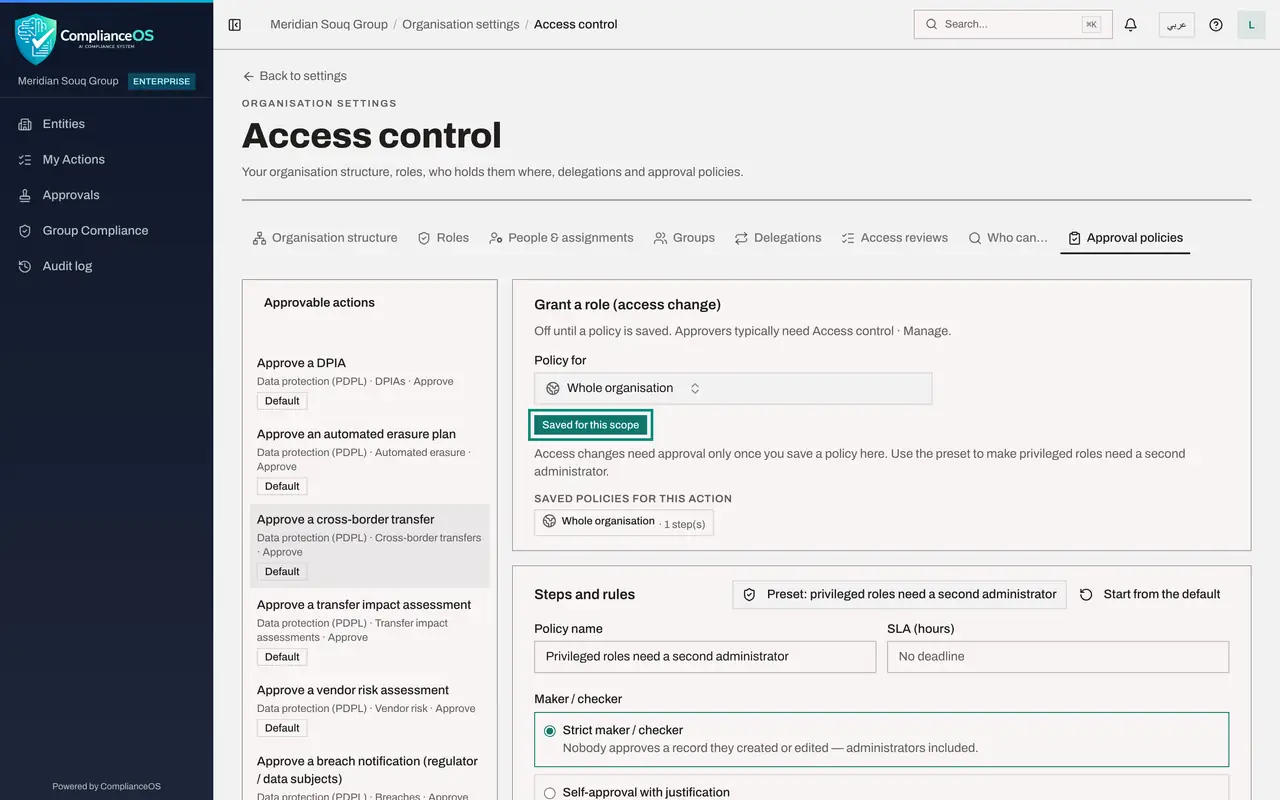
Scroll down the list and select Grant a role, access change. Its badge reads 1 saved. Access changes need approval only once a policy is saved, and this organisation has saved one. On the right, the badge Saved for this scope confirms it was saved for the whole organisation, and Saved policies for this action lists every place that has its own policy.
- 7
Read the policy name and the time limit
Under Steps and rules, Policy name is the label people see on a request that follows this policy. SLA, in hours, is the time allowed for a decision. When it is empty, requests have no due time.
- 8
Check the maker / checker mode
Look at Maker / checker. The maker is the person who prepares or asks for something. The checker is the person who approves it. Strict means nobody approves their own work, administrators included. Self-approval with justification lets the author approve with a written reason, which is flagged in the audit log.
- 9
Check the two switches
A different person for each step means the same person cannot approve two steps of one request. Policy active shows whether the policy is in force. Both are on here.
- 10
Read the approval step
Each step says who can approve. This step is named Second administrator. The approver needs the permission Access control, Manage, one approval is enough, and Only when is switched on with privileged role is yes. In plain words: a second administrator must approve, but only when the role being granted is a powerful one. The sentence at the bottom of the step sums it up.
- 11
See which policy an entity follows
Scroll up, open the Policy for box and choose Meridian Souq Trading LLC. The badge changes to Inherited from the organisation policy. The entity has no policy of its own, so it follows the organisation's. Choosing a place here only changes what you are looking at. Nothing is saved until you select Save policy.
- Select Whole organisation
- Choose Meridian Souq Trading LLCHead office
How to check it worked
You can say, for the action Grant a role, who approves it, which is a second administrator, when, which is only for privileged roles, and that the person asking can never approve their own request.
Common mistakes
- Reading a policy for the wrong place. The Policy for box decides which part of the organisation you are looking at. An entity can follow the organisation's policy or have its own.
- Assuming Default means no approval. Default means the built-in rule applies: one approver on the same entity, and nobody approves their own work.
- Overlooking the Only when switch on a step. A step with a condition is skipped for records that do not meet it, so not every request needs that approval.
Check your understanding
1. A policy uses Strict maker / checker. Who may approve a record?
- A.Anyone with the approver permission, including the person who prepared it
- B.Anyone with the approver permission except a person who created or edited the record
- C.Only administrators
- D.The person who prepared it, if they write a justification
Show answer
Answer: B. Anyone with the approver permission except a person who created or edited the record
Strict maker / checker means nobody approves a record they created or edited, administrators included. Approving your own work with a written reason is the other mode.
2. An action in the list shows the badge Default. What does that tell you?
- A.The action needs no approval
- B.Your organisation has not saved its own policy, so the built-in rule applies
- C.The policy is switched off
- D.The policy is waiting to be approved
Show answer
Answer: B. Your organisation has not saved its own policy, so the built-in rule applies
Default means nothing has been saved for this action, so the platform's built-in rule is used. A saved policy shows a count such as 1 saved.