Lesson 18 of 30
Import tax transactions and counterparties
What you will be able to do
This lesson is for administrators and tax staff who load data during set-up. You will import a file of sales and purchases into Tax Intelligence, read the preview and the rows that need fixing before anything is saved, and confirm the import. Then you will load the list of counterparties, which are your suppliers and customers, into CT Configuration and see how a wrong value is reported for its row.
Before you start
- You are signed in as an organisation administrator, or as a person with create rights in Tax for the entity, such as the tax manager.
- You have two files. The first, october-sales-purchases.csv, has five invented transactions, one of them with no date. The second, counterparties.csv, has five invented companies, one of them with a zone type that does not exist.
Steps
- 1
Open Tax Intelligence and find Import
In the left menu, under Tax, choose Tax Intelligence. The Transactions list opens. The Import button is in the row of buttons above the list, beside Export CSV.
- 2
Select Import
Select Import. The Import Transactions window opens. It accepts a CSV file or an Excel file.
- Select Import
- 3
Select Template to get the column names
Select Template. An Excel file is downloaded with the column names and three sample rows. Four columns are required: transaction date, written year, month, day; transaction type, which is INCOME for a sale and EXPENSE for a purchase; amount in dirhams; and description. The optional columns include the vendor or customer, the account and the invoice number.
- Select Template
- 4
Choose your file
Select Choose File and pick your spreadsheet. The app checks the file and shows a preview. Nothing has been imported yet.
- Upload Choose a file:
october-sales-purchases.csv
- Upload Choose a file:
- 5
Read the preview
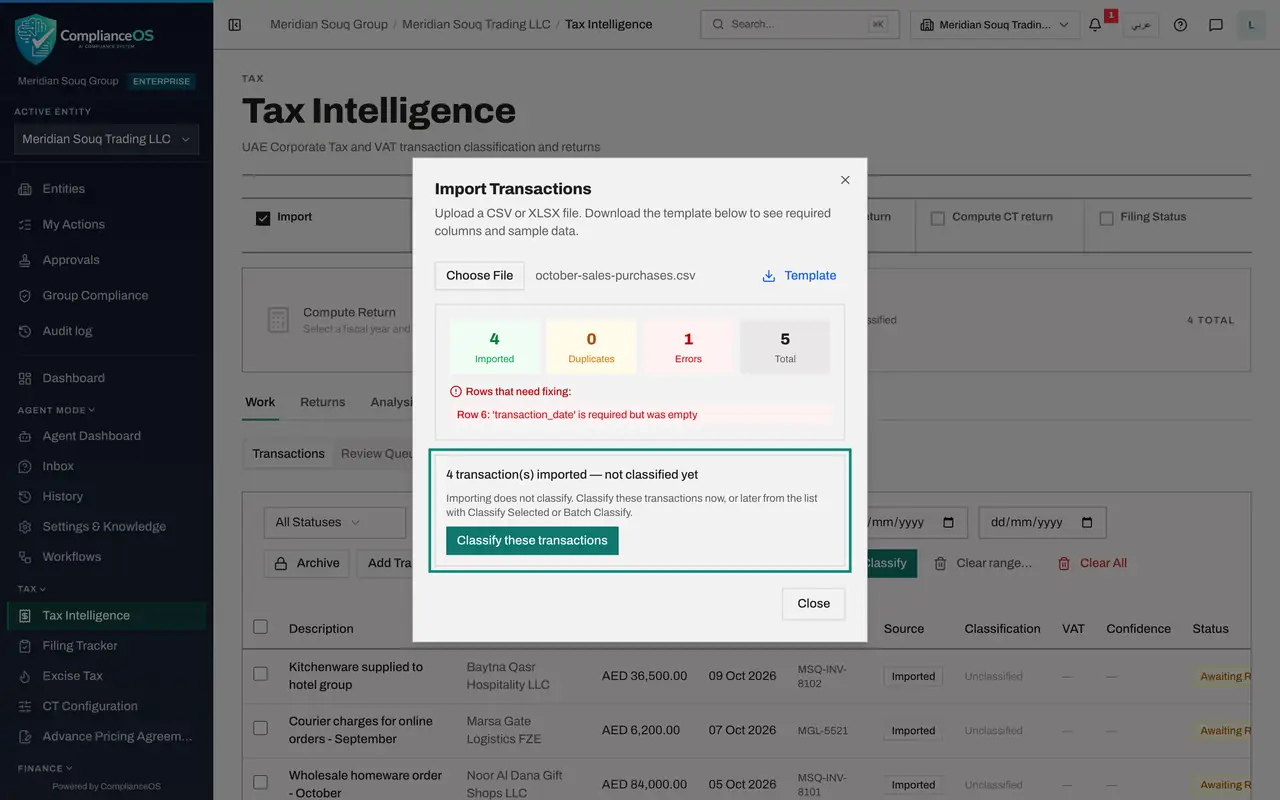
Will import counts the good rows, here 4. Duplicates counts rows that are already in the app. Errors counts rows that cannot be read, here 1. Total is the number of rows in the file.
- 6
Read the rows that need fixing
Under Rows that need fixing, each problem is listed with its row number in the file. Row 6 has no transaction date, so it will be left out. You can fix the file and choose it again, or carry on and add that purchase later.
- 7
Select Confirm import
Select Confirm import, 4 rows. The button changes to Importing while the rows are saved. Wait for the counts to change from Will import to Imported. A note then says the transactions are imported but not classified yet.
- Select Confirm import (4 rows)
- 8
Select Close and check the list
Select Close. The four transactions are in the list, each with the source Imported and the classification Unclassified.
- Select Close
- 9
Open CT Configuration and select Template
In the left menu, under Tax, choose CT Configuration. CT stands for corporate tax. The first section, Vendors and Counterparties, is the directory of your suppliers and customers. Select Template. A file counterparties_template.csv is downloaded with the columns: name, tax registration number, country, zone type, jurisdiction, company type, address, and default corporate tax and VAT treatments, with sample rows.
- Select Template
- 10
Select Bulk Upload CSV and pick the file
Select Bulk Upload CSV and pick your file of counterparties. The file is loaded as soon as you choose it. Messages at the corner of the screen report the result.
- Upload Choose a file:
counterparties.csv
- Upload Choose a file:
- 11
Read the result and the row error
Messages at the corner report the result. One names the wrong row: row 6, invalid zone type SEASIDE, with the four accepted values, DESIGNATED_ZONE, FREE_ZONE, INTERNATIONAL and MAINLAND. Another says that sanctions screening of the 5 new counterparties is running in the background, and that until it finishes they are shown as not screened, not as clear. All five companies are listed. Wadi Print House, the row with the wrong value, has no zone and is highlighted, and the tile Unzoned counts it.
- 12
Set the missing zone in the list
You can correct a row here without importing again. On the line for Wadi Print House, open the Zone type list and choose Mainland, taxable 9 per cent. The change is saved at once, and the tile Unzoned goes down.
- Choose Zone type for Wadi Print House:
Mainland (taxable 9%)
- Choose Zone type for Wadi Print House:
- 13
Select Seed from transactions
Select Seed from transactions. Names found in the imported transactions that are not yet in the directory are added. Here Baytna Qasr Hospitality LLC, a customer from the transactions file, is added without a zone, and the totals at the top go up by one.
- Select Seed from transactions
- 14
Look at the Employees section
Under In this module, select Employees. This roster is the headcount the corporate tax engine reads. The people imported in the previous lesson are already here, because it is the same employee list. It has its own Bulk Upload CSV, which needs only a name and a start date.
- Select Employees5 (5)
How to check it worked
Tax Intelligence lists four imported transactions with the source Imported. CT Configuration lists the counterparties with the source Import, and you can name the row and the value that was reported as wrong.
Common mistakes
- Selecting Confirm import without reading the preview. The preview is the moment to notice a wrong file, a wrong period or rows that will be left out.
- Expecting imported transactions to be classified. Importing only loads them. Classification is a separate step, covered in the tax course.
- Leaving a counterparty without a zone type. The zone decides whether income from it is taxed at nine per cent or qualifies for zero per cent in a free zone, and a missing zone sends its transactions to review.
Check your understanding
1. The preview shows Will import 4, Errors 1. What has been saved so far?
- A.Four transactions
- B.Five transactions
- C.Nothing: the preview is shown before anything is imported
- D.Only the row with the error
Show answer
Answer: C. Nothing: the preview is shown before anything is imported
The preview line says nothing has been imported yet. Rows are saved only when you select Confirm import.
2. Which zone types does the counterparty import accept?
- A.Any text
- B.MAINLAND, FREE_ZONE, DESIGNATED_ZONE and INTERNATIONAL
- C.Only MAINLAND
- D.Country codes such as AE
Show answer
Answer: B. MAINLAND, FREE_ZONE, DESIGNATED_ZONE and INTERNATIONAL
The error message for the wrong row lists the four accepted values. Mainland is taxable, and the other three are qualifying.