Lesson 20 of 30
Add a bank account and import a bank statement
What you will be able to do
This lesson is for administrators and finance staff who load data during set-up. You will register a bank account in Accounting, import a statement file downloaded from the bank, read the result, and import the same file again to see that lines already on file are not doubled.
Before you start
- You are signed in as an organisation administrator, or as a person with create rights in Accounting for the entity, such as the accountant.
- You have downloaded a statement for the account from your online banking as a file. This lesson uses october-statement.csv with six invented lines, one of them with no date.
- You know the last four digits of the account number. Never type full account numbers here.
Steps
- 1
Open Accounting and select Banking
In the left menu select Accounting, then Banking under In this module. Each bank account the company uses gets a card here. No bank accounts are added yet.
- Select Banking0 (0)
- 2
Select Add Bank Account
Select Add Bank Account. The form asks for the bank name and the account number, both required, the IBAN, the currency and the account type.
- Select Add Bank Account
- 3
Type the bank name and the masked numbers
Type the bank's name. Then type the account number and the IBAN in masked form: stars with only the last four digits. The grey examples in the boxes show the pattern.
- Type Bank Name *:
Al Waha Commercial Bank - Type Account Number (masked) *:
****4821 - Type IBAN (masked):
AE**0260****4821
- Type Bank Name *:
- 4
Check the currency and the account type
Currency is the currency the account is held in, here dirhams, AED. Open Account Type to see the choices, and keep Current.
- Select Account Type
- 5
Select Add Account
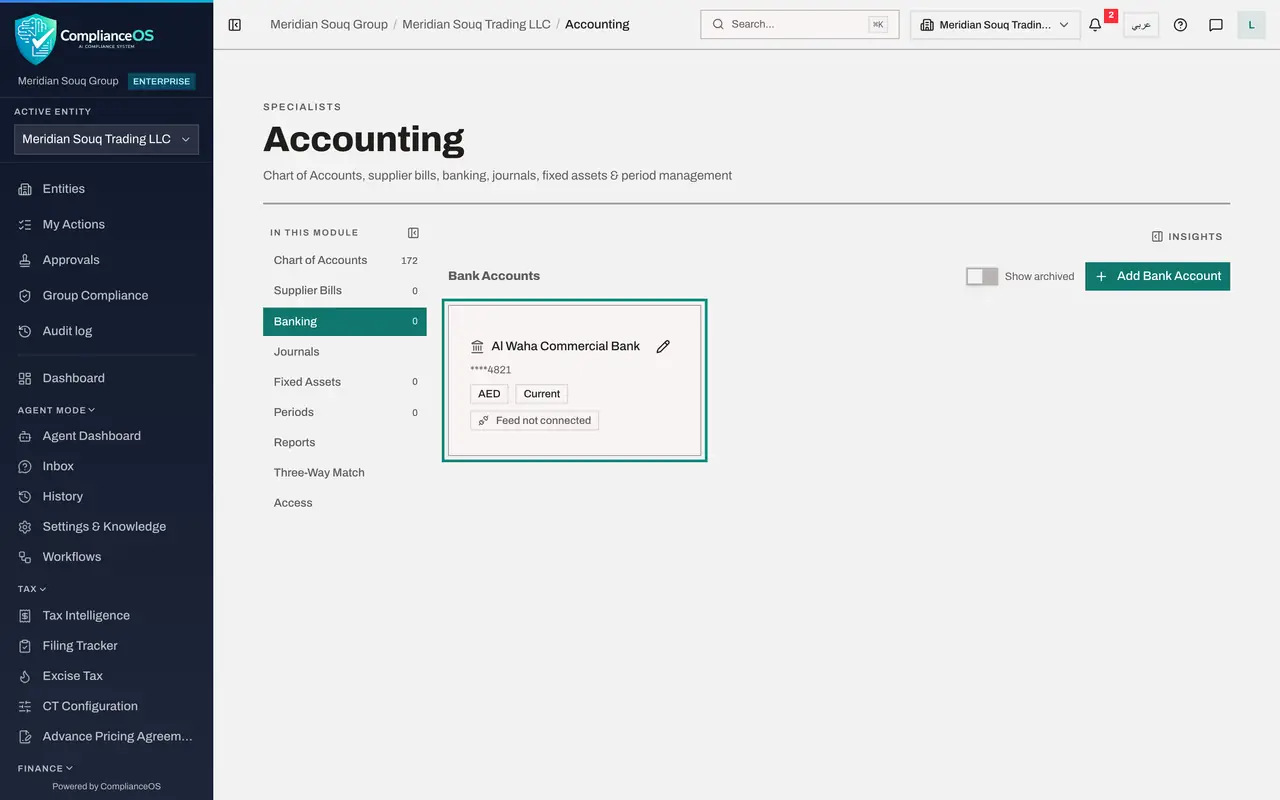
Close the list and select Add Account. A card for the account appears with its masked number, currency and type. The label Feed not connected means statements are brought in by file, not by a live link to the bank.
- Select Add Account
- 6
Select the account card
Select the card. The account's transactions open below, empty for now, with the buttons Import Statement and Auto-Match.
- Select Bank account Al Waha Commercial Bank ****4821
- 7
Select Import Statement and choose the file
Select Import Statement and choose the statement file from your bank. Spreadsheet files, PDF files and the bank formats MT940, OFX and CAMT are accepted. A banner shows progress, then the result.
- Upload Choose a file:
october-statement.csv
- Upload Choose a file:
- 8
Read the imported lines
The banner reads Import complete, 5 transactions imported. The file had six lines. The line with no date was left out without any message, so always compare the count with your statement. Each imported line shows its date, description, amount, reference and the match status UNMATCHED. Money out is shown with a minus sign. The tiles above count the lines and total the credits and debits.
- 9
Import the same file again
Select Import Statement and choose the same file once more. The banner now reads Import complete, 0 transactions imported, 5 duplicates skipped. Nothing is counted twice.
- Upload Choose a file:
october-statement.csv
- Upload Choose a file:
How to check it worked
Banking shows a card for Al Waha Commercial Bank. Selecting it lists the statement lines that were imported, each with the match status UNMATCHED.
Common mistakes
- Typing the full account number or IBAN. The form asks for masked values: stars with only the last four digits.
- Importing a statement into the wrong account. Select the card of the right account first. The import goes into the account that is open.
- Worrying about importing the same file twice. Lines with the same date, amount and description are skipped as duplicates.
Check your understanding
1. The label on the account card reads Feed not connected. How do statements get in?
- A.They cannot
- B.By importing a statement file
- C.Only through an accounting connector
- D.By email
Show answer
Answer: B. By importing a statement file
Feed not connected means there is no live link to the bank, so you bring statements in by file with Import Statement.
2. You import last month's statement a second time by mistake. What happens?
- A.Every line is doubled
- B.The account is locked
- C.Lines already on file are skipped
- D.The first import is deleted
Show answer
Answer: C. Lines already on file are skipped
The import recognises lines with the same date, amount and description and skips them, so nothing is counted twice.