Lesson 17 of 30
Import employees from a spreadsheet
What you will be able to do
This lesson is for administrators and for HR staff who load data during set-up. You will download the employee template, read its columns, import a file of new joiners, read the totals, the row-by-row errors and the screening note, and find the new people in the list. At the end you will look at the separate import for salary payment records.
Before you start
- You are signed in as an organisation administrator, or as a person with create rights in Workforce for the entity, such as the HR director.
- You have a spreadsheet with one employee on each row. This lesson uses the file meridian-new-joiners.csv with four rows of invented people. One row has no employment date, and one row repeats a person who is already in the file.
Steps
- 1
Open Workforce and select the Employees tab
In the left menu choose Workforce, then select the Employees tab. This is the list of people employed by the entity. Import is above the list, beside Register Employee.
- Select Employees
- 2
Select Import
Select Import. The Import Employees window opens. It accepts a CSV file or an Excel file.
- Select Import
- 3
Select Template to get the column names
Select Template. An Excel file is downloaded with the column headings on row 3 and three sample rows. The three headings marked with a star are required: full name, is Emirati, and employment date. The rest are optional, including salary, employee number, contract type, and the numbers and expiry dates of the visa, Emirates ID, labour card and passport. A second sheet holds the instructions.
- Select Template
- 4
Select Choose File and pick your spreadsheet
Select Choose File and pick the file from your computer. Its name appears beside the button. Dates in the file are written year, month, day. Yes-or-no columns take TRUE or FALSE. Nationality is the two-letter country code, such as AE or IN.
- Upload Choose a file:
meridian-new-joiners.csv
- Upload Choose a file:
- 5
Select Import and read the totals
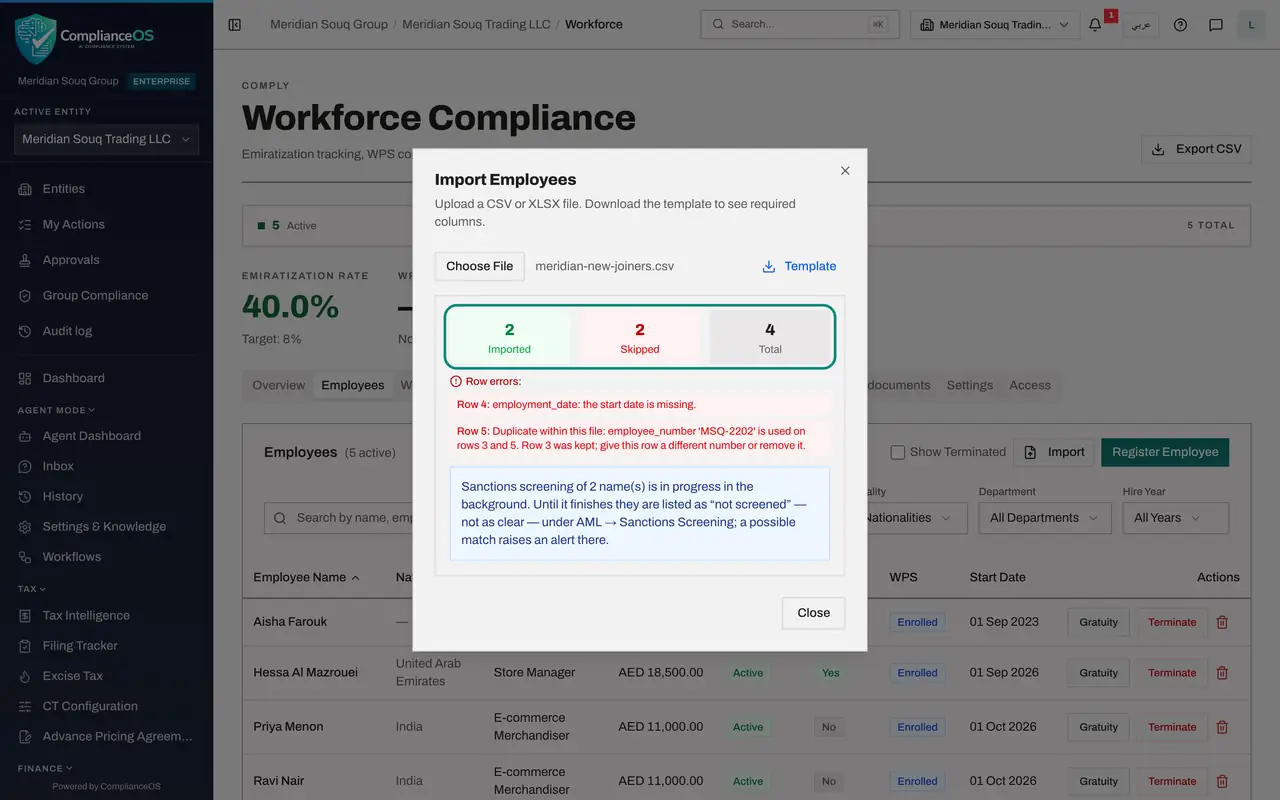
Select Import. The button reads Importing while the rows are saved, which can take up to a minute. Then three numbers appear. Imported is the rows added. Skipped is the rows left out. Total is the rows in the file. Here 2 were imported and 2 skipped.
- Select Import
- 6
Read the row errors
Under Row errors there is one line for each skipped row, with its row number in the file and the reason. Row 4: employment date, the start date is missing. Row 5: duplicate within this file, the employee number is used on rows 3 and 5, row 3 was kept, give this row a different number or remove it. Note the row numbers so you can correct the file.
- 7
Read the note about sanctions screening
Below the errors, a note says that sanctions screening of the 2 imported names is in progress in the background. Until it finishes they are listed as not screened, not as clear, under AML, Sanctions Screening, and a possible match raises an alert there.
- 8
Close the window and find the new employees
Select Close. Type MSQ-22 in the search box to see the people who were just added, with their nationality, job title, salary and start date. Correct the two skipped rows in your file and import it again. Rows that are already in are skipped.
- Select Close
- Type Search by name, employee number, job title or department…:
MSQ-22
- 9
Open WPS Payment Records
Select the tab WPS Payment Records. WPS is the Wages Protection System, through which salaries are paid. Scroll down to the list WPS Payment Records. It has its own Import button for monthly salary payments.
- Select WPS Payment Records
- 10
Read what the salary records import expects
Select Import. The window Import WPS Salary Records lists the columns it expects: employee number, period month, period year, salary paid in dirhams, due date, paid date and status. Use the employee number from the list, and leave status empty to have it worked out from the dates. This import has no template button, so build the file from that list. Select Cancel.
- Select Import
- Select Cancel
How to check it worked
The result shows 2 imported and 2 skipped out of 4, with one line under Row errors for each skipped row. Searching for MSQ-22 in the Employees list finds the two new people.
Common mistakes
- Renaming or reordering the column headings. Keep the header row of the template exactly as it is and do not add columns.
- Writing dates as day, month, year. Dates must be written year, month, day, for example 2026-09-01.
- Importing the whole file again after fixing two rows and expecting duplicates of the first two. Rows whose employee number already exists are skipped, so it is safe to import the corrected file.
Check your understanding
1. The result reads Imported 2, Skipped 2. Where do you find out which rows were skipped and why?
- A.In the audit log
- B.Under Row errors in the same window
- C.In the template
- D.In Organisation settings
Show answer
Answer: B. Under Row errors in the same window
Row errors lists one line for each skipped row with its row number in the file and the reason.
2. Which columns of the employee template must always be filled in?
- A.All eighteen
- B.full_name, is_emirati and employment_date, the three marked with a star
- C.Only employee_number
- D.Only basic_salary_aed
Show answer
Answer: B. full_name, is_emirati and employment_date, the three marked with a star
The template marks required columns with a star: full name, whether the person is Emirati, and the employment date. The others are optional.