Lesson 30 of 30
How this connects: a rule and a setting at work in other modules
What you will be able to do
This closing lesson is for administrators. It shows that what you set in this course takes effect elsewhere. You will change the approval rule for posting journal entries and watch Accounting follow it. You will change one score setting and see the result on the entity and on the organisation's dashboard. And you will see where the imported employees turned up in the sanctions screening.
Before you start
- The earlier lessons have been completed, so the entity has a chart of accounts, imported employees and transactions.
- The accountant, Ahmed Saleh, has prepared two journal entries, one of 72,000 dirhams and one of 1,800 dirhams, and submits them for approval after the rule is saved. This preparation is not shown in the lesson.
Steps
- 1
Open the policy for posting journal entries
In Settings, Access control, Approval policies, select Post, approve, a journal entry. It is on the built-in rule: one approver holding the permission to approve journal entries on the same entity.
- 2
Add a second step for large entries
Select Add step. Name the new step Head office sign-off. In Approver holds it over, choose head office, so the second approval comes from someone whose role covers the whole organisation.
- Select Add step
- Type Step name:
Head office sign-off - Select the same entity
- Choose head office
- 3
Set the condition on the amount
Switch on Only when on step 2. Keep the field amount, choose the condition at least, and enter 50000 in Value. The sentence under the step now ends with Only when amount is at least 50000.
- Select more than
- Choose at least
- Type Value:
50000
- 4
Select Save policy
Select Save policy. The action now shows 1 saved. From this moment, journal entries of 50,000 dirhams or more need two different approvers.
- Select Save policy
- 5
Open Accounting, Journals, and select Approval Queue
Now see the rule at work in another module. In the left menu select Accounting, then Journals, then Approval Queue. Two entries prepared by the accountant are waiting: an accrual of 1,800 dirhams and one of 72,000 dirhams.
- Select Journals
- Select Approval Queue
- 6
Approve the small entry
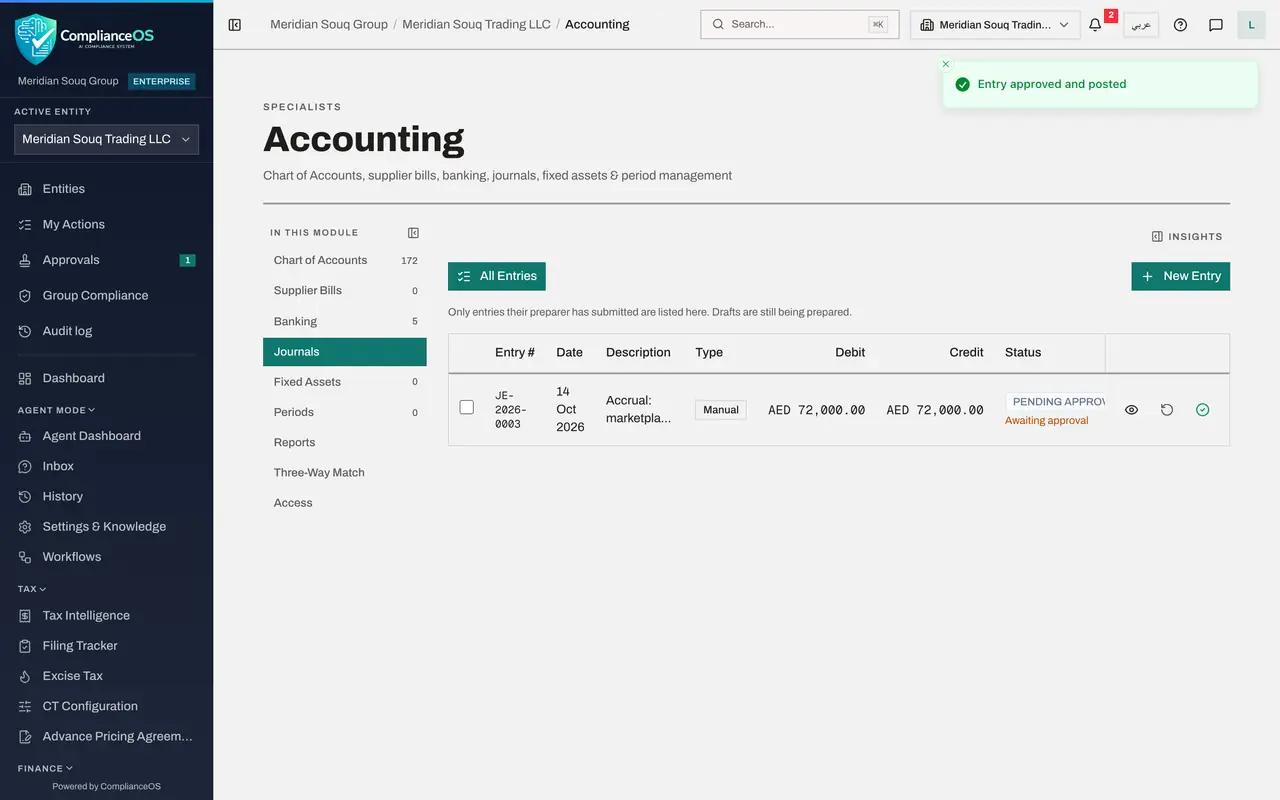
On the entry of 1,800 dirhams, select the green tick, Approve and post. A box shows the entry once more. Select Approve. The message reads Entry approved and posted. The second step did not apply, because the amount is under 50,000.
- Select Approve entry JE-2026-0004
- Select Approve
- 7
Approve the large entry
Now select the green tick on the entry of 72,000 dirhams, and select Approve. This time the message reads Your approval is recorded, waiting on step 2, Head office sign-off. Not approved yet. The entry stays in the queue for a second person.
- Select Approve entry JE-2026-0003
- Select Approve
- 8
Check the two entries
Select All Entries. The small entry shows Posted. The large entry still shows Pending approval, with Awaiting approval under it. The policy asks for a different person for each step, so the second approval must come from another person whose role covers head office.
- Select All Entries
- 9
Open the score settings on the entity's overview
Next, a score setting. Select Dashboard in the left menu to open the entity's overview. Its overall score is rated high risk. Scroll to the panel that begins Based on, and select Modules and risk levels.
- Select Modules and risk levels
- 10
Change a risk level and select Save
Suppose the group decides to be stricter. Under Risk levels, change High risk from to 50 and select Save. Anything below 50 per cent now counts as critical. Scroll to the top: the same score is now rated Critical, and the panel records the levels in use for this entity.
- Type High risk from (%):
50 - Select Save
- Type High risk from (%):
- 11
Open Group Compliance
Select Group Compliance in the left menu. It gathers the scores of every entity for head office. The entity is listed with the same overall score and its module scores, and Top Risk Areas names the modules that pull it down. What you set on one entity is what the group sees.
- Select Group Compliance
- 12
See the imports in the sanctions screening
Last, the imports. Open AML/CFT and select Screening. Every employee and counterparty you imported in this course was screened against the watchlists automatically. Total screened counts the checks, and the list below shows each name with its type, status and the time it was screened.
How to check it worked
The small journal entry is posted after one approval, while the large one still waits for a second approver. The entity's risk level changed after you saved the new risk levels.
Common mistakes
- Changing an approval rule and expecting requests that are already open to follow it. Open requests keep the policy they started with.
- Setting a threshold without telling the approvers. The people who hold the permission for the second step need to know that requests will now reach them.
- Moving the risk levels to make a score look better. The levels describe how much risk your organisation accepts. Change them only as a decision of the people responsible.
Check your understanding
1. A journal entry of 1,800 dirhams is approved under the new policy. Why is it posted after one approval?
- A.Small entries need no approval
- B.The second step applies only when the amount is at least 50,000
- C.The administrator posted it by force
- D.The policy was not saved
Show answer
Answer: B. The second step applies only when the amount is at least 50,000
The second step carries the condition amount at least 50,000. For a smaller entry it does not apply, so one approval completes the request.
2. Where does a change to an entity's risk levels show?
- A.Only in the settings window
- B.Wherever the entity's score is shown, such as its overview and the organisation's dashboard
- C.In the audit log only
- D.Nowhere until the next month
Show answer
Answer: B. Wherever the entity's score is shown, such as its overview and the organisation's dashboard
The risk level is worked out from the score and the levels, so every screen that shows the entity's score reflects the change.