Lesson 2 of 30
Create an approval policy with two steps and a condition
What you will be able to do
This lesson is for administrators. You will build an approval policy for publishing privacy policies: the data protection officer always approves, and a compliance officer must also approve when the change is a major one. You will fill in every field of the policy editor and save the policy for the whole organisation.
Before you start
- You are signed in as an organisation administrator. Editing approval policies needs the permission Approvals, Configure, which the Organisation administrator role includes.
- You have agreed with the people concerned who should approve, in which order, and in which cases.
- You have read the previous lesson, Read the approval policies.
Steps
- 1
Select Publish a privacy policy version
In Settings, Access control, Approval policies, select Publish a privacy policy version in the list of approvable actions. Its badge reads Default, and the editor on the right is filled in with the built-in rule: one approval step.
- 2
Check where the policy will apply
Policy for is set to Whole organisation, so the policy you save will apply to every unit and entity that has no policy of its own. To give one entity a different rule you would choose it here first. That is covered in a later lesson.
- 3
Type the policy name
In Policy name, type a name that says what the rule does. People see this name on every request that follows the policy. If you leave it blank, the action's own name is used.
- Type Policy name:
Privacy policies: second sign-off on major changes
- Type Policy name:
- 4
Set the time allowed for a decision
In SLA, in hours, enter 72. Each request then shows a due time three days after it was submitted. Leave the box empty if requests should have no due time. The largest value is 2160 hours, which is ninety days.
- Type SLA (hours):
72
- Type SLA (hours):
- 5
Leave maker / checker on Strict and both switches on
Strict maker / checker stays selected, so nobody approves a version they wrote or edited. A different person for each step stays on, so the two steps need two different people. Policy active stays on, so the policy takes effect as soon as it is saved.
- 6
Name the first step
Under Approval steps, change the Step name of step 1 to Data protection officer. Approver needs already shows the permission Data protection, Privacy policies and attestation, Approve, which the data protection officers hold. Approvals needed is 1.
- Type Step name:
Data protection officer
- Type Step name:
- 7
Select Add step
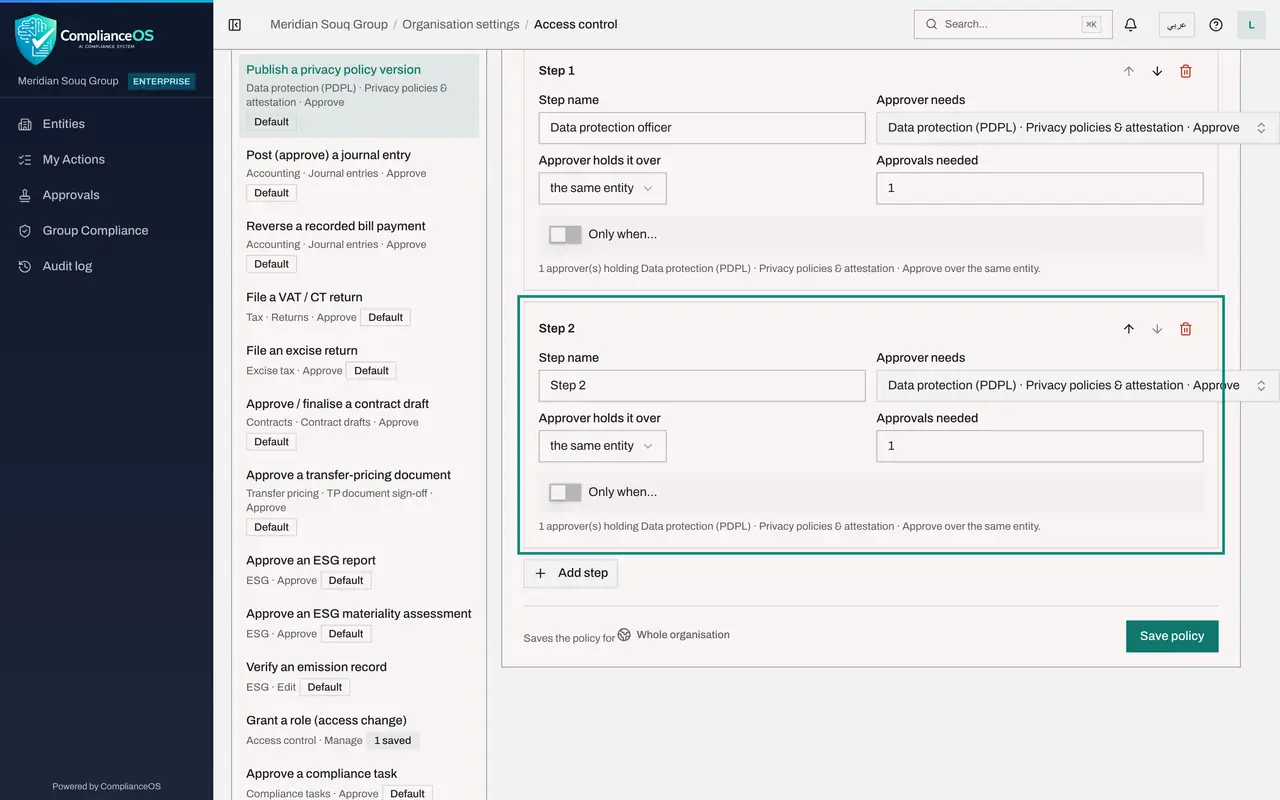
Select Add step under the first step. A second step appears, named Step 2, with the same approver permission as the first. A policy can have up to ten steps, and they are decided in order from the top.
- Select Add step
- 8
Name the second step
Change the Step name of step 2 to Compliance officer sign-off. The step name is shown to the person who submitted the record, so they know whose turn it is.
- Type Step name:
Compliance officer sign-off
- Type Step name:
- 9
Choose the permission the second approver needs
Open Approver needs on step 2. Type compliance tasks in the search box and choose Compliance tasks, Approve. Anyone whose role includes that permission on the entity can decide this step. Here that is the compliance officer.
- Type Search permissions…:
compliance tasks
- Type Search permissions…:
- 10
Look at where the approver must hold the permission
Open Approver holds it over. The same entity means the entity the record belongs to. The parent unit and head office move the decision up the organisation structure, and a specific unit names one unit. Keep the same entity, then close the list.
- Select the same entity
- 11
Keep one approval for the step
Press Escape to close the list. Approvals needed is the number of different people who must approve before the step is complete. It can be from 1 to 10. Keep 1.
- 12
Switch on Only when and choose the condition
Switch on Only when on step 2. In Field choose major change, and in Condition keep is yes. The fields offered depend on the action: for privacy policies they are policy type, major change and legal review outstanding. The sentence under the step now ends with Only when major change is yes.
- Select policy type
- Choose major change
- 13
Find the buttons that reorder or remove a step
At the top right of each step, the up and down arrows change the order in which steps are decided, and the bin removes the step. A policy must keep at least one step, so the bin is greyed out when only one is left.
- 14
Select Save policy
Select Save policy. A note beside the button reminds you that the policy is saved for the whole organisation. After saving, the badge at the top reads Saved for this scope, and the action shows 1 saved in the list. The policy applies to requests submitted from now on.
- Select Save policy
How to check it worked
In the list of approvable actions, Publish a privacy policy version now shows 1 saved, and the editor shows the badge Saved for this scope with two steps. The sentence under step 2 ends with Only when major change is yes.
Common mistakes
- Choosing an approver permission that nobody on the entity holds. The request then waits for ever. Before saving, check on the Who can tab that at least two people hold the permission.
- Choosing an approver from another department who cannot open the record. In this pass a legal counsel was offered the request but could not open the privacy policy to decide it. Pick a permission held by people who can also see the record.
- Forgetting the condition value. For a number or text field the Value box must be filled in, or Save policy stays greyed out.
Check your understanding
1. Step 2 has Only when switched on with major change is yes. A minor wording change is submitted. What happens?
- A.Both steps must still be approved
- B.Step 2 is skipped, so only step 1 is needed
- C.The request is rejected automatically
- D.Nobody needs to approve
Show answer
Answer: B. Step 2 is skipped, so only step 1 is needed
A step with a condition applies only to records that meet it. A minor change does not meet major change is yes, so the request needs step 1 only.
2. What does Approver holds it over, the same entity, mean?
- A.The approver must be an administrator
- B.The approver must hold the permission on the entity the record belongs to
- C.The approver must work in head office
- D.Anyone in the organisation may approve
Show answer
Answer: B. The approver must hold the permission on the entity the record belongs to
The same entity means the approver's role must cover the entity that owns the record. The other choices move the decision up to the parent unit, head office or one named unit.