Lesson 16 of 30
Add a webhook endpoint and find its delivery log
What you will be able to do
This lesson is for administrators. A webhook is a message ComplianceOS sends to an address of yours the moment something happens, for example when a contract is scored as high risk. You will open Webhooks, go through every field of the Add Webhook Endpoint form, see an address that cannot be reached being refused, register an endpoint, save its signing secret, find its delivery log and remove the endpoint again.
Before you start
- You are signed in as an organisation administrator. Reading webhooks needs Organisation, View, and changing them needs Organisation, Manage.
- Your own IT team has given you the address that will receive the messages. It must be reachable on the public internet. This lesson first types an invented address, which is refused, and then registers an address on example.com, a domain reserved for documentation. No message is sent to it, and the endpoint is removed at the end.
Steps
- 1
Open Organisation settings and select Webhooks
Open the menu under your initial, select Organisation settings, then select Webhooks in the settings menu. Registered Endpoints lists the addresses that receive messages. None is configured yet.
- Select Account menu
- Select Organisation settings
- Select Webhooks
- 2
Select Add Endpoint
Select Add Endpoint. The window Add Webhook Endpoint opens. It explains that every message is signed, so the receiver can check where it came from.
- Select Add Endpoint
- 3
Type the endpoint address
In Endpoint URL, type the address your IT team gave you. It is required. It must start with https. Here an invented address that does not exist is typed.
- Type Endpoint URL *:
https://hooks.meridian-souq.example/complianceos
- Type Endpoint URL *:
- 4
Describe what the endpoint is for
In Description, say which system receives the messages and why. It is optional, but it helps whoever looks after the list next year.
- Type Description (optional):
Legal case system: high-risk and completed contracts
- Type Description (optional):
- 5
Tick the events to send
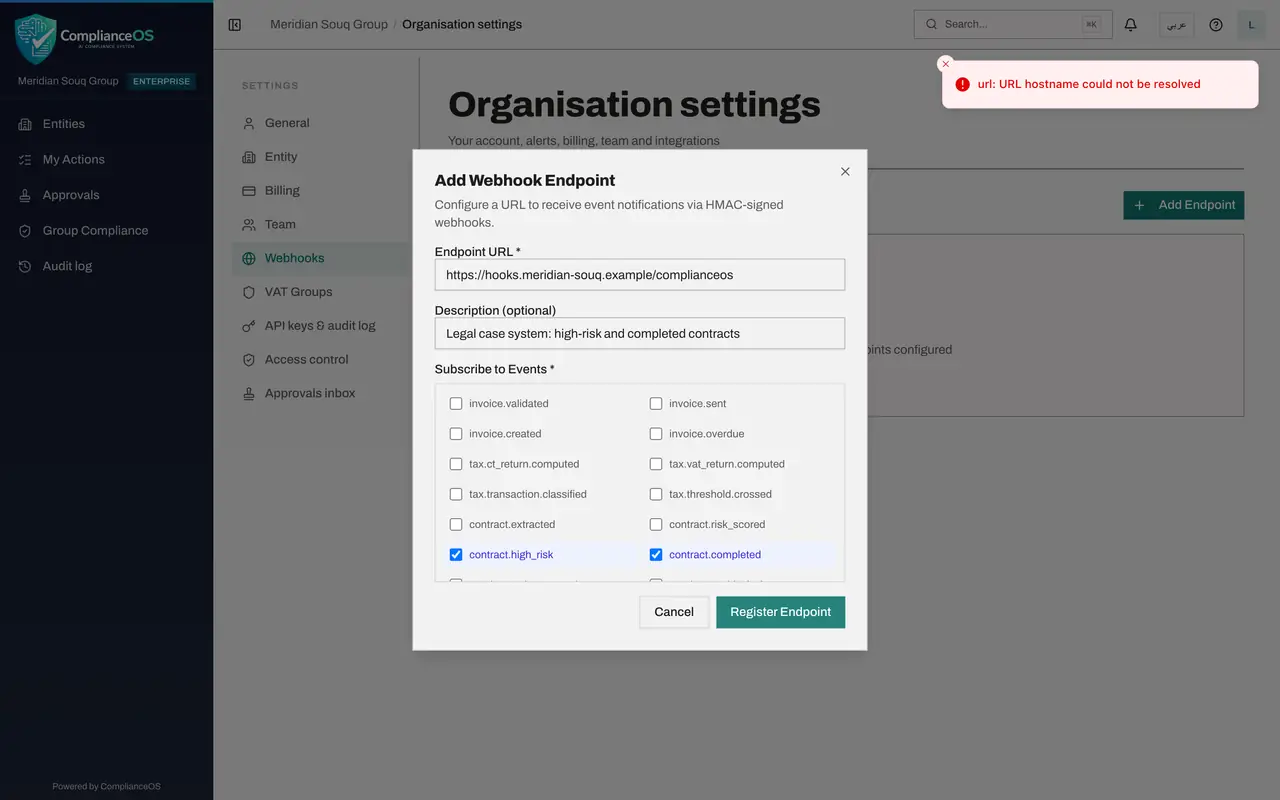
Under Subscribe to Events, tick at least one event. The list covers tax, contracts, regulatory alerts, employees, sanctions, anti-money-laundering, data protection, tasks and more. Tick contract.high_risk and contract.completed.
- Select contract.high_risk
- Select contract.completed
- 6
Select Register Endpoint and read the refusal
Select Register Endpoint. The button was greyed out until an address and one event were given. The invented address is refused: a message at the corner of the screen says the URL hostname could not be resolved. ComplianceOS looks every address up before saving it.
- Select Register Endpoint
- 7
Correct the address and select Register Endpoint
Replace the address with one that exists. This lesson uses an address on example.com, a domain reserved for documentation. Select Register Endpoint again. This time a new window shows the signing secret.
- Type Endpoint URL *:
https://example.com/hooks/complianceos - Select Register Endpoint
- Type Endpoint URL *:
- 8
Save the signing secret, then select I've saved it
The signing secret is shown only once and cannot be retrieved again. Your system uses it to check that each message really came from ComplianceOS. Copy it and give it to your IT team through a safe channel, such as the company password manager. Then select I've saved it.
- Select I've saved it
- 9
Read the endpoint's line
The endpoint is listed with its address, the events it receives and the status Active. At the end of the line are two buttons. The paper plane sends a test event to the address. The bin removes the endpoint.
- 10
Select the endpoint to open its Delivery Log
Select the line. The Delivery Log opens below the list. It holds one line for every message sent to this endpoint, with the event, a status, the reply code, the number of attempts, the next retry and the date. A delivery is Pending while it waits, Delivered when your system accepted it, and Failed when it did not. It reads No deliveries yet. No test is sent in this lesson, because the address belongs to someone else.
- 11
Remove the endpoint with the bin
This endpoint was only for practice, so remove it. Select the bin at the end of its line. There is no confirmation: the endpoint is removed straight away, and the list reads No webhook endpoints configured.
- Select Delete
How to check it worked
After Register Endpoint the endpoint is listed under Registered Endpoints as Active with two events, and selecting it opens a Delivery Log that reads No deliveries yet. After you select the bin, the list reads No webhook endpoints configured again.
Common mistakes
- Typing an internal address, such as a server name that only works inside your office. The address is checked when you register, and one that cannot be found on the public internet is refused.
- Ticking every event. Subscribe only to the events the receiving system acts on, or it will be flooded.
- Closing the secret window before saving the signing secret. It is shown once only. Without it your system cannot check that a message really came from ComplianceOS.
- Selecting the bin to see what it does. It removes the endpoint straight away, with no confirmation.
Check your understanding
1. You register an endpoint and the message says the URL hostname could not be resolved. What is wrong?
- A.You ticked too many events
- B.The address cannot be found on the public internet, for example because it is mistyped or internal
- C.Your role is missing a permission
- D.The description is empty
Show answer
Answer: B. The address cannot be found on the public internet, for example because it is mistyped or internal
ComplianceOS looks the address up before saving it. A name that does not exist publicly is refused.
2. What is the signing secret for?
- A.Signing in to ComplianceOS
- B.Letting the receiving system verify that each message really came from ComplianceOS
- C.Encrypting the audit log
- D.Resetting passwords
Show answer
Answer: B. Letting the receiving system verify that each message really came from ComplianceOS
Every delivery carries a signature made with the secret. The receiving system recomputes it to confirm the sender, which is why the secret must be stored safely.