Lesson 14 of 30
Create, copy and revoke an API key
What you will be able to do
This lesson is for administrators. An API key lets one of your own systems, such as a reporting tool, read or write ComplianceOS data without a person signing in. You will find API keys under Settings, create a read-only key limited to one entity with an expiry date, copy it, revoke it, and find it again behind Show revoked.
Before you start
- You are signed in as an organisation administrator. API keys need the permission Organisation, Manage.
- You know which system will use the key, what it needs to do, and for how long.
- You have somewhere safe to keep the key, such as your company's password manager.
Steps
- 1
Open Organisation settings and select API keys and audit log
Open the menu under your initial, select Organisation settings, then select API keys and audit log in the settings menu. This section used to be called Integrations. It was renamed so it is not confused with the accounting connectors.
- Select Account menu
- Select Organisation settings
- Select API keys & audit log
- 2
Select Manage API Keys
The section has two cards. API Access leads to the keys, and Audit Log leads to the full history of actions. Select Manage API Keys. The API Keys page lists the active keys, or says that none exist yet.
- Select Manage API Keys →
- 3
Select Create Key
Select Create Key at the top right. The Create API Key window opens.
- Select Create Key
- 4
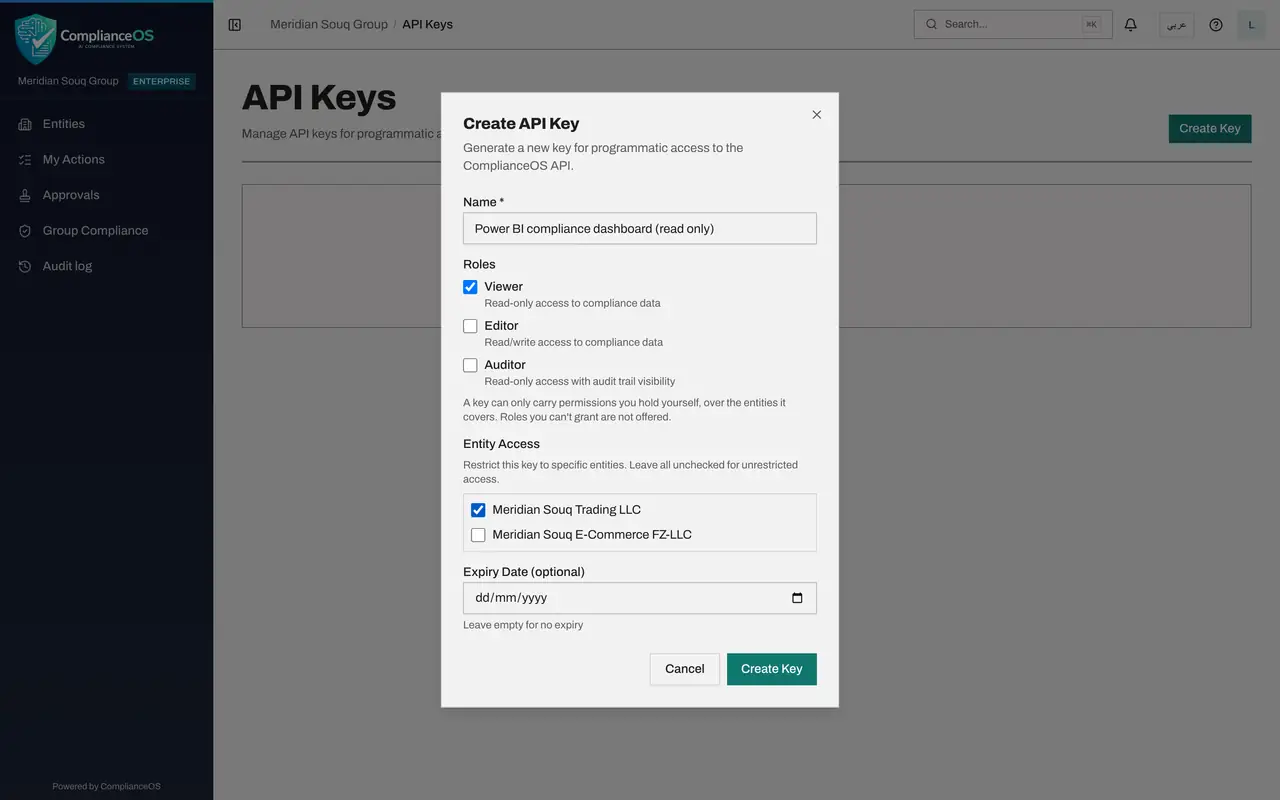
Name the key after the system that will use it
In Name, type which system uses the key and what for. The name is required. A clear name tells you later which key to revoke.
- Type Name *:
Power BI compliance dashboard (read only)
- Type Name *:
- 5
Tick the role the key needs
Under Roles there are three choices. Viewer reads compliance data. Editor reads and writes. Auditor reads, with the audit trail. Tick Viewer. The note below explains that a key can only carry permissions you hold yourself, over the entities it covers.
- Select Viewer
- 6
Limit the key to one entity
Under Entity Access tick Meridian Souq Trading LLC. The key can then reach only that entity. If you tick nothing, the key can reach every entity.
- Select Meridian Souq Trading LLC
- 7
Set an expiry date
In Expiry Date choose the day the key should stop working, here about three months ahead. The field is optional. Leaving it empty means the key never expires.
- Type Expiry Date (optional):
2027-01-12
- Type Expiry Date (optional):
- 8
Select Create Key
Select Create Key at the bottom of the window. A second window, API Key Created, shows the full key. This is the only time it is shown.
- Select Create Key
- 9
Copy the key, then select Done
Select Copy and paste the key straight into the other system or your company's password manager. Then select Done. The key is listed with the first characters of its code, its role, the number of entities it can reach, the status Active, when it was last used and when it expires.
- Select Done
- 10
Select Revoke on the key
When the other system stops using the key, or you think the key has leaked, select Revoke on its line. A warning explains that this is permanent and that anything using the key loses access immediately.
- Select Revoke
- 11
Select Revoke Key
Select Revoke Key. The key stops working at once and leaves the list. With no other key, the page reads No active API keys and says how many revoked keys are hidden.
- Select Revoke Key
- 12
Switch on Show revoked
Switch on Show revoked above the list. Revoked keys come back, greyed out and marked Revoked, with no Revoke button. They are kept as a record that the key existed and who created it.
How to check it worked
After Create Key, the key is listed as Active with the role Viewer, one entity and an expiry date. After Revoke Key, the list reads No active API keys, and switching on Show revoked brings the key back marked Revoked.
Common mistakes
- Closing the window before copying the key. The full key is shown once only. If you lose it, revoke the key and create a new one.
- Giving Editor when Viewer is enough. A key should carry the least it needs.
- Leaving Entity Access empty without meaning to. With nothing ticked the key can reach every entity.
- Creating a key with no expiry for a short project. Set an expiry date so the key stops working by itself.
Check your understanding
1. You created a key and closed the window without copying it. What do you do?
- A.Open the key in the list and copy it again
- B.Ask support for the key
- C.Revoke it and create a new one
- D.Wait for it to expire
Show answer
Answer: C. Revoke it and create a new one
The full key is shown only once. The list keeps just the first characters, so the only fix is to revoke the key and create another.
2. What can a key do that its creator cannot?
- A.Read every entity
- B.Write data
- C.Nothing: a key can only carry permissions its creator holds
- D.Approve its own requests
Show answer
Answer: C. Nothing: a key can only carry permissions its creator holds
The form states that a key can only carry permissions you hold yourself, over the entities it covers. Roles you cannot grant are not offered.