Lesson 11 of 30
Tour the Integrations catalogue
What you will be able to do
This lesson is for administrators. You will open Integrations for an entity and learn to read it: the three totals, the views on the left, each connector card and its state, the connectors that are not available yet, the Insights panel, the sync log and how often data arrives.
Before you start
- You are signed in as an organisation administrator. The Organisation administrator role now includes the whole Integrations module.
- You have chosen the entity whose accounting system you want to link. Connections are made for one entity at a time.
Steps
- 1
Open Tools in the left menu and select Integrations
Choose the entity at the top of the left menu, then scroll to Tools near the bottom of the menu and select Integrations. An integration, or connector, is a link that brings records from another system into ComplianceOS so nobody has to retype them.
- Select Tools
- Select Integrations
- 2
Read the three totals
The strip at the top gives the picture at a glance. Connected is the number of systems linked to this entity. Available is the number ready to be connected. Attention counts connections whose last sync had an error. Below the totals, Sync conflicts says whether any synced record clashes with one changed here. None are waiting, and Review conflicts opens the list when there are.
- 3
Look through the connector cards
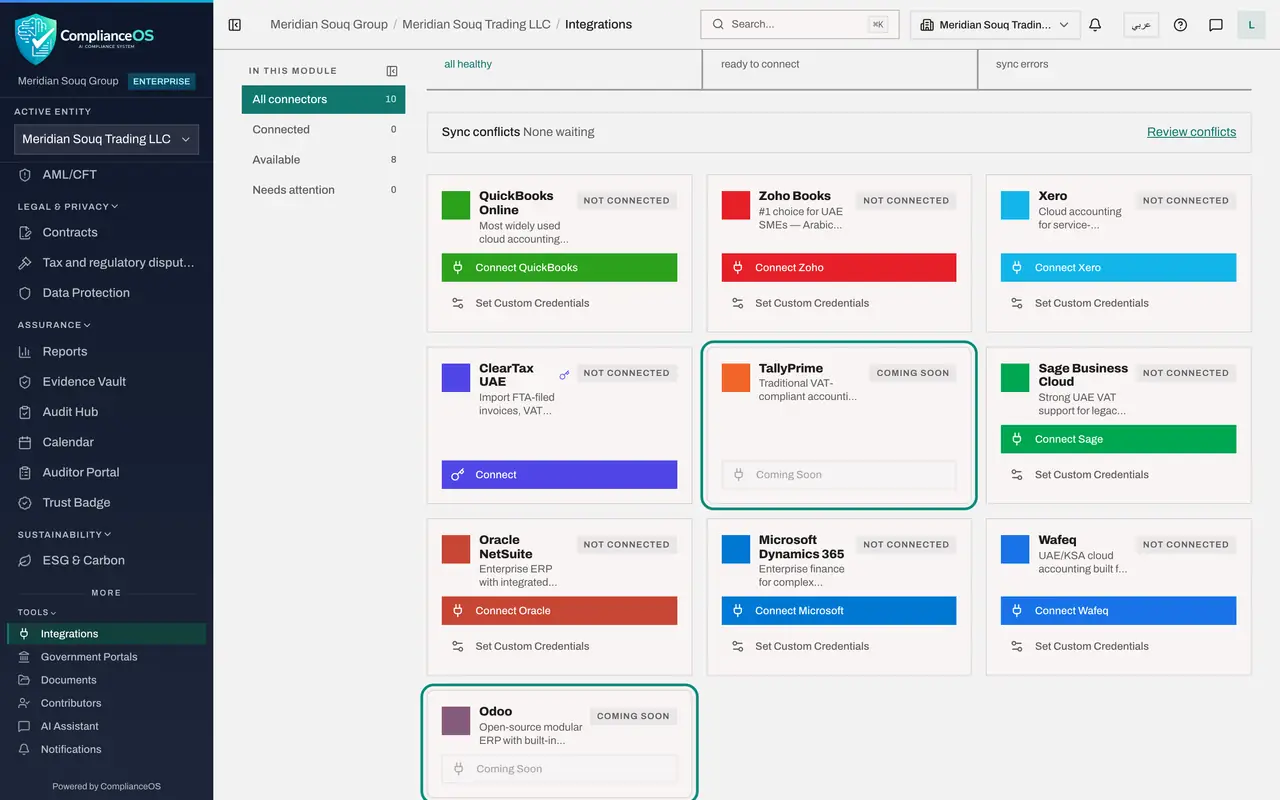
Each card is one accounting system. QuickBooks Online, Zoho Books, Xero, ClearTax UAE, Sage Business Cloud, Oracle NetSuite, Microsoft Dynamics 365 and Wafeq can be connected. Each brings the entity's transactions into Tax Intelligence.
- 4
Read one card
Take QuickBooks Online. The label at the top right shows its state, here Not connected. The coloured button starts the connection, and Set Custom Credentials opens the set-up form covered in the next lesson.
- 5
Notice the connector that uses a key
ClearTax UAE has a small key beside its name and one button, Connect. It is linked with an API key instead of a sign-in at the other system. It imports invoices accepted by the Federal Tax Authority and summaries of filed returns.
- 6
Spot the connectors that are not ready yet
TallyPrime is marked Coming soon and its button is greyed out. It is listed so you know it is planned, but it cannot be connected yet. Odoo, at the end of the list, is the same.
- 7
Select Available to narrow the list
Under In this module on the left, select Available. The cards now show only the eight systems that are ready to connect. The number beside each view tells you how many cards it holds.
- Select Available8 (8)
- 8
Select Connected
Select Connected. This view lists the systems already linked to this entity. Nothing is connected yet, so it reads No connectors match this view.
- Select Connected0 (0)
- 9
Select Needs attention
Select Needs attention. This view lists connections with a sync error, so it is the first place to look when data stops arriving. It is empty too.
- Select Needs attention0 (0)
- 10
Open the Insights panel
Select All connectors to bring every card back, then select Insights at the top right. A panel opens with the connection counts, the number of records synced over all runs, and the most recent sync for each connected system. Here it reads No connected systems yet.
- Select All connectors10 (10)
- Select Show insights panel
- 11
Find the Sync log
Close the panel with the cross at its top right, then scroll below the cards to the Sync log. Once a system is connected, every sync run is listed here. For now it says No sync runs yet, and tells you to use Sync Now on a connected system or wait for the hourly automatic sync.
- Select Close
- 12
Read how often data arrives
The note at the bottom of the page explains the timing. Connected systems sync automatically every 60 minutes. New transactions appear in Tax Intelligence and are classified for corporate tax and VAT. Sync Now pulls the latest data straight away.
How to check it worked
You can say how many accounting systems are available to connect for this entity, which ones are marked Coming soon, and where to look first when data stops arriving.
Common mistakes
- Looking for Integrations under Organisation settings. Connectors belong to an entity, under Tools in the left menu. The settings page has API keys and audit log, which is a different thing.
- Expecting a Coming soon connector to work. TallyPrime and Odoo are listed so you know they are planned, but their buttons are greyed out.
- Reading an empty sync log as a fault. With nothing connected there is nothing to sync, so the log is empty.
Check your understanding
1. Data from the accounting system has stopped arriving. Which view do you open first?
- A.Available
- B.Needs attention
- C.Coming soon
- D.Billing
Show answer
Answer: B. Needs attention
Needs attention lists connections whose last sync had an error, and the Attention total counts them.
2. How often do connected systems sync by themselves?
- A.Every minute
- B.Every hour
- C.Once a day
- D.Only when someone selects a button
Show answer
Answer: B. Every hour
The note at the bottom of the page says connected accounting systems sync automatically every 60 minutes.