Lesson 7 of 29
Upload several contracts at once
What you will be able to do
This lesson is for the legal team. You will upload three contracts in one go, watch them join the list while they are processed, and see what happens when a file that is already on record is uploaded a second time.
Before you start
- You have the signed contracts as files. This lesson uses three invented documents: a packaging supply agreement, a shop lease and a non-disclosure agreement.
- Each contract takes one to three minutes to analyse, so a batch of three is ready after a few minutes.
Steps
- 1
Go to the upload box
On the Contracts screen, scroll to the dashed upload box. It accepts more than one file at a time: in the file window, hold the Control key, or the Command key on a Mac, while you select each file.
- 2
Choose three contracts together
Select the box and choose the three files together. Here they are Zafaran-packaging-supply-agreement.pdf, Marsa-Walk-shop-lease.pdf and Qamar-Insight-NDA.pdf. All three are sent at once, and a message says that three contracts were uploaded.
- Upload Choose a file:
Zafaran-packaging-supply-agreement.pdf, Marsa-Walk-shop-lease.pdf, Qamar-Insight-NDA.pdf…
- Upload Choose a file:
- 3
Watch the new rows in the list
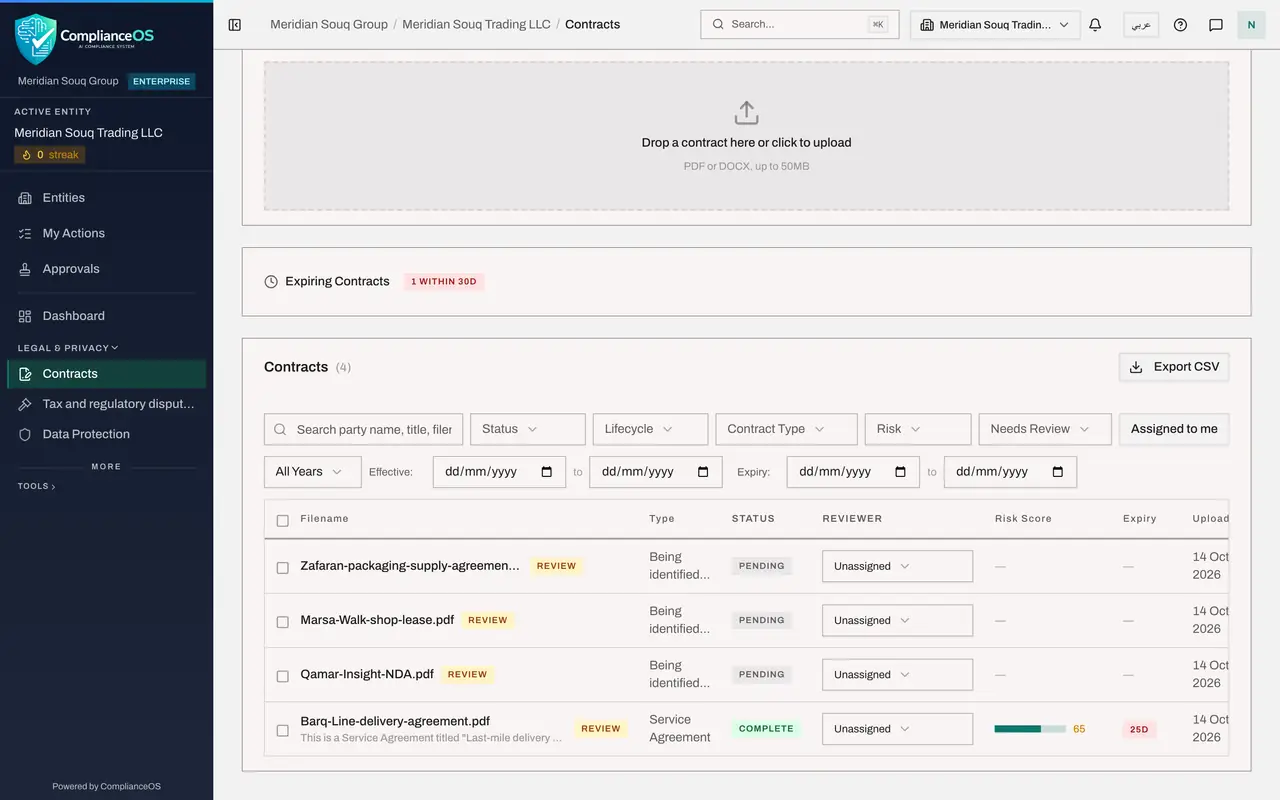
Scroll down to the list. The three contracts have joined it. While a contract is being read, its type reads Being identified and it has no risk score or expiry date yet. The Status column shows how far the analysis has got: Pending, then OCR Complete once the text has been read, then Extraction Complete, then Compliance Checked, and finally Complete.
- 4
Check the Processing counter
Scroll back to the numbers at the top. Processing counts the contracts that are still being analysed. It returns to zero when all of them are Complete. Refresh the page to see the latest status.
- 5
Upload a file that is already on record
Now choose Barq-Line-delivery-agreement.pdf again, the contract from lesson 1. Nothing is uploaded. An amber notice headed This file is already uploaded appears above the upload box, with the file name and a link, Open the existing contract.
- Upload Choose a file:
Barq-Line-delivery-agreement.pdf
- Upload Choose a file:
- 6
Close the notice
The notice also tells you what to do if you wanted a fresh analysis: open the contract and use Re-analyze. Select the cross at the right of the notice to close it.
- Select Close
How to check it worked
the list shows the three new contracts beside the first one, and the second attempt to upload the delivery agreement produced the notice This file is already uploaded instead of a second copy.
Common mistakes
- Renaming a file to upload it again. ComplianceOS compares the content, not the name, so an identical file is still refused.
- Uploading a corrected version over the top and expecting the old one to vanish. A changed file is a new contract. Link the two as an amendment, or delete the one uploaded by mistake.
- Opening a contract before its status is Complete. The page is mostly empty until the analysis has finished.
Check your understanding
1. How do you upload several contracts at once?
- A.You cannot; upload them one at a time
- B.Choose all the files together in the file window, or drag them onto the box together
- C.Put them in a ZIP file
- D.E-mail them to the administrator
Show answer
Answer: B. Choose all the files together in the file window, or drag them onto the box together
The upload box accepts several files in one go and starts an analysis for each.
2. You upload a file that is already a contract of this company. What happens?
- A.A second copy is created
- B.The old contract is replaced
- C.Nothing is uploaded, and a notice links to the existing contract
- D.The upload fails with no explanation
Show answer
Answer: C. Nothing is uploaded, and a notice links to the existing contract
An identical file is refused, and the notice gives a link to open the contract that is already there.