Lesson 1 of 29
Upload a contract for analysis
What you will be able to do
This lesson is for the legal team. You will open the Contracts screen, learn what its numbers and tabs mean while it is still empty, and upload a signed contract so that ComplianceOS reads it for you.
Before you start
- You are signed in with the Legal counsel role for Meridian Souq Trading LLC.
- You have the signed contract as a PDF or Word file of no more than 50 megabytes. This lesson uses an invented delivery services agreement with the courier Barq Line Logistics LLC.
- The analysis is done by AI in the background and takes one to three minutes for each contract.
Steps
- 1
Open Contracts
In the left menu, under Legal and Privacy, select Contracts. The screen is headed Contract Intelligence. It holds every contract uploaded for this company.
- Select Contracts
- 2
Read the headline numbers
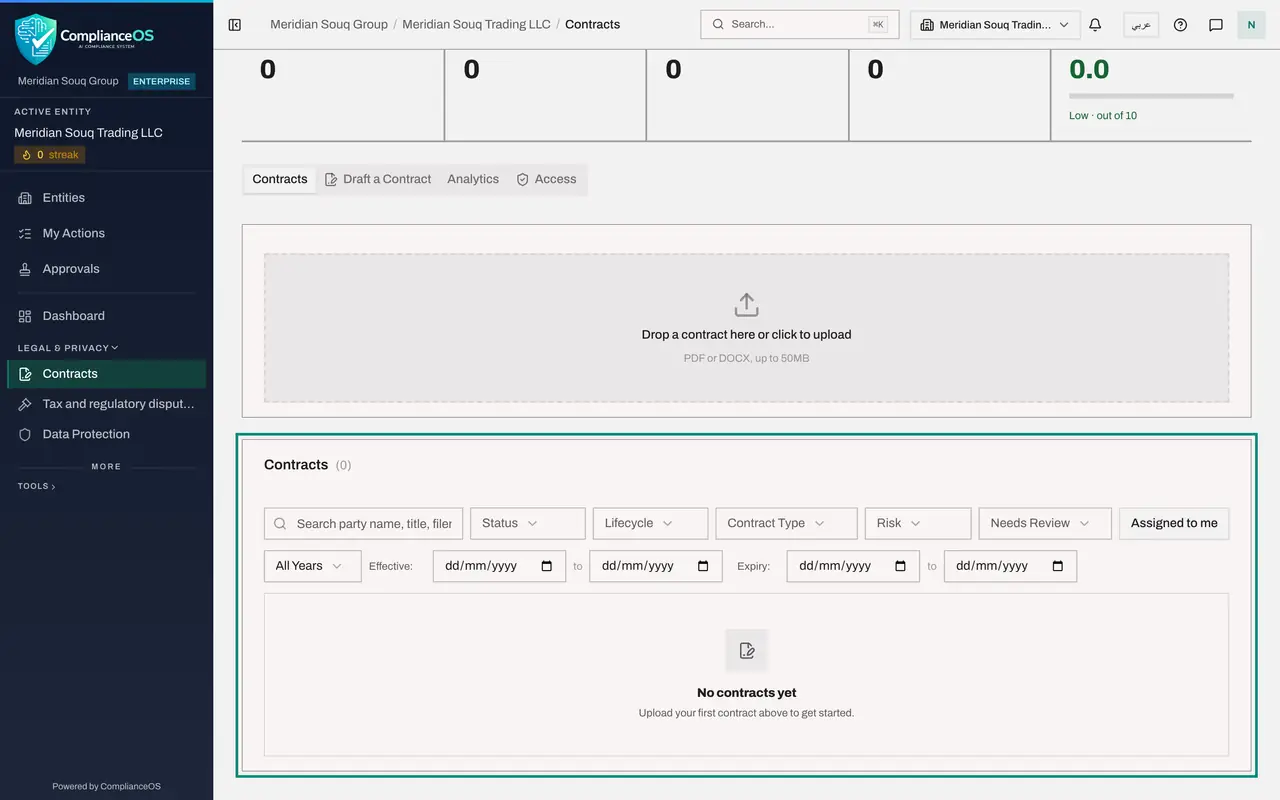
The strip of numbers is a summary of the whole list. Total counts the contracts, Processing counts those still being read, Expiring 30D counts those that end within thirty days, High Risk counts those scored high or critical, and Average Risk is the average score out of ten. Everything is zero because nothing has been uploaded yet.
- 3
Look at the four tabs
Below the numbers are four tabs. Contracts is the list and the upload box. Draft a Contract writes a new contract with an AI agent. Analytics shows charts for the whole portfolio. Access shows who may do what in this module. Later lessons cover each one.
- 4
See the empty list
Scroll down to the Contracts list. It says No contracts yet. Above it are a search box and filters, which become useful once the list has rows.
- 5
Find the upload box
Scroll back up to the dashed box. You can drag a file onto it, or select it to choose a file. The Upload contract button at the top right does the same thing. The box accepts PDF and Word files, and also scanned images, up to 50 megabytes each.
- 6
Choose the contract file
Select the box and, in the file window that opens, choose the contract. Here the file is called Barq-Line-delivery-agreement.pdf. The upload starts as soon as you choose the file. There is nothing else to fill in.
- Upload Choose a file:
Barq-Line-delivery-agreement.pdf
- Upload Choose a file:
- 7
Leave the analysis to run
The box now shows Processing contract. In the background the document is read, its key terms are picked out, its clauses are checked against UAE law, the parties are screened against sanctions lists, and a risk score is worked out. This takes one to three minutes. If you stay on this screen, the contract's own page opens by itself when the analysis ends.
How to check it worked
the upload box shows Processing contract, and a message at the top right says Contract uploaded. Processing. When the analysis ends, the contract's own page opens by itself, which is where the next lesson starts.
Common mistakes
- Looking for a form to type the parties, dates and value before uploading. There is none at this point: you upload the file, the details are read from it, and you correct them afterwards.
- Uploading the same file again because the box still says Processing contract. Wait instead. A file that is already on record is refused, with a link to the existing contract.
- Uploading a photograph or a poor scan. The text must be readable for the details to be picked up, so use the signed PDF where you can.
Check your understanding
1. How do the parties, dates and value get into a new contract record?
- A.You type them into a form before uploading
- B.They are read from the uploaded file by the analysis
- C.The supplier enters them through a portal
- D.They are copied from the accounting system
Show answer
Answer: B. They are read from the uploaded file by the analysis
The analysis reads the document and fills in the details. You check and correct them afterwards.
2. The upload box shows Processing contract. What should you do?
- A.Upload the file again
- B.Wait; the contract's page opens by itself when the analysis is complete
- C.Ask an administrator to approve the upload
- D.Sign out and sign in again
Show answer
Answer: B. Wait; the contract's page opens by itself when the analysis is complete
The analysis runs in the background for one to three minutes. Uploading the same file again is refused as already uploaded.