Lesson 16 of 29
Look up standard clauses in the UAE Clause Library
What you will be able to do
This lesson is for the legal team. You will open the UAE Clause Library on the Draft a Contract tab, choose a contract type, and read a standard clause: whether it is required, its wording, the risk if it is missing and the law it rests on.
Before you start
- You may view contracts. The library is read only and is the same for every company.
- You know which type of contract you are reviewing or about to draft.
Steps
- 1
Open the Draft a Contract tab
On the Contracts screen, select the Draft a Contract tab. It has three parts: the drafting agent at the top, the UAE Clause Library in the middle, and the list of Contract Drafts at the bottom.
- Select Draft a Contract
- 2
Open the UAE Clause Library
Select the UAE Clause Library heading. The library opens, showing the standard clauses for a Service Agreement, which is the type selected to begin with.
- Select UAE Clause Library
- 3
Read a clause
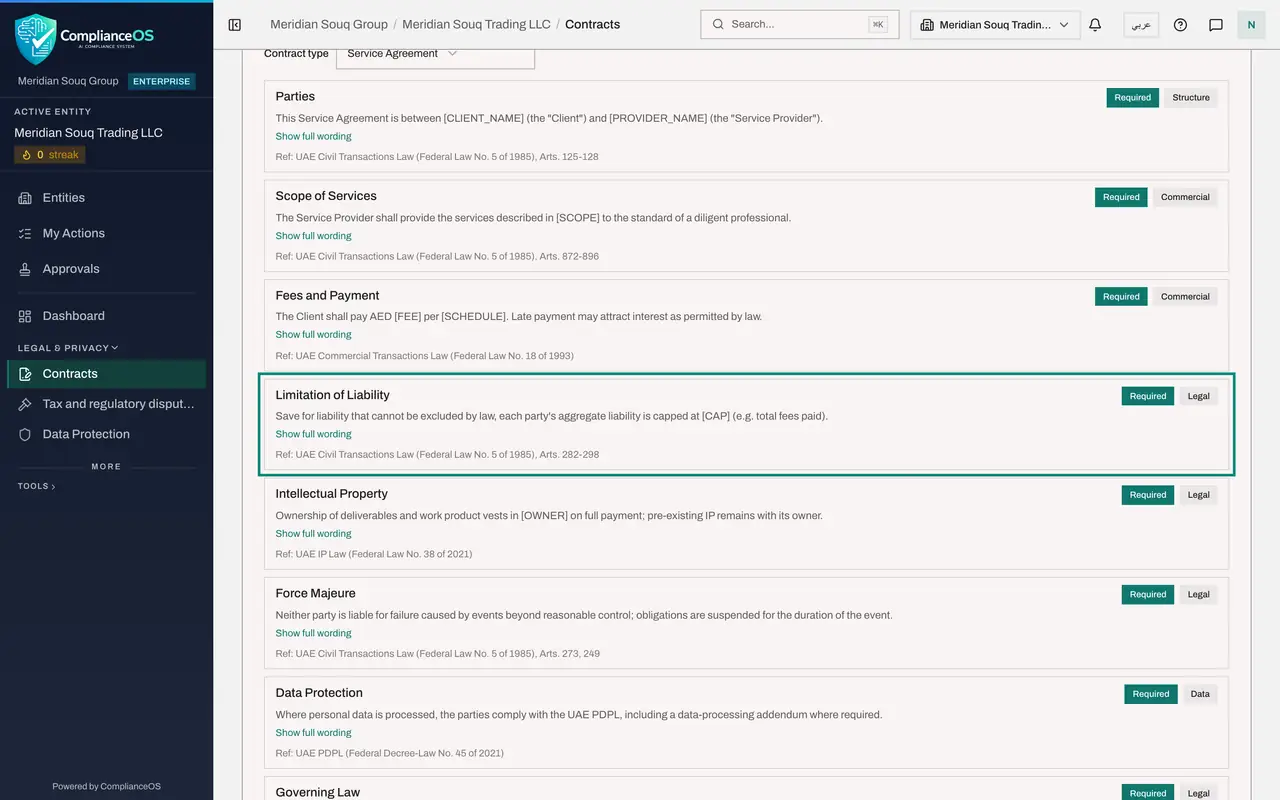
Each box is one clause. On the right, the first tag says whether the clause is Required or Optional for this type, and the second gives its category, such as Legal, Commercial or Data. Under the title are the first lines of the standard wording, and Ref names the law the clause rests on.
- 4
Show the full wording
Select Show full wording under the Limitation of Liability clause. The whole clause appears, with words in square brackets where you must put the terms of your own deal. A line beginning If missing says what the risk is when a contract leaves the clause out. Select Show less to fold it again.
- Select Show full wording
- 5
Change the contract type
Open the Contract type box at the top of the library and choose NDA, a non-disclosure agreement. The list changes to the clauses expected in that type of contract.
- Select Contract type
- Choose NDA
- 6
Use the library while you review
Scroll through the clauses for the type. When a compliance check on an uploaded contract fails, this is where you find the standard wording to propose to the counterparty. The drafting agent, covered in the next lesson, builds its drafts from the same clauses.
How to check it worked
you can open the clause library for a contract type, expand a clause to its full wording, and name the law quoted under it.
Common mistakes
- Copying a clause without filling the square brackets. Words in square brackets, such as the fee or the cap, are placeholders to be replaced with the terms of your deal.
- Looking at the wrong contract type. The list of clauses changes with the type, so choose the type first.
- Treating Optional as unimportant. Optional means the checks do not insist on the clause. The deal may still need it.
Check your understanding
1. A clause in the library is tagged Required. What does that mean?
- A.The law forbids the contract without it
- B.The drafting agent and the checks expect a contract of this type to contain it
- C.It must be written in Arabic
- D.It can never be edited
Show answer
Answer: B. The drafting agent and the checks expect a contract of this type to contain it
Required clauses are the ones the platform looks for in that type of contract, both when drafting and when checking.
2. Where do you see what could go wrong if a clause is left out?
- A.In the Analytics tab
- B.Under the clause, after you select Show full wording
- C.In the Access tab
- D.It is not shown
Show answer
Answer: B. Under the clause, after you select Show full wording
Expanding a clause shows its full wording and a line that begins If missing, which names the risk.