Lesson 18 of 29
Review and revise an AI draft
What you will be able to do
This lesson is for the legal team. You will open the draft the agent produced, read each part of the review window, ask the agent to revise one clause, export the draft to Word, and see why you cannot approve your own draft.
Before you start
- The drafting agent has finished, as started in lesson 17, and the draft is listed under Contract Drafts.
- You are signed in with the Legal counsel role, which may create and revise drafts. Whatever your role, you cannot approve a draft that you wrote or revised.
Steps
- 1
Find the draft under Contract Drafts
Select the Draft a Contract tab and scroll down to Contract Drafts. Each row is one draft, with its type, the two parties, a status, the risk score the agent gave it, the version and the time it was created.
- Select Draft a Contract
- 2
Open the draft
Select Open at the end of the row. The AI Contract Draft Review window opens. The banner at the top says whether the draft passed the agent's own checks or needs review. The four tiles under it give the type, the jurisdiction, the governing law and the risk score.
- Select Open
- 3
Read the drafted clauses
Drafted Clauses lists every clause in order, with its title, its wording and the law it cites. A green Passed tag or a red Flagged tag shows what the agent's own critic thought of the clause, and a flagged clause lists the issues under its text. Read each clause as you would read a draft from a junior colleague.
- 4
Select Revise this clause
To change a clause, select Revise this clause under it. Here we use the payment clause. A box opens for your instruction, with Apply and Cancel beside it.
- Select Revise this clause
- 5
Tell the agent what to change
Type the change you want in plain words, then select Apply. The agent rewrites that clause only, and checks it again. This takes up to a minute. A message then says the clause was revised. The revised draft becomes a new version of the same draft: the version number beside the heading goes up by one, and Version history at the top lists every earlier version. Earlier versions can be opened but not changed.
- Type e.g. cap liability at AED 500,000; add a 30-day cure period:
Make each instalment payable within 30 days of the invoice instead of… - Select Apply
- Type e.g. cap liability at AED 500,000; add a 30-day cure period:
- 6
Read the compliance checks
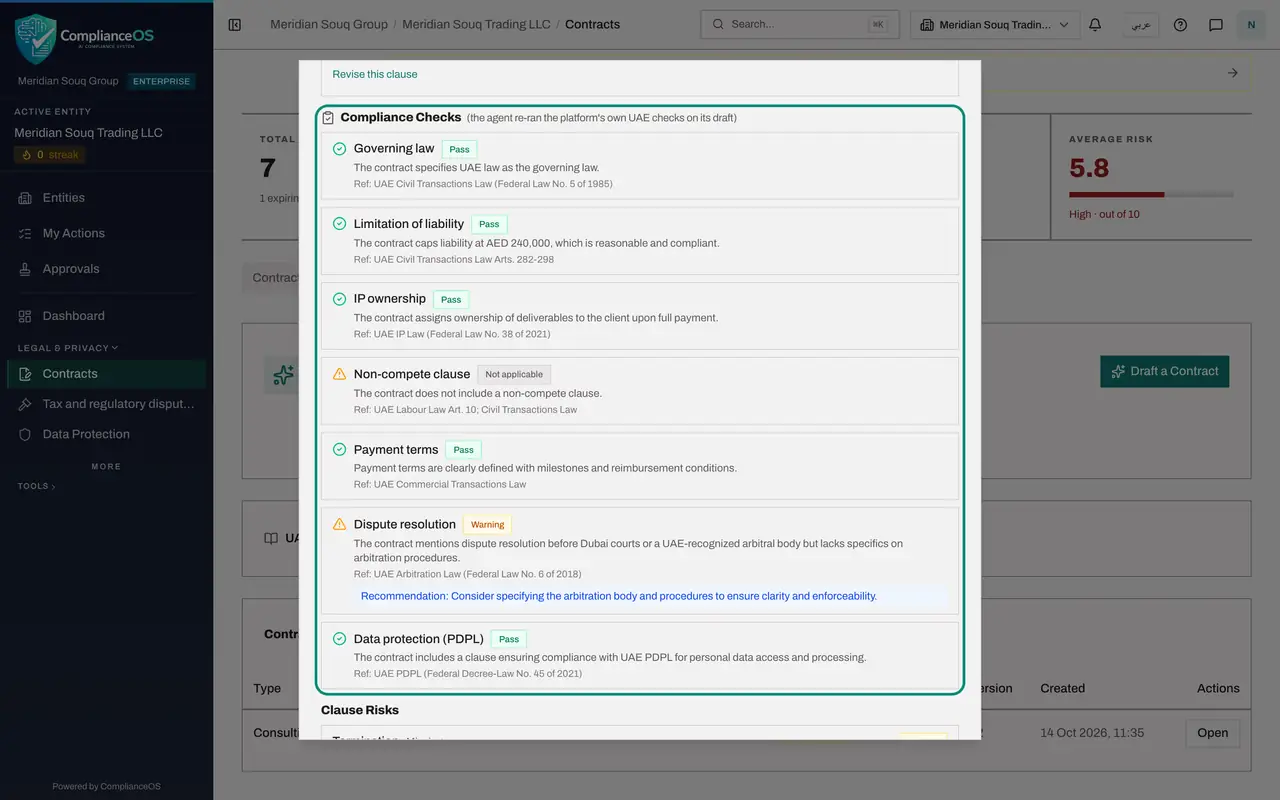
Scroll down to Compliance Checks. These are the same tests an uploaded contract gets, run by the agent on its own draft. Each shows Pass, Warning, Fail or Not applicable, the law it refers to, and a recommendation where there is one.
- 7
Read the clause risks
Clause Risks is a second, simpler scan for clauses that are missing or weak, with a risk level for each. It looks for set phrases, so compare it with the clauses themselves: if the draft does contain the clause it names, the finding can be set aside.
- 8
Read the checklist and the agent's notes
Drafting Checklist confirms the basics with a tick or a cross: all required clauses present, both parties identified, governing law specified, and the term specified. Agent Review Notes, under it, lists what the agent's own quality review and citation check found. Treat each note as a point to check before approval.
- 9
Export the draft to Word
At the foot of the window, select Export DOCX. The draft is saved to your computer as a Word file, for reading on paper or sharing with the business. Changes made in Word are not copied back.
- Select Export DOCX
- 10
See why you cannot approve it
Above the buttons, Approval progress shows the approval policy for contract drafts: one approval step, strict maker and checker, nothing approved yet. Approve draft is greyed out, with the note that you created or edited this record, so someone else has to approve it.
- 11
Find your request under My requests
Close the window and select Approvals in the left menu, then My requests. The draft is listed as waiting on its approval step. The Compliance officer sees the same request in her own Approvals inbox. Withdraw cancels the request if you change your mind.
- Select Close
- Select Approvals
- Select My requests
How to check it worked
the revised clause shows the new wording, a Word file of the draft is in your downloads folder, Approve draft is greyed out for you, and the draft is listed under My requests in Approvals.
Common mistakes
- Sending an AI draft to the other side as it is. It is a starting point. Read every clause and the agent's own review notes first.
- Rewriting a clause in Word and forgetting the copy in ComplianceOS. The approved draft is the one on screen. Use Revise this clause so that the record matches what you send.
- Asking a colleague who also revised the draft to approve it. Anyone who drafted or revised it counts as an author and cannot approve it.
Check your understanding
1. A draft is tagged Needs review. What does that tell you?
- A.The other party has rejected it
- B.The agent's own checks flagged compliance or completeness issues to resolve
- C.It has been deleted
- D.It is waiting for a signature
Show answer
Answer: B. The agent's own checks flagged compliance or completeness issues to resolve
The agent re-checks its own draft and flags what fails, so you know where to look first.
2. Why is Approve draft greyed out for the person who created the draft?
- A.The draft is too long
- B.An author cannot approve their own work; someone else with approval rights must do it
- C.Approval is automatic
- D.The draft has expired
Show answer
Answer: B. An author cannot approve their own work; someone else with approval rights must do it
ComplianceOS separates the maker from the checker. Drafting or revising makes you an author of that draft.