Lesson 5 of 29
Edit the key details and link the vendor
What you will be able to do
This lesson is for the legal team. You will open Edit key details, go through every field in the form, correct the title and a notice period, and link the counterparty to its record in the vendor directory that Contracts shares with Tax and Data Protection.
Before you start
- The contract has finished processing. While it is still being processed, saving is refused with the message that the contract is still being processed.
- The counterparty already has a record in the vendor directory. Vendors are added in Data Protection, under Vendor risk, or in Tax, under Vendors, and not from this form. Here the Data Protection Officer has added Barq Line Logistics LLC.
- You are signed in with the Legal counsel role, which may edit contracts.
Steps
- 1
Select Edit details
At the top of the contract's page, select Edit details. The Edit button in the Key details panel opens the same form. It is headed Edit key details and has five sections: Contract, Parties, Counterparty vendor record, Term and renewal, and Value and payment.
- Select Edit details
- 2
Correct the contract title
Contract title is the name used for this contract across ComplianceOS, including in the calendar and the risk register. The analysis copied it in capitals from the document. Type it the way you want colleagues to see it. If you clear it, the contract has no title and the file name is used instead.
- Type Contract title:
Last-mile delivery services agreement
- Type Contract title:
- 3
Check the type, governing law and jurisdiction
Contract Type decides which compliance checks are run; choose Not set only if none fits. Governing Law is the law the contract is read under. Jurisdiction is the court or arbitration body that hears disputes. All three are right here, so leave them. Changing the type or the governing law runs the checks again.
- 4
Check the parties
Under Parties, Party A is the first party named in the contract, here your own company, and Party B is the counterparty. Each has a jurisdiction, which is where the company is established. Correct a name here if the analysis misread it. Both are right, so leave them.
- 5
Search the vendor directory
Counterparty vendor record links this contract to the counterparty's record in the vendor directory. The link is optional. It says No vendor linked for now. In the search box, type part of the vendor's name or its tax registration number, or TRN.
- Type Search vendors by name or TRN:
Barq
- Type Search vendors by name or TRN:
- 6
Choose the vendor
Select the vendor in the list. Its name moves into the box above, with a Remove link button beside it in case you chose the wrong one.
- Choose Barq Line Logistics LLC, AE
- 7
Check the dates and the renewal
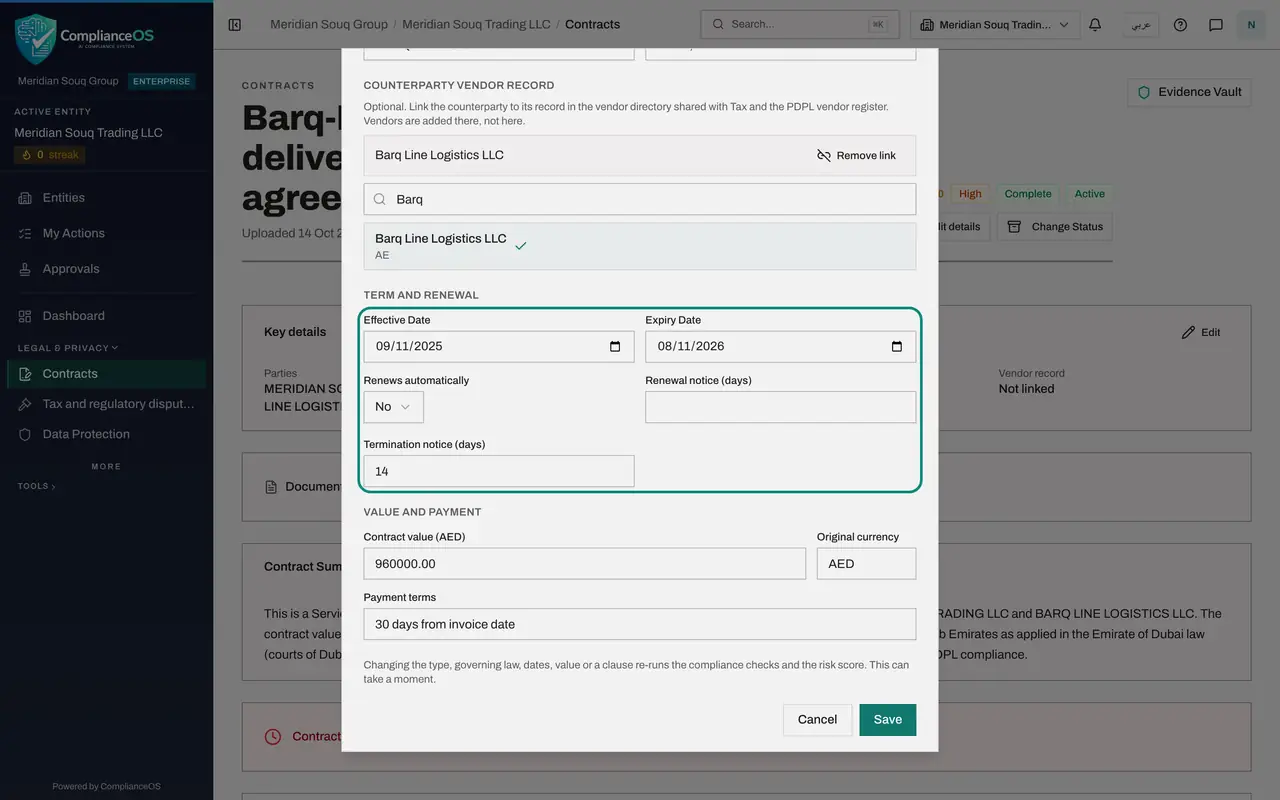
Under Term and renewal, Effective Date and Expiry Date drive the expiry warnings and the calendar entry. Renews automatically is Yes, No or Not set. This agreement does not renew by itself, so it is No, and Renewal notice, the number of days' notice needed to stop a renewal, stays empty.
- 8
Look at the notice periods
Termination notice is the number of days' notice needed to end the contract early. Enter whole days only. The analysis picked up fourteen days, which is the courier's notice period under clause 6.1. We come back to this field at the end of the lesson.
- 9
Check the value and payment terms
Under Value and payment, Contract value is the total in dirhams, as a number without commas. Original currency is the three-letter code of the currency the contract is written in. Payment terms is free text. All three are right. Leaving the value empty removes this contract from the total value shown in Analytics.
- 10
Select Save
The note above the buttons says that changing the type, the governing law, the dates, the value or a clause runs the compliance checks and the risk score again. A title and a vendor link change neither, so this save takes a few seconds. Select Save. A message says Details saved and the form closes.
- Select Save
- 11
Check the Key details panel
Key details now shows Barq Line Logistics LLC under Vendor record instead of Not linked. The same vendor record is used by the tax team and by the Data Protection Officer, so all three see one supplier.
- 12
Reopen the form and correct the termination notice
Select Edit in the Key details panel to open the form again, and scroll to Termination notice. Our own notice period under clause 6.2 is ninety days, and that is the one the business must plan for. Type 90.
- Select Edit
- Type Termination notice (days):
90
- 13
Save and let the checks run again
Select Save. A notice period is one of the values the compliance checks and the risk score use, so they are run again. The form closes at once, and a message says the details were saved and the checks and risk score are being re-run in the background. Beside the status tags, a tag reading Re-check queued shows until they finish.
- Select Save
How to check it worked
the Key details panel on the contract's page shows Barq Line Logistics LLC under Vendor record instead of Not linked, and the Duration panel on the Extraction tab shows a termination notice of ninety days.
Common mistakes
- Trying to add a new vendor from this form. You can only choose one that is already in the directory. Ask the Data Protection Officer or the tax team to add it first.
- Entering an expiry date that is before the effective date, or a notice period that is not a whole number of days. The form refuses to save and tells you which value to fix.
- Changing a date or the value without expecting the score to move. Those changes run the compliance checks and the risk score again in the background, so the numbers at the top of the page can change a minute later.
Check your understanding
1. Where do the vendors offered in Counterparty vendor record come from?
- A.They are typed in this form
- B.From the vendor directory shared with Tax and Data Protection
- C.From the contract's signature page
- D.From the sanctions lists
Show answer
Answer: B. From the vendor directory shared with Tax and Data Protection
The directory is kept in one place. Contracts only links to a record that already exists there.
2. What happens to a value you type in Edit key details?
- A.It is saved as a note beside the AI value
- B.It replaces the AI-extracted value and is marked as confirmed
- C.It waits for the AI to approve it
- D.It is sent to the counterparty
Show answer
Answer: B. It replaces the AI-extracted value and is marked as confirmed
A value entered by hand takes the place of the extracted one and counts as confirmed by a person.