Lesson 22 of 29
Add evidence, start the review and correct the details
What you will be able to do
This lesson is for the legal and tax teams. You will open a dispute to read its full record, attach a document as evidence, move the dispute to Under Review, correct its amount and references, and use the status list to filter the table.
Before you start
- The penalty dispute from lesson 21 is on record with the status Open. Two more disputes have since been filed: a VAT assessment and an inspection finding.
- You have the supporting document as a file. Here it is the bank's confirmation that the VAT was paid on time.
- You are signed in with the Legal counsel role, which may edit disputes.
Steps
- 1
Open the dispute's detail panel
On the Tax and regulatory disputes screen, select the row of the penalty dispute. A panel opens under it. Select the row again to close it.
- Select Details of dispute PEN-2026-MST-0931
- 2
Read the grounds, the timeline and the amount
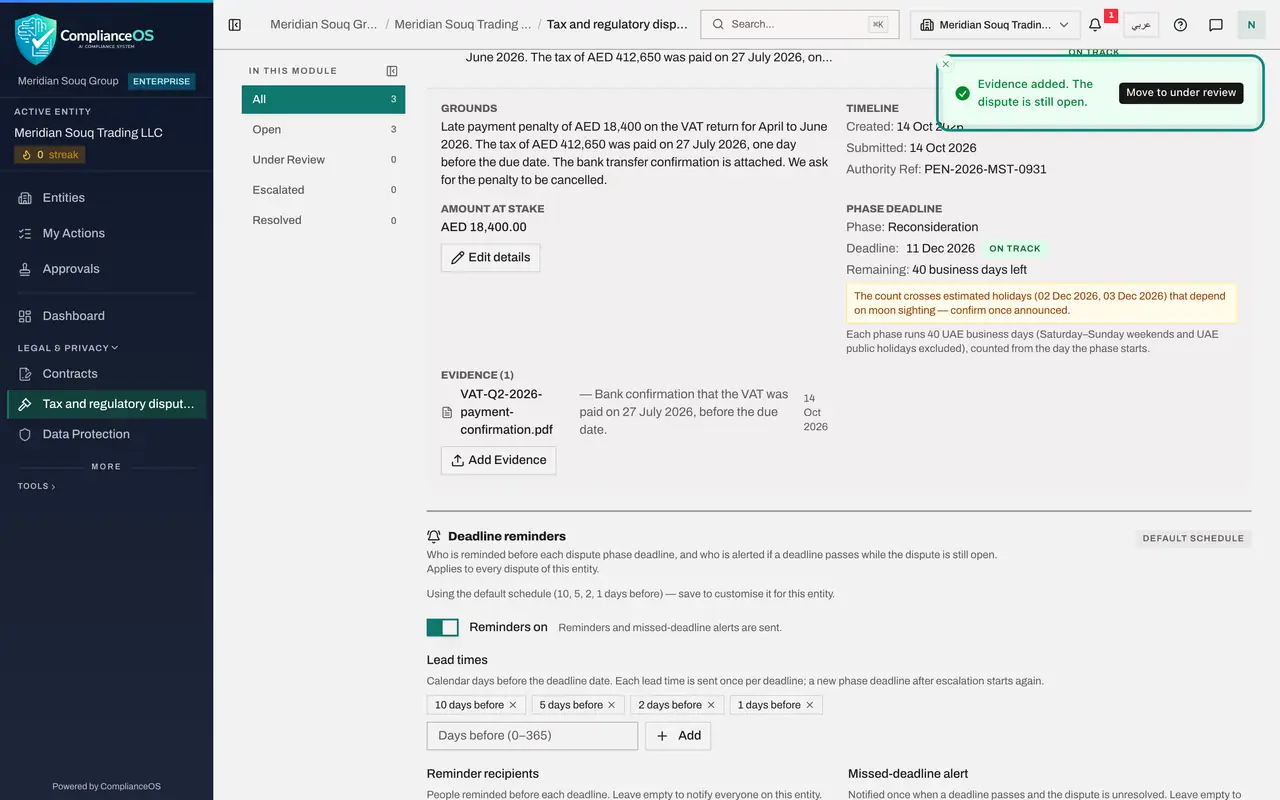
Grounds shows the full text you entered. Timeline gives the dates the dispute was created and submitted, and the authority's reference. Amount at stake shows the sum in dispute, with an Edit details button beside it.
- 3
Read the phase deadline
Phase deadline names the phase the dispute is in. A new dispute starts in Reconsideration, which is the request to the authority to look at its own decision again. Below it are the deadline date, a tag showing how urgent it is, and the business days remaining. The note explains that each phase runs forty UAE business days, without weekends and public holidays. If the count crosses a holiday whose date depends on moon sighting, a second note asks you to confirm the date once it is announced.
- 4
Select Add Evidence
Evidence lists the documents attached to the dispute. There are none yet. Select Add Evidence under it. The same action is in the three-dot menu at the end of the row.
- Select Add Evidence
- 5
Choose the file and describe it
In Evidence File, choose the document from your computer. Here it is VAT-Q2-2026-payment-confirmation.pdf. A file is required. In Description, say in a few words what the document proves. The description is optional but helps whoever reads the file later.
- Upload Evidence File:
VAT-Q2-2026-payment-confirmation.pdf - Type Brief description of the evidence...:
Bank confirmation that the VAT was paid on 27 July 2026, before the du…
- Upload Evidence File:
- 6
Select Add Evidence
Select Add Evidence at the foot of the form. A message says the evidence was added and that the dispute is still open. Adding evidence never changes the status by itself. The message carries a button, Move to under review, as a shortcut.
- Select Add Evidence
- 7
Start the review from the row menu
Now that the objection has been submitted to the authority, move the dispute on. Select the three dots at the end of the row and choose Start review. A message confirms that the dispute moved to under review, and the status tag in the row changes.
- Select Actions
- Select Start review
- 8
Open Edit details
The authority has now issued a case reference. Select the three dots again and choose Edit details. The form holds the amount at stake, the currency and the two references. Saving it does not change the status.
- Select Actions
- Select Edit details
- 9
Add the FTA case reference and save
Check the amount and the currency. In FTA Case Reference, type the number the Federal Tax Authority gave the objection. Then select Save. A message says the dispute details were saved.
- Type FTA Case Reference (optional):
FTA-RC-2026-004417 - Select Save
- Type FTA Case Reference (optional):
- 10
Check the record
Open the detail panel again if it has closed. Phase deadline now shows the FTA case reference, Timeline still shows the authority's own reference, and Evidence lists the file with its description and the date it was added.
- 11
Spot a dispute with no amount
Look at the inspection finding in the table. Its Amount at stake column shows a dash, because no amount was recorded. Under the total Amount at stake figure at the top, a line says how many unresolved disputes have no amount. Use Edit details to add one when the authority puts a figure on the finding.
- Select Details of dispute FTA-RC-2026-004417
- 12
Filter by status
In the list on the left, select Under Review. The table keeps only the disputes in that status, which here is the penalty dispute. The counts beside each status always cover every dispute, whatever is filtered. Selecting All brings back the full table.
- Select Under Review1 (1)
How to check it worked
the penalty dispute shows the status Under Review, its detail panel lists one evidence file, and Phase deadline shows the FTA case reference you entered.
Common mistakes
- Expecting the status to change when you add evidence. It does not. Use Start review, or the Move to under review button in the confirmation message.
- Recording a dispute with no amount and then forgetting it. The Amount at stake figure warns how many disputes have no amount. Add it with Edit details as soon as you know it.
- Attaching evidence to the wrong dispute. Open the row first and check the reference before you select Add Evidence.
Check your understanding
1. You added evidence to an open dispute. What is its status now?
- A.Under Review
- B.Still Open
- C.Escalated
- D.Resolved
Show answer
Answer: B. Still Open
Adding evidence never changes the status. You move the dispute to Under Review yourself with Start review.
2. Where do you add the case reference the tax authority gave you after you submitted your objection?
- A.In a new dispute
- B.In Edit details, in FTA Case Reference
- C.In the grounds
- D.It cannot be added later
Show answer
Answer: B. In Edit details, in FTA Case Reference
Edit details corrects the amount, the currency and both references without changing the status.