Lesson 6 of 29
Track the obligations in a contract
What you will be able to do
This lesson is for the legal team. You will open Deep Analysis, read the list of obligations the contract places on each party, mark one as done, re-open one, and run the AI extraction again.
Before you start
- The contract has finished processing. The obligations are extracted as part of the analysis.
- You are signed in with the Legal counsel role, which may edit contracts.
Steps
- 1
Open Deep Analysis
Scroll down to the tabs and select Deep Analysis. It has four sections of its own: Obligations, Clause Compare, Relationships and Amendments. Obligations opens first.
- Select Deep Analysis
- 2
Read one obligation
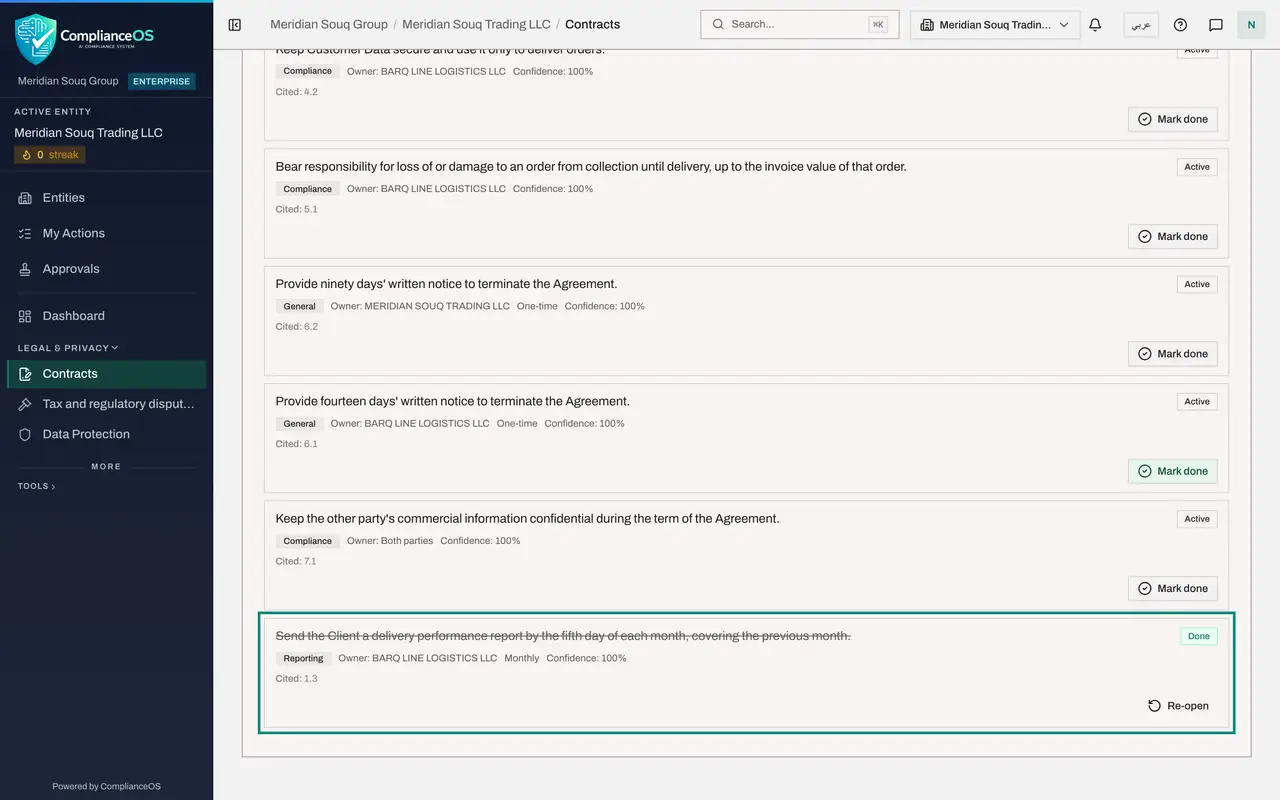
Each box is one thing a party must do. The tag on the right says Active until it is done. The line under the text gives the kind of obligation, such as delivery, reporting, payment or compliance, then the owner, how often it repeats, and how confident the analysis is. Cited gives the clause number, so you can find the wording in the contract.
- 3
Pick out your own company's obligations
Look for the obligations owned by your side. The Owner line names the party. Meridian Souq's main duty in this contract is to pay each invoice within thirty days. These are the ones the business must not miss.
- 4
Mark an obligation done
The courier has sent the delivery performance report for last month. Under that obligation, select Mark done. A message confirms it, the tag changes to Done and the text is struck through.
- Select Mark done
- 5
Mark a second one done, then re-open it
Select Mark done on the obligation to keep customer data secure. That one never really ends, so marking it done was a mistake. Select Re-open on the same obligation. A message confirms that it was re-opened, and it goes back to Active.
- Select Mark done
- Select Re-open
- 6
Run the extraction again
Scroll to the top of the list and select Re-run AI Extraction. Use it after the contract has been analysed again, or when the list looks incomplete. It can take up to a minute. The message says how many obligations are now on the contract and how many you had already handled were kept.
- Select Re-run AI Extraction
- 7
Confirm that your work was kept
Scroll through the new list. The delivery performance report is still marked Done. Everything else is Active again and ready to be tracked.
How to check it worked
the obligation you marked done shows the tag Done with its text struck through, and it is still marked Done after you run the extraction again.
Common mistakes
- Marking an obligation done because it was done once. Many obligations repeat every month or quarter. The tag beside the owner says how often.
- Looking only at the other side's obligations. The Owner line says who must act. Your own company's obligations are the ones you can breach.
- Expecting Re-run AI Extraction to wipe your work. It replaces the list, but obligations you marked done are kept.
Check your understanding
1. What does the Owner line under an obligation tell you?
- A.Who uploaded the contract
- B.Which party to the contract must carry out the obligation
- C.Who reviewed the contract
- D.Which department pays for it
Show answer
Answer: B. Which party to the contract must carry out the obligation
Each obligation belongs to one party, or to both. It tells you whether to act or to hold the other side to account.
2. You marked two obligations done and then selected Re-run AI Extraction. What happens to them?
- A.They are deleted
- B.They are kept as done
- C.They become overdue
- D.They are sent for approval
Show answer
Answer: B. They are kept as done
Re-running replaces the extracted list but keeps the obligations you have already handled.