Lesson 11 of 29
Act on several contracts at once
What you will be able to do
This lesson is for the legal team. You will tick contracts in the list and use each button on the bar that appears: export the selection as a spreadsheet file or as a data file, flag contracts for review, approve them, and send a contract for analysis again.
Before you start
- Several contracts are on record and have finished processing.
- You are signed in with the Legal counsel role. Flagging and approving need the right to edit contracts, which Legal counsel has.
Steps
- 1
Tick three contracts
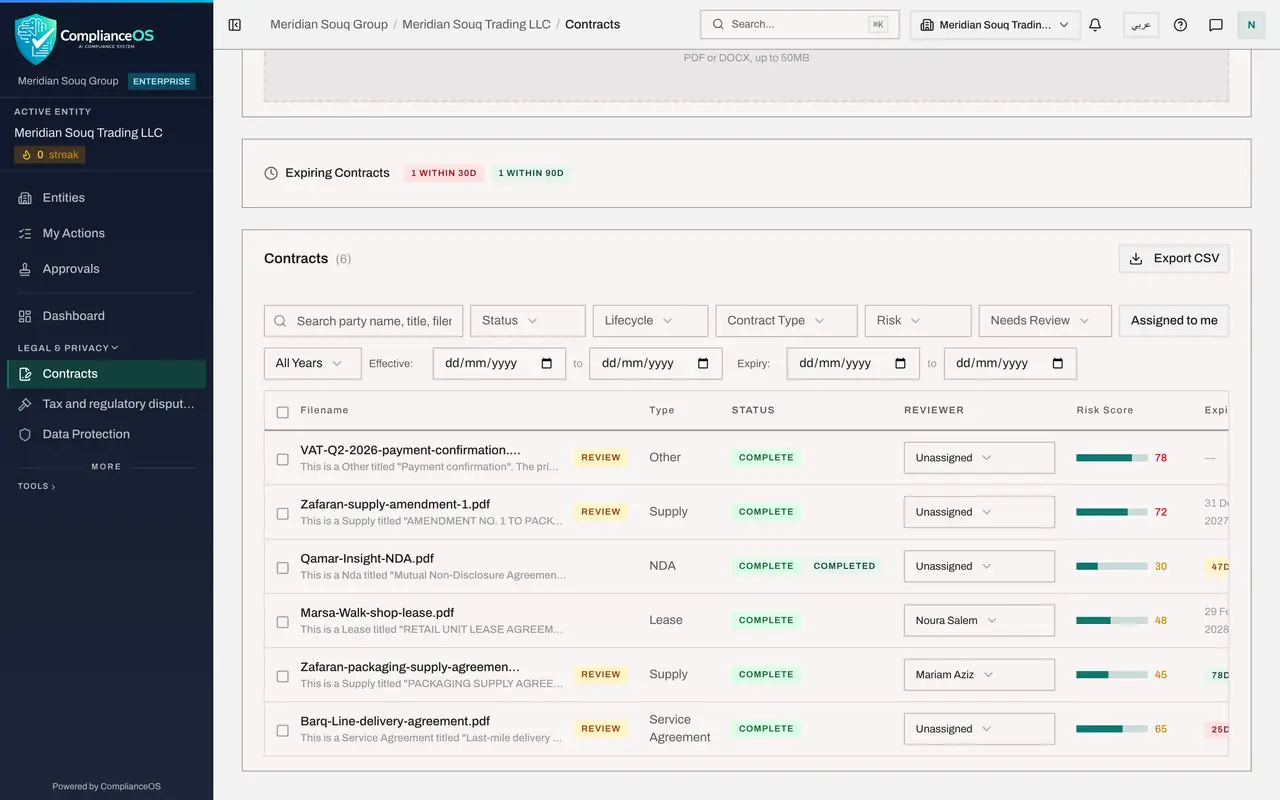
Open Contracts and scroll to the list. Each row starts with a small square. Select the square in the row of the packaging supply agreement, then the squares in the rows of the supply amendment and the delivery agreement. The squares have no labels. Each ticked row turns pale blue.
- Select Tick box: Zafaran-supply-amendment-1.pdf
- Select Tick box: Barq-Line-delivery-agreement.pdf
- 2
Read the action bar
A bar appears along the bottom of the screen. On the left it says how many contracts are selected. On the right are five buttons: Export Selected, Export JSON, Reanalyze Selected, Approve Selected and Flag Selected, and a cross that clears the selection.
- 3
Export the selection as a spreadsheet file
Select Export Selected. A CSV file with the full details of the ticked contracts is saved to your computer. CSV is a plain table that opens in any spreadsheet program.
- Select Export Selected
- 4
Export the selection as a data file
Select Export JSON. The same contracts are saved as a JSON file, a format other systems can read. Use it when the information is going into another tool rather than to a person.
- Select Export JSON
- 5
Flag the selection for review
Select Flag Selected. A message says the selected contracts were flagged. All three rows now carry the amber Review tag. Flagging is how you put a contract into the review queue yourself, for example after a change in the law, and it makes the contract show up in its reviewer's My Actions list.
- Select Flag Selected
- 6
Tick a contract and approve it
After an action the selection is cleared. You have read the supply amendment, so tick it and select Approve Selected. A message says the selected contracts were approved. The Review tag is removed and you are recorded as the reviewer. The other two keep their tags, because their reviews are still to come.
- Select Tick box: Zafaran-supply-amendment-1.pdf
- Select Approve Selected
- 7
Tick every contract on the page
The square in the heading row ticks every contract on the page in one go. Select it. The bar shows the new count. Select the same square again, or the cross at the end of the bar, to clear the selection.
- Select Tick box: all contracts on this page
- Select Clear selection
- 8
Choose one contract to analyse again
Tick the supply amendment only, and select Reanalyze Selected. A small panel opens above the button and asks for a contract type, because an analysis is always run as a particular type.
- Select Tick box: Zafaran-supply-amendment-1.pdf
- Select Reanalyze Selected
- 9
Choose the type and confirm
Open the list, choose Supply, and select Confirm. A message says the re-analysis has started and that each row shows its progress. The amendment's row carries a Re-check queued tag while the AI reads it again, which replaces its checks and risk score. The tag disappears when the analysis is finished.
- Select Choose type...
- Choose Supply
- Select Confirm
How to check it worked
two files are in your downloads folder, one ending in csv and one ending in json, and the supply amendment you approved no longer carries the Review tag, while the supply agreement you flagged does.
Common mistakes
- Approving a whole page of contracts to clear the Review tags. Approve Selected records every ticked contract as reviewed by you. Only tick contracts you have actually read.
- Sending many contracts for analysis again without need. Each one is read again by the AI, which takes about a minute and replaces its checks and risk score.
- Forgetting that the tick boxes only cover the rows on screen. Filter the list first if the contracts you want are spread over several pages.
Check your understanding
1. What does Approve Selected do?
- A.Approves the contracts for signature
- B.Records the ticked contracts as reviewed, which clears their Review tag
- C.Deletes the ticked contracts
- D.Sends the contracts to the counterparty
Show answer
Answer: B. Records the ticked contracts as reviewed, which clears their Review tag
It is a review sign-off for several contracts at once. It has nothing to do with signing the contract.
2. Which export would you give to a colleague who wants to open the list in a spreadsheet?
- A.Export JSON
- B.Export Selected
- C.Reanalyze Selected
- D.Flag Selected
Show answer
Answer: B. Export Selected
Export Selected saves a CSV file, which opens in any spreadsheet program. Export JSON is a data file for other systems.