Lesson 28 of 29
How this connects: contracts and the rest of ComplianceOS
What you will be able to do
This lesson is for the Compliance officer and for anyone who wants to see where contract information goes. You are Mariam Aziz. Starting from one contract, you will follow it into the vendor register, sanctions screening, the Risk Register, the Compliance Calendar, the Evidence Vault and your notifications.
Before you start
- Contracts have been uploaded, analysed and linked to a vendor, as in the earlier lessons.
- You are signed in with the Compliance officer role, which can open all of the modules in this lesson. Legal counsel sees only Contracts, Disputes and Data Protection in the menu.
Steps
- 1
Start from a contract
Open Contracts and select the delivery agreement. In Key details, Vendor record shows Barq Line Logistics LLC. That is the link Legal counsel made in lesson 5 to the shared vendor directory.
- Select Contracts
- Select Barq-Line-delivery-agreement.pdf
- 2
Find the same vendor in Data Protection
In the left menu, select Data Protection and open the Vendor risk section. The same supplier is in the vendor risk register, where the Data Protection Officer assesses how it handles personal data. It is one record, not a copy, so a change made there shows on the contract too.
- Select Data Protection
- Select Vendor risk
- 3
See the sanctions screening of the parties
In the left menu, select AML/CFT, which covers anti-money laundering, and then the Screening tab. Every party named in an analysed contract or a draft was screened against the sanctions lists automatically. Each line shows the name, the result, the closest match score and the time. All of these were cleared.
- Select AML/CFT
- Select Screening
- 4
Sync the Risk Register
In the left menu, select Risk Register, and then select Sync Modules at the top right. ComplianceOS scans the modules for things that should be risks. A line above the heat map says how many risks were imported, and from where.
- Select Risk Register
- Select Sync Modules
- 5
Read the contract risks
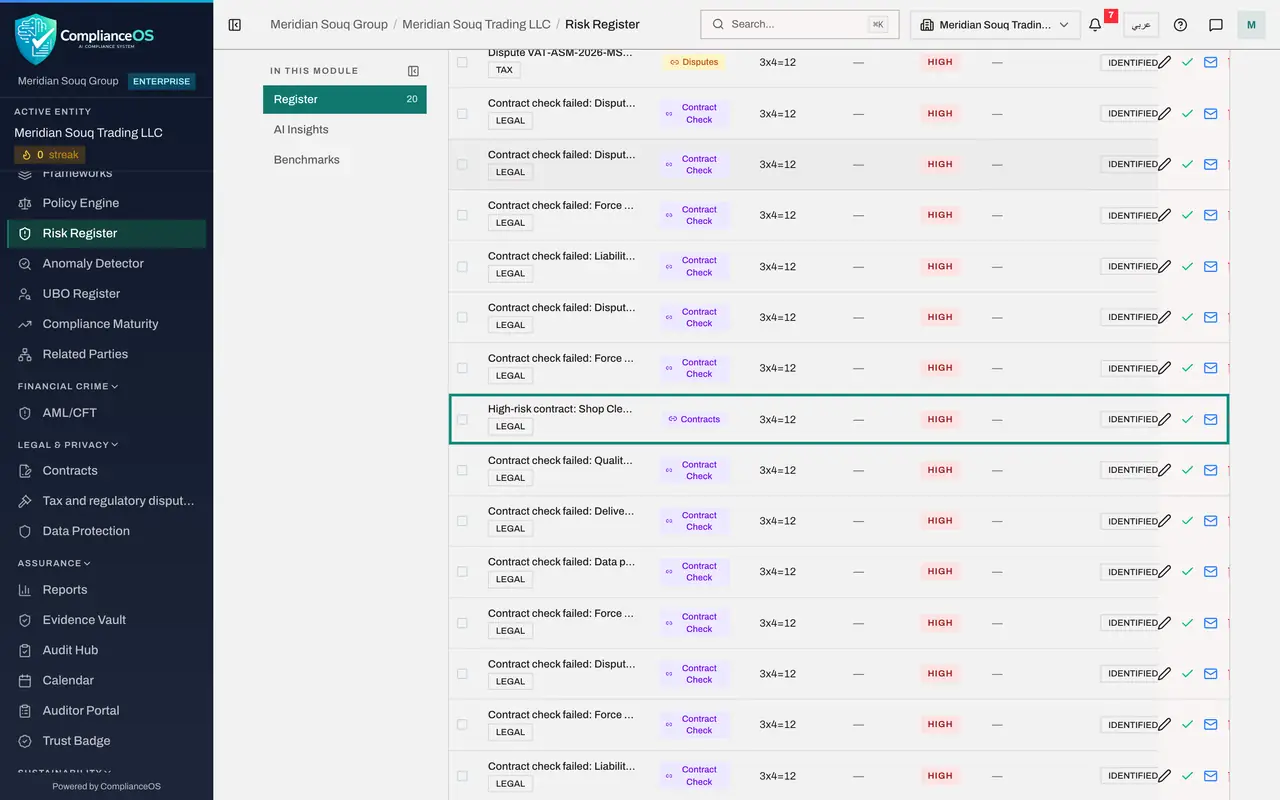
Scroll down to the register. Each active contract scored high or critical has a risk named High-risk contract, with Contracts as its source. Each failed compliance check has a risk named Contract check failed, followed by the check and the contract it belongs to. From here they are owned, scored and treated like any other risk.
- 6
Sync the calendar
In the left menu, select Calendar, and then select Sync Deadlines. The calendar pulls dates from every module. Under Upcoming Deadlines there is now a Contract Expiry entry for each contract with an expiry date, named after the contract's title.
- Select Calendar
- Select Sync Deadlines
- 7
Find the expiry date in the month view
Scroll back up and select Next month to move to November 2026. The eighth of November carries a Contract marker: the day the delivery agreement ends. The list under the month names it.
- Select Next month
- 8
Open the contract's evidence
Go back to Contracts, open the delivery agreement and select Evidence Vault at the top right. A panel lists the evidence records linked to this contract. The record of its analysis is sealed, has a fingerprint called a SHA-256 hash, and is kept for ten years.
- Select Contracts
- Select Barq-Line-delivery-agreement.pdf
- Select Evidence Vault
- 9
Open the full vault
Select Open Full Vault at the foot of the panel. The Evidence Vault lists a sealed record, Contract Processing Complete, for every contract that has been analysed. Auditors use these records to confirm when each contract was processed.
- Select Open Full Vault
- 10
Check your notifications
Select the bell at the top right. Each contract scored high or critical raised a notification headed High Risk Contract, and each review assigned to you raised one too. Selecting a notification takes you to the record.
- Select 7 unread notifications
How to check it worked
the Risk Register lists risks whose source is Contracts, the calendar shows a Contract Expiry entry for the delivery agreement on 8 November 2026, and the Evidence Vault holds a sealed record for each analysed contract.
Common mistakes
- Expecting contract risks and expiry dates to appear in other modules by themselves. Risks arrive when someone selects Sync Modules on the Risk Register, and expiry dates when someone selects Sync Deadlines on the calendar.
- Adding a supplier separately in each module. The vendor directory is shared, so add the supplier once and link the contract to that record.
- Reading a cleared sanctions screening as permanent. It reflects the lists on the day the contract was analysed. Changing a party's name on the contract screens it again.
Check your understanding
1. How does a high-risk contract become a risk in the Risk Register?
- A.It never does
- B.Someone selects Sync Modules on the Risk Register
- C.The counterparty reports it
- D.It must be typed in again by hand
Show answer
Answer: B. Someone selects Sync Modules on the Risk Register
Sync Modules scans the modules and creates a risk for each active high-risk contract and each failed compliance check, with Contracts as the source.
2. Where is the proof that a contract was analysed, and when?
- A.In the Evidence Vault, as a sealed record
- B.In the clause library
- C.In Analytics
- D.In the upload box
Show answer
Answer: A. In the Evidence Vault, as a sealed record
When the analysis completes, a sealed record is stored in the Evidence Vault with a fingerprint and a ten year retention period.