Lesson 3 of 29
Check what was read from the contract
What you will be able to do
This lesson is for the legal team. You will go through the Extraction tab panel by panel, open the full list of extracted fields, show only the ones the analysis was unsure about, and correct one of them.
Before you start
- The delivery services agreement has finished processing.
- You have the contract itself to hand, so that you can compare each detail with the document.
Steps
- 1
Open the Extraction tab
Scroll down past the summaries to the row of tabs: Extraction, Compliance Checks, Review and Deep Analysis. Extraction is open first. The line above the panels gives the overall confidence of the extraction as a percentage.
- Select Extraction
- 2
Check the Contract Details panel
Contract Details shows the type, the title as written on the document, the language, the governing law and the jurisdiction, which is the court or tribunal that hears disputes. Compare each with the first and last pages of the contract.
- 3
Check the Parties panel
Parties shows the two sides, with the place where each is established. Party A is the first party named in the contract and Party B the second. Check the legal names letter by letter: these names are what is screened against sanctions lists.
- 4
Check the Financial Terms panel
Financial Terms shows the contract value, the currency, the payment terms, the liability cap, which is the most either side can be made to pay, and the late payment penalty rate. A dash for the liability cap means the analysis found no cap in the document.
- 5
Check the Duration panel
Duration shows the effective date, the expiry date, whether the contract renews by itself, and the notice periods for stopping a renewal and for ending the contract. These dates drive the expiry warnings, so a wrong date here means a missed renewal later.
- 6
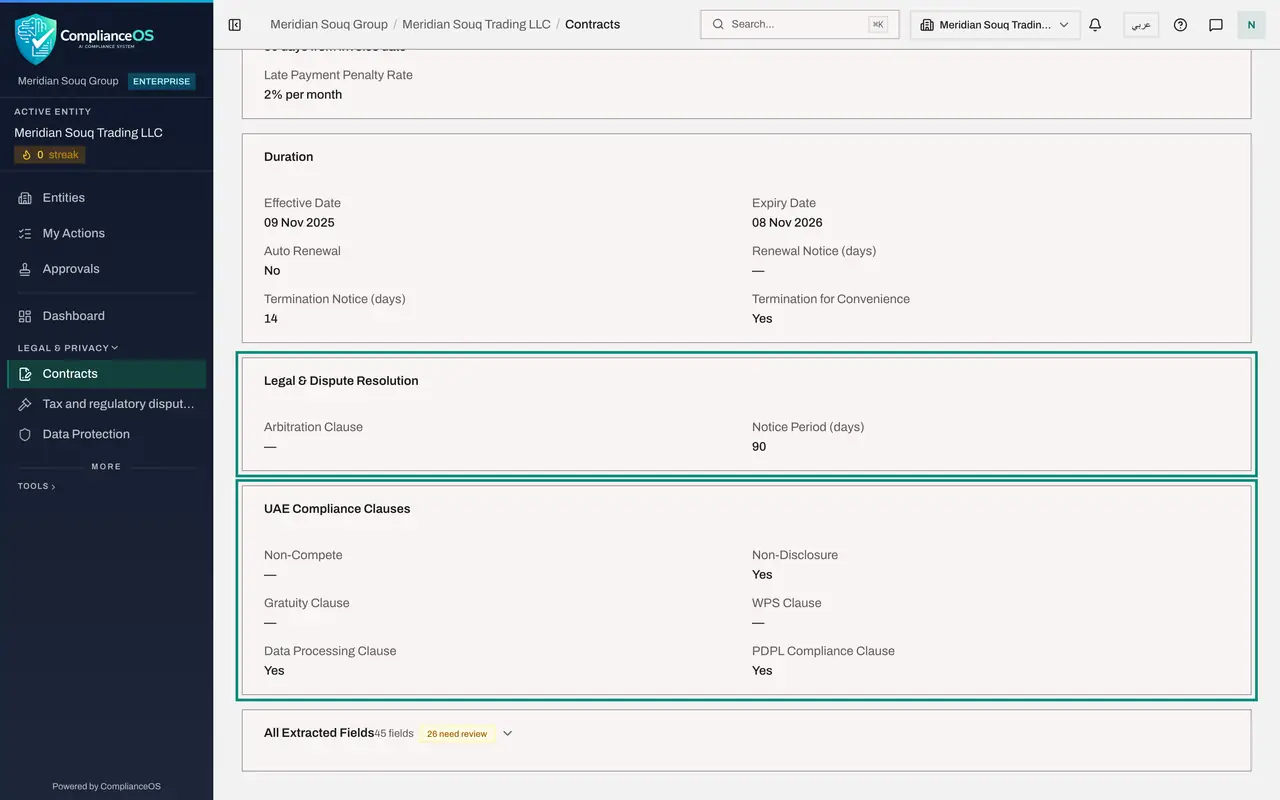
Check the legal and UAE clause panels
Legal and Dispute Resolution says whether there is an arbitration clause. UAE Compliance Clauses lists the clauses that UAE rules look for: non-compete, non-disclosure, end of service gratuity, the Wage Protection System, data processing, and the Personal Data Protection Law. Yes means the clause was found, No means it was confirmed absent, and a dash means not found.
- 7
Open All Extracted Fields
Select the All Extracted Fields heading. The full list opens: every item the analysis looked for, with its confidence as a percentage and its value. The heading also says how many fields need review.
- Select All Extracted Fields45 fields26 need review
- 8
Show only the fields that need review
Select Show Only Fields Needing Review. The list shrinks to the fields marked with a yellow dot, which are the ones with low confidence. Most are items this contract simply does not contain, such as a gratuity clause. Look for the ones that matter for this kind of agreement.
- Select Show Only Fields Needing Review
- 9
Select the pencil beside Insurance Required
Insurance Required records whether the contract obliges a party to hold insurance. This contract says nothing about insurance, and the analysis left the field blank. Select the pencil at the end of the Insurance Required row. The value becomes a box you can type in.
- Select Edit Insurance Required
- 10
Type the correct value and press Enter
Type false, because the contract has no insurance requirement, and press Enter or select the green tick beside the box. Select the grey cross instead if you want to leave the field as it was. The box and its two small buttons have no labels. After a few seconds a message confirms that the field was updated. When a field that affects the checks changes, the compliance checks and the risk score are run again.
- Type Insurance Required (value box):
false
- Type Insurance Required (value box):
- 11
Show all fields again
Select Show All Fields to bring back the full list. Insurance Required now reads No with a confidence of one hundred percent, because a person confirmed it.
- Select Show All Fields
How to check it worked
the field you corrected shows the new value, and the count of fields that need review on the All Extracted Fields heading has gone down by one.
Common mistakes
- Trusting a blank. A dash means the analysis did not find the item. Sometimes the contract really has no such clause, and sometimes the clause was missed. Check the document.
- Correcting a field in your head but not on the screen. The risk score and the compliance checks use the stored values, so a wrong value keeps producing wrong warnings.
- Typing words into a yes or no field. For a clause that is present type true, and for a clause that is absent type false.
Check your understanding
1. A field in All Extracted Fields shows a confidence of zero percent and a yellow dot. What does that mean?
- A.The contract is invalid
- B.The analysis could not find or was unsure of this item, so a person should check it
- C.The field has been deleted
- D.The field was typed in by a colleague
Show answer
Answer: B. The analysis could not find or was unsure of this item, so a person should check it
Low confidence marks the fields that need review. They are the ones to compare with the document first.
2. The contract does not require insurance. What do you enter in the Insurance Required field?
- A.Leave it blank
- B.Type false
- C.Type not applicable
- D.Type zero percent
Show answer
Answer: B. Type false
Yes or no fields take true or false. Recording false tells the checks that the item is confirmed absent.