Lesson 20 of 29
See who has access, and delete a contract
What you will be able to do
This lesson is for administrators. You are Layla Hassan. You will open the Access tab of the Contracts screen to see who may view, create, edit and approve contracts and contract drafts, read the approval policy for drafts, and then delete a file that was uploaded to Contracts by mistake.
Before you start
- You are signed in with a role that administers access and may delete contracts. The Full access role does both. Legal counsel and the Compliance officer cannot delete, so they have no bin icon in the list.
- A bank payment confirmation was uploaded to Contracts by mistake. It belongs with a tax dispute, not here.
Steps
- 1
Open Contracts and the Access tab
In the left menu, select Contracts, and then select the Access tab. It shows who can do what in the Contracts module for this company. People who do not administer access see only a note telling them to ask their security administrator.
- Select Contracts
- Select Access
- 2
Read the access table
The table has one row for each kind of record: all record types, contracts, and contract drafts. The columns are the actions: View, Create, Edit and Approve. Each number is how many people can do that action here.
- 3
See who can approve contract drafts
Select the number under Approve in the Contract drafts row. A list opens below the table: each person who can approve drafts, the role that gives them the right, where the role applies, and how long it is valid.
- Select 4 people can Approve: Contract drafts
- 4
Read the role grants
Role grants covering this entity lists every role assignment that reaches this company and includes Contracts: the person, the role, where it applies and whether it is active. The switch above it, Only roles that include Contracts, is on, so roles without contract rights are hidden.
- 5
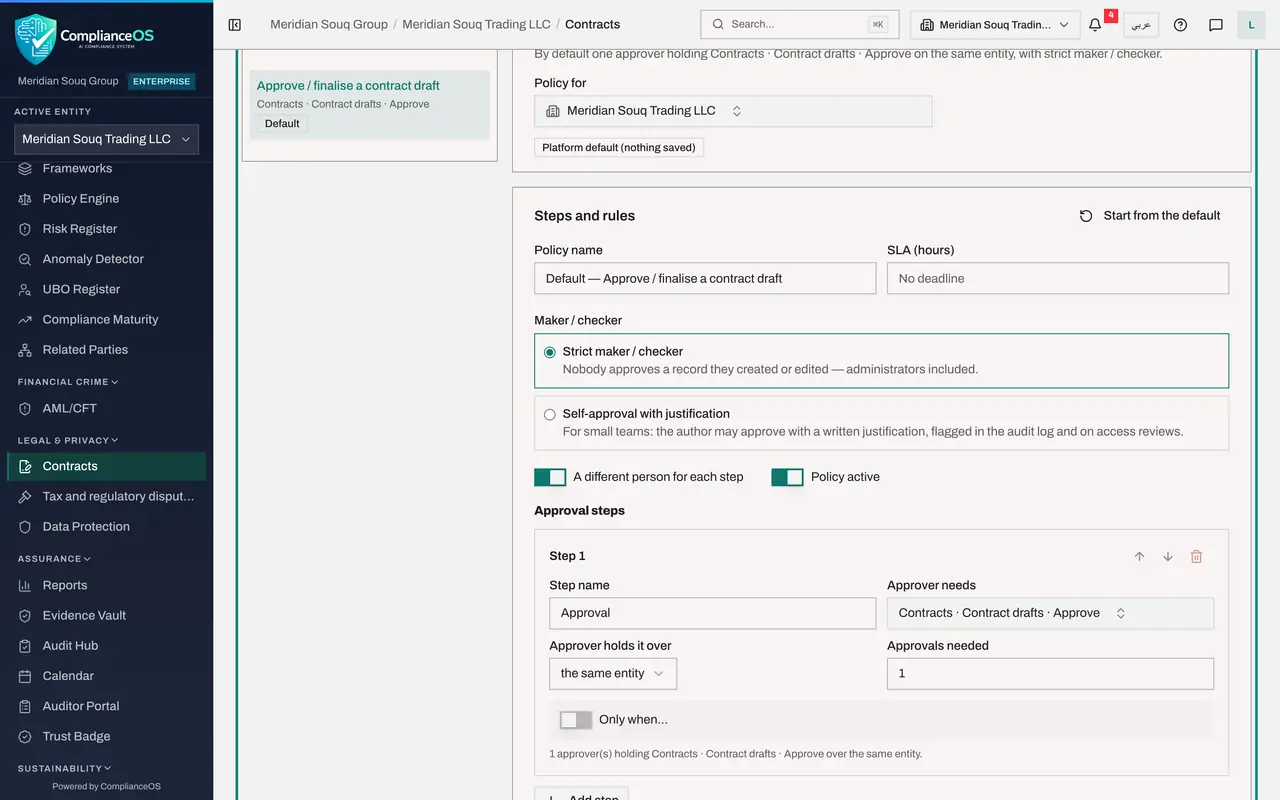
Read the approval policy for drafts
Scroll down to Approval policies. It shows the sign-off rule for finalising a contract draft: who must approve, in how many steps, and whether the person who prepared the draft may approve it. This is the rule that stopped Legal counsel approving her own draft in lesson 18.
- 6
Know where access is changed
Scroll back to the top of the tab. Grant access for this module gives a person a role for Contracts in this company. Access control settings opens the full access screen. Both are covered in the administrator's course on organisation and access.
- 7
Find the file uploaded by mistake
Select the Contracts tab and scroll to the list. The file VAT-Q2-2026-payment-confirmation.pdf is a bank confirmation, not a contract. Because you may delete, each row ends with a red bin icon.
- Select Contracts
- 8
Select the bin icon
Select the bin at the end of that row. A box headed Delete Contract opens. It names the file and warns that this action cannot be undone.
- Select Delete Contract
- 9
Confirm with Delete
Check the file name once more and select Delete. A message confirms that the contract was deleted. The row disappears and the number beside the Contracts heading goes down by one.
- Select Delete
How to check it worked
the payment confirmation is no longer in the contracts list, and the number beside the Contracts heading has gone down by one.
Common mistakes
- Deleting a contract that has simply ended. Use Change Status for that, as in lesson 9, so that the record and its history are kept.
- Looking for the bin icon as Legal counsel. Deleting needs the delete right, which that role does not have. Ask an administrator.
- Changing access from memory. Open the Access tab first and see who already holds the right, and through which role.
Check your understanding
1. A colleague in the legal team cannot see a bin icon in the contracts list. Why?
- A.The list is still loading
- B.Their role does not include the right to delete contracts
- C.Contracts can never be deleted
- D.The contract is still processing
Show answer
Answer: B. Their role does not include the right to delete contracts
The bin is shown only to people who may delete. Legal counsel may view, create, edit and export, but not delete.
2. What does a number in the access table on the Access tab mean?
- A.How many contracts exist
- B.How many people can do that action on that record type in this company
- C.How many days the access lasts
- D.How many approvals are pending
Show answer
Answer: B. How many people can do that action on that record type in this company
Each cell counts the people with an active grant. Selecting a cell lists them and the role that gives them the right.