Lesson 26 of 29
What a read-only user sees
What you will be able to do
This lesson is for auditors and anyone else with view-only access. You are Daniel Brooks, the auditor. You will open Contracts and Tax and regulatory disputes and see what you can read and export, and which controls are missing or greyed out because you may not change anything.
Before you start
- You are signed in with the Auditor role, which may view contracts and disputes but not create, edit, approve or delete them.
- Contracts and disputes are already on record, as left by the earlier lessons.
Steps
- 1
Open Contracts
In the left menu, select Contracts. The figures and the tabs are the same as for the legal team, but there is no Upload contract button at the top right and no upload box.
- Select Contracts
- 2
Read the list
Scroll to the list. You can search, filter, sort and select Export CSV, exactly as in lesson 8. The Reviewer column shows names as plain text, because you cannot assign reviews, and the rows have no bin icon.
- 3
Open a contract
Select the delivery agreement. The page shows everything the analysis produced. Of the buttons at the top, only Download remains: Re-analyze, Edit details and Change Status are not there.
- Select Barq-Line-delivery-agreement.pdf
- 4
Download the file
Select Download. The original file is saved to your computer. An auditor can therefore always check the analysis against the signed document.
- Select Download
- 5
Look at the Review tab
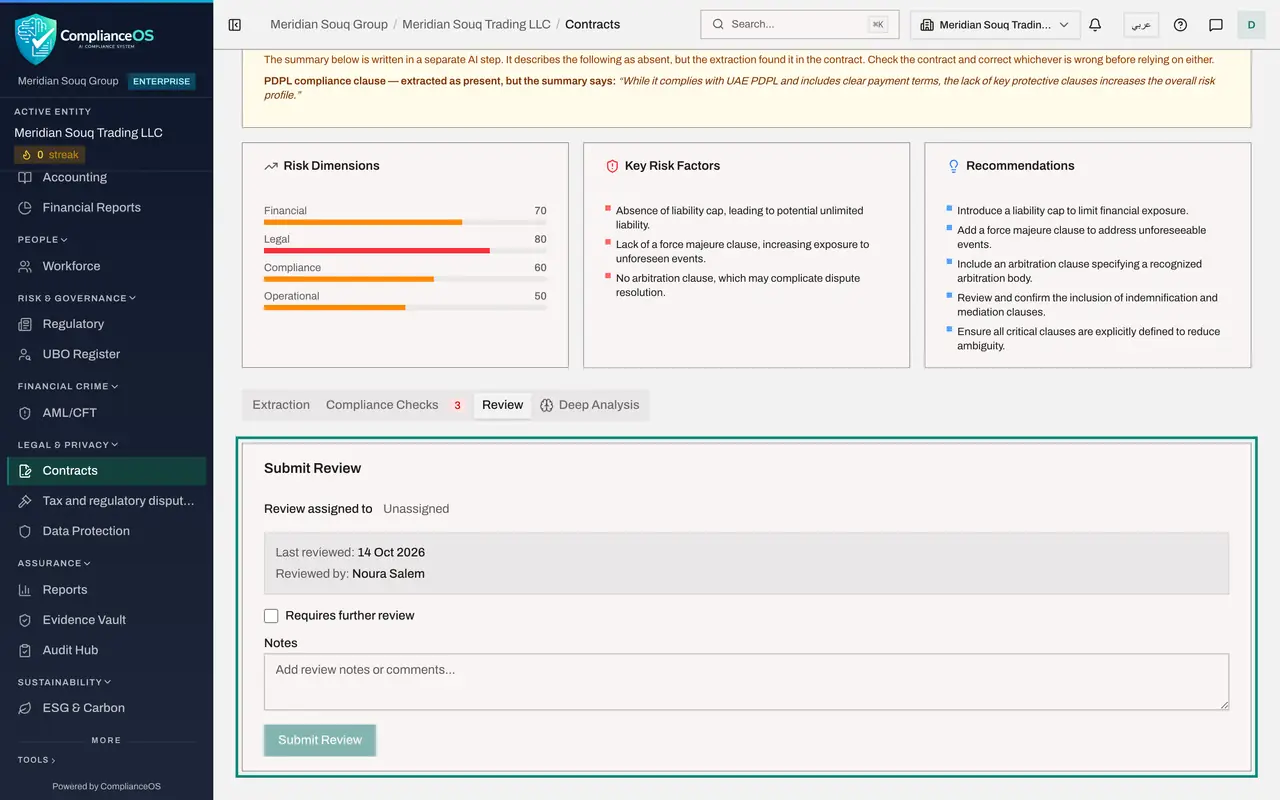
Scroll down to the tabs and select Review. You can read who reviewed the contract, when, and their notes. The reviewer's name is plain text, and Submit Review is greyed out. Rest the pointer on it and a note names the right you would need.
- Select Review
- 6
Look at the obligations
Select Deep Analysis. The obligations are listed with their status, but there is no Mark done button and no Re-run AI Extraction button. Clause Compare, Relationships and Amendments can be read in the same way.
- Select Deep Analysis
- 7
Open the Draft a Contract tab
Go back to Contracts and select the Draft a Contract tab. You can read the clause library and open the drafts in the list, but the Draft a Contract button is missing, because you may not create drafts.
- Select Contracts
- Select Draft a Contract
- 8
Open Tax and regulatory disputes
In the left menu, select Tax and regulatory disputes. The figures, the status list and the table are all there, and Export CSV works. There is no File Dispute button, and the rows have no three-dot menu.
- Select Tax and regulatory disputes
- 9
Read a dispute
Select the row of the late payment penalty dispute, anywhere on its text, to open its detail panel. You can read the grounds, the timeline, the amount, the phase deadline, the evidence list and the resolution notes. There are no Edit details or Add Evidence buttons.
- Select Details of dispute FTA-RC-2026-004417
- 10
Look at the reminder settings
Scroll down to Deadline reminders. A line says you can view these settings but not change them. The switch is greyed out, and there are no boxes for adding lead times or people.
How to check it worked
you can open a contract, read its checks and download the file, and you can read a dispute's full record, but you find no Upload contract, Edit details, Change Status or File Dispute button anywhere.
Common mistakes
- Reporting a missing button as a fault. A button you do not see is one your role may not use. Ask an access administrator if you need the right.
- Assuming read-only means nothing leaves the system. Export CSV and Download still work, so handle exported files with the same care as the records.
- Asking a colleague to share their sign-in so that you can make a change. Ask for the change to be made, or for the right to be granted, instead.
Check your understanding
1. As a view-only user, which of these can you still do on the Contracts screen?
- A.Upload a contract
- B.Delete a contract
- C.Export the list and download a contract's file
- D.Change a contract's status
Show answer
Answer: C. Export the list and download a contract's file
Viewing includes reading, exporting the list and downloading the original file. Everything that changes a record needs a further right.
2. The Submit Review button on a contract is greyed out for you. What does that tell you?
- A.The contract has already been reviewed
- B.Your role does not include the right to edit contracts
- C.The page is still loading
- D.The contract has expired
Show answer
Answer: B. Your role does not include the right to edit contracts
Recording a review counts as editing the contract. Resting the pointer on the button names the right that is needed.