Lesson 9 of 29
Stay ahead of renewals and expiry
What you will be able to do
This lesson is for the legal team. You will read every expiry warning on the Contracts screen, sort the list by expiry date, check a contract's renewal terms, and record that a contract has ended by changing its lifecycle status.
Before you start
- Several contracts are on record with expiry dates. This company has one that ends within thirty days, one within sixty days and one within ninety days.
- You are signed in with the Legal counsel role, which may edit contracts.
Steps
- 1
Read the warnings at the top
Open Contracts. Beside the number of active contracts, a red line says how many are expiring within thirty days. To its right, the action list names what needs attention: contracts expiring soon, high risk contracts and contracts pending review.
- 2
Check the Expiring 30D counter
In the strip of numbers, Expiring 30D counts the contracts that end within thirty days. It turns red when it is above zero.
- 3
Read the Expiring Contracts bar
Scroll down to the Expiring Contracts bar above the list. It counts the contracts ending within thirty days in red, within sixty days in amber and within ninety days in blue. Each count includes the one before it.
- 4
Sort the list by expiry
In the list, select the Expiry column heading. The contracts are put in order of their expiry dates. A contract within ninety days of its end shows a coloured tag with the days left, such as 26D. A contract further away shows its expiry date, and a contract with no expiry date shows a dash.
- Select Expiry (column heading)
- 5
Open the contract that ends first
Select the delivery agreement, which has the red tag. On its page, the red bar under the Contract Summary repeats the warning with the exact expiry date.
- Select Barq-Line-delivery-agreement.pdf
- 6
Check the renewal terms
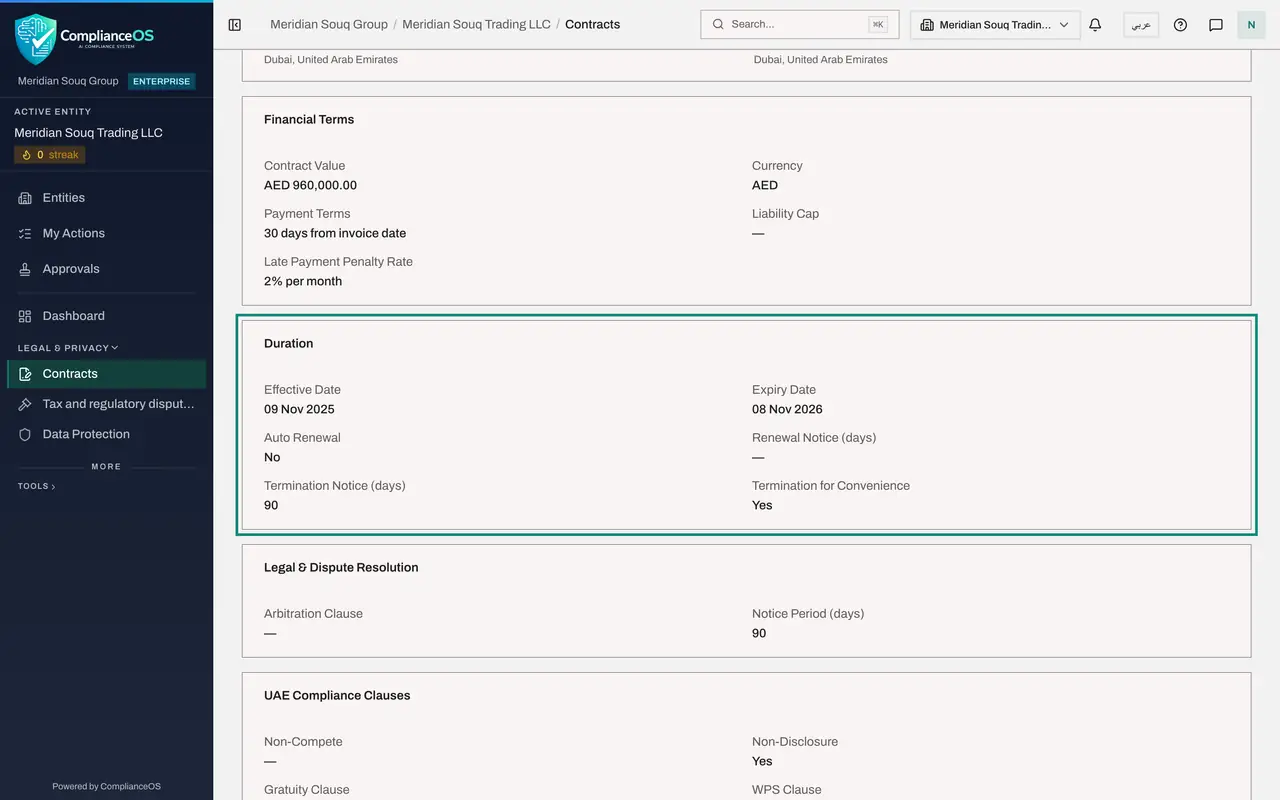
Scroll down to the Duration panel on the Extraction tab. Auto Renewal says No, so this agreement simply stops on its expiry date unless a new one is signed. Where Auto Renewal says Yes, Renewal Notice gives the number of days' notice needed to stop the renewal. Count back from the expiry date to find the last day to send it.
- 7
Open a contract that has ended
Go back to Contracts and open the non-disclosure agreement with Qamar Insight Analytics. The talks it covered are over and both sides have returned each other's information, so the agreement has done its job.
- Select Contracts
- Select Qamar-Insight-NDA.pdf
- 8
Select Change Status
At the top of the page, select Change Status. The Change Contract Status form opens with two fields: New Status and Notes.
- Select Change Status
- 9
Choose the new status
Open New Status. Active means the contract is in force. Completed means it was performed and has ended. Cancelled means it was ended early. Expired means its term ran out. Suspended means it is on hold. Choose Completed.
- Select New Status
- Choose Completed
- 10
Add a note and update
In Notes, say why the status is changing. The note is optional, but a colleague reading the record later will want the reason. Then select Update Status.
- Type Notes (optional):
Talks concluded on 30 September 2026. Confidential information returne… - Select Update Status
- Type Notes (optional):
- 11
Check the tag on the contract
The form closes and the tag at the top of the page changes from Active to Completed. If you open Change Status again, it shows the date of the last change and your note.
- 12
Find it with the Lifecycle filter
Go back to Contracts and scroll to the list. The row now carries a Completed tag beside its status. To list only ended contracts, open the Lifecycle filter and choose Completed.
- Select Contracts
- Select Lifecycle
- Choose Completed
How to check it worked
the non-disclosure agreement's page shows the tag Completed in place of Active, and its row in the list carries a Completed tag beside its status.
Common mistakes
- Watching only the red warnings. A contract that renews by itself needs its notice sent before the notice period starts, which can be two or three months before the expiry date.
- Leaving an ended contract as Active. It keeps counting towards the totals and the expiry warnings until you change its status.
- Using Expired for a contract that was ended early. Expired is for a term that simply ran out. Use Cancelled for one ended early, and Completed for one that was fully performed.
Check your understanding
1. What does a red tag reading 26D in the Expiry column mean?
- A.The contract was uploaded 26 days ago
- B.The contract ends in 26 days
- C.Payment is due in 26 days
- D.The review is 26 days late
Show answer
Answer: B. The contract ends in 26 days
The tag counts the days left. It is red within thirty days, amber within sixty and blue within ninety.
2. A contract was fully performed and both sides are finished. Which lifecycle status records that?
- A.Active
- B.Suspended
- C.Completed
- D.Expired
Show answer
Answer: C. Completed
Completed is for a contract that ran its course and was performed. Expired is for a term that ran out, and Cancelled for one ended early.