Lesson 8 of 29
Find, filter, sort and export contracts
What you will be able to do
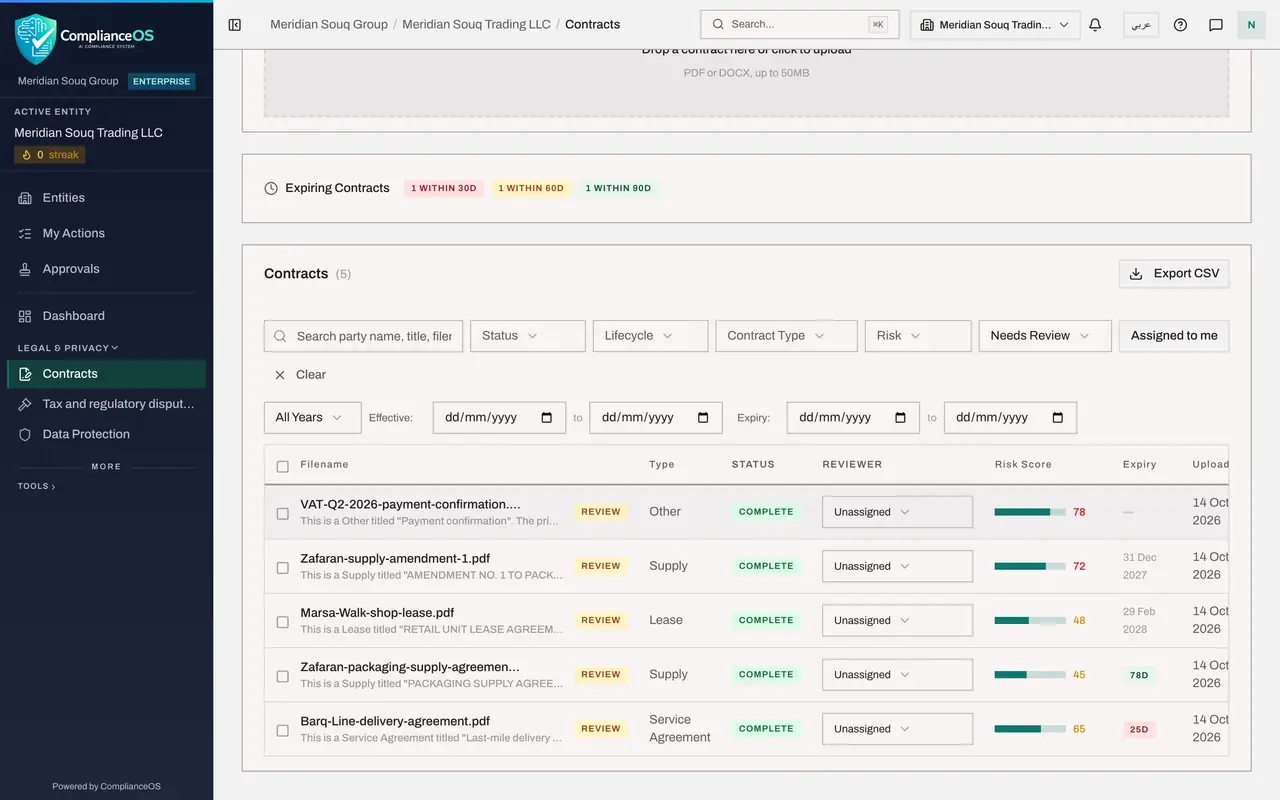
This lesson is for the legal team. You will use every control above the contracts list: the search box, the five filters, the Assigned to me button, the year and date ranges, the column sorting, and the export to a spreadsheet file.
Before you start
- Several contracts are on record and have finished processing. This company has the delivery agreement, a packaging supply agreement, a shop lease, a non-disclosure agreement, an amendment, and a bank payment confirmation that was uploaded here by mistake.
- You are signed in with the Legal counsel role.
Steps
- 1
Search by name
Scroll down to the Contracts list. In the search box, type part of a party name, a contract title or a file name. Here we type Zafaran. The list narrows to the contracts with that supplier, and the number beside the Contracts heading follows.
- Type Search party name, title, filename...:
Zafaran
- Type Search party name, title, filename...:
- 2
Clear the search and filter by status
Select Clear to empty the search box. Then open the Status filter. It lists the stages of the analysis, from Pending to Complete. Choose Complete to hide anything that is still being read.
- Select Clear
- Select Status
- Choose Complete
- 3
Filter by lifecycle
Open the Lifecycle filter. Lifecycle is where the contract stands in its life: Active, Completed, Cancelled, Expired or Suspended. Choose Active to see only the contracts in force.
- Select Lifecycle
- Choose Active
- 4
Filter by contract type
Open the Contract Type filter and choose a type. Here we choose Lease. Only the shop lease remains, because all three filters apply together.
- Select Contract Type
- Choose Lease
- 5
Clear, then filter by risk
Select Clear to remove all the filters. Then open the Risk filter and choose High. The list shows the contracts whose risk level is high, which are the ones to read first.
- Select Clear
- Select Risk
- Choose High
- 6
Filter by review
Select Clear again. Open the Needs Review filter. Needs Review lists the contracts that a person still has to look at, shown with an amber Review tag. Reviewed lists the ones already signed off. Choose Needs Review.
- Select Clear
- Select Needs Review
- Choose Needs Review
- 7
Show only the reviews assigned to you
Select Assigned to me. The button turns dark, and the list keeps only the contracts whose review has been given to you. Together with Needs Review, this is your review queue. Nothing is waiting for you at the moment, so the list says No contracts match your filters. Lesson 10 assigns reviews.
- Select Assigned to me
- 8
Clear and choose a year
Select Clear. On the second row, open the list that says All Years and choose FY 2025. The two Effective date boxes fill with the first and last day of that year, and the list keeps the contracts that started in 2025.
- Select Clear
- Select Year
- Choose FY 2025
- 9
Filter by expiry date
Open the year list again and choose All Years. Then use the two Expiry date boxes: enter 1 October 2026 in the first and 31 December 2026 in the second. The list keeps the contracts that end in the last three months of the year.
- Select Year
- Choose All Years
- Type Expiry from:
2026-10-01 - Type Expiry to:
2026-12-31
- 10
Clear and sort the list
Select Clear to see every contract again. Then select the Risk Score column heading. The list is sorted by score, and a second click reverses the order. Filename, Type, Expiry and Uploaded sort the same way.
- Select Clear
- Select Risk Score (column heading)
- Select Risk Score (column heading)
- 11
Export the list
Select Export CSV at the top right of the list. A spreadsheet file is saved to your computer with one line for each contract on screen: file name, status, risk score, risk level, type and upload date. The export follows the filters, so filter first if you want only part of the list.
- Select Export CSV
How to check it worked
after you select Clear, the heading above the list shows the full number of contracts again, and a file named contracts with today's date is in your downloads folder.
Common mistakes
- Forgetting that filters add up. Search, the filters and the date ranges all apply at the same time, so an empty list often just means one filter too many. Select Clear and start again.
- Choosing a year and expecting contracts that expire in that year. The year fills in the Effective dates, which is when a contract starts. Use the Expiry dates to find contracts that end in a period.
- Treating the export as the full record. It holds the file name, status, risk score, risk level, type and upload date of the rows on screen, not the contract's terms.
Check your understanding
1. You want every contract that ends between 1 October and 31 December. Which control do you use?
- A.The year list
- B.The two Expiry date boxes
- C.The Status filter
- D.The Risk filter
Show answer
Answer: B. The two Expiry date boxes
The Expiry boxes filter on the date a contract ends. The year list and the Effective boxes filter on the date it starts.
2. The list says No contracts match your filters. What is the quickest way back to the full list?
- A.Sign out and in again
- B.Select Clear
- C.Upload the contracts again
- D.Refresh the page three times
Show answer
Answer: B. Select Clear
Clear removes the search text, every filter and the date ranges in one go.