Lesson 12 of 29
Complete a contract review assigned to you
What you will be able to do
This lesson is for anyone who is asked to review a contract. You are Mariam Aziz, the Compliance officer. Legal counsel has uploaded a new shop cleaning and maintenance agreement and assigned its review to you. You will find it in My Actions, open it, and record your review.
Before you start
- A colleague has assigned you a contract review, as in lesson 10. Every open review assigned to you appears in your My Actions list.
- You hold a role that may edit contracts. The Compliance officer role does.
Steps
- 1
Open the notification
Select the bell at the top right of the screen. The newest notification says that a contract review has been assigned to you, and names the contract.
- Select 6 unread notifications
- 2
Open My Actions
Close the notifications and select My Actions in the left menu. It lists the open work assigned to you in every module. The contract review is there, with the contract's title, its risk level and the words Assigned to you.
- Select My Actions
- 3
Open the contract from the list
Select Open at the end of the row. The contract's own page opens. Read the summaries and the risk factors at the top first.
- Select Open
- 4
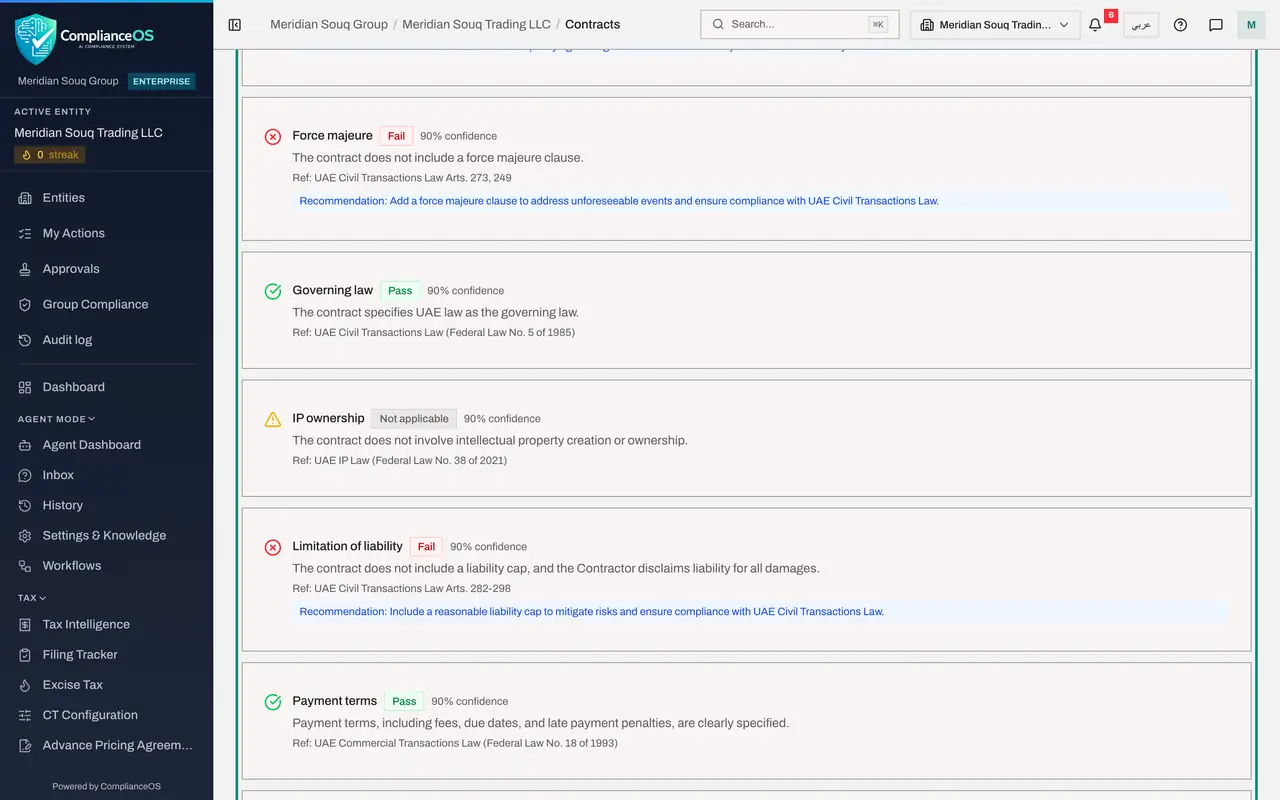
Read the compliance checks
Scroll down and select Compliance Checks. Read each result and its recommendation. These are what you are being asked to form a view on.
- Select Compliance Checks3
- 5
Open the Review tab
Select the Review tab. Review assigned to shows your name. Below it are the Requires further review tick box, the Notes box and the Submit Review button.
- Select Review
- 6
Write your notes
In Notes, record your conclusion, including what must change. Leave Requires further review unticked, because your review is the last one this contract needs.
- Type Notes:
Reviewed for compliance. Liability exclusion, one-sided termination an…
- Type Notes:
- 7
Select Submit Review
Select Submit Review. A message confirms it, and the grey box shows the date, your name and your notes. The person who assigned the review can see the same box.
- Select Submit Review
- 8
Check My Actions again
Select My Actions in the left menu. The contract review has gone from the list, and the count of items completed in the last seven days has gone up.
- Select My Actions
How to check it worked
the contract's Review tab shows today's date, your name and your notes, and the contract review has left your My Actions list.
Common mistakes
- Waiting for an e-mail. The assignment arrives as a notification inside ComplianceOS and as an item in My Actions. Check both at the start of the day.
- Opening the contract and closing it again without selecting Submit Review. Reading is not recorded. Only a submitted review clears the item.
- Recording a review without opening the Compliance Checks tab. The failed checks are the reason the contract was sent to you.
Check your understanding
1. Where do you find a contract review that was assigned to you?
- A.In My Actions
- B.In the Access tab
- C.In Analytics
- D.In the clause library
Show answer
Answer: A. In My Actions
My Actions lists the open work assigned to you across all modules, including contract reviews.
2. What removes a contract review from your My Actions list?
- A.Opening the contract
- B.Submitting the review on the contract's Review tab
- C.Downloading the file
- D.Signing out
Show answer
Answer: B. Submitting the review on the contract's Review tab
The item stays open until a review is submitted for the contract.