Lesson 25 of 29
Set the dispute deadline reminders
What you will be able to do
This lesson is for the legal and tax teams. You will go through the Deadline reminders settings at the foot of the disputes screen: switch reminders on or off, choose how many days before a deadline reminders go out, and choose who receives them and who is alerted when a deadline is missed.
Before you start
- You are signed in with a role that may edit disputes. Legal counsel may. People who can only view disputes see these settings but cannot change them.
- You know who in the business should be reminded about dispute deadlines, and who should hear about a missed one.
- The settings apply to every dispute of this company.
Steps
- 1
Scroll to Deadline reminders
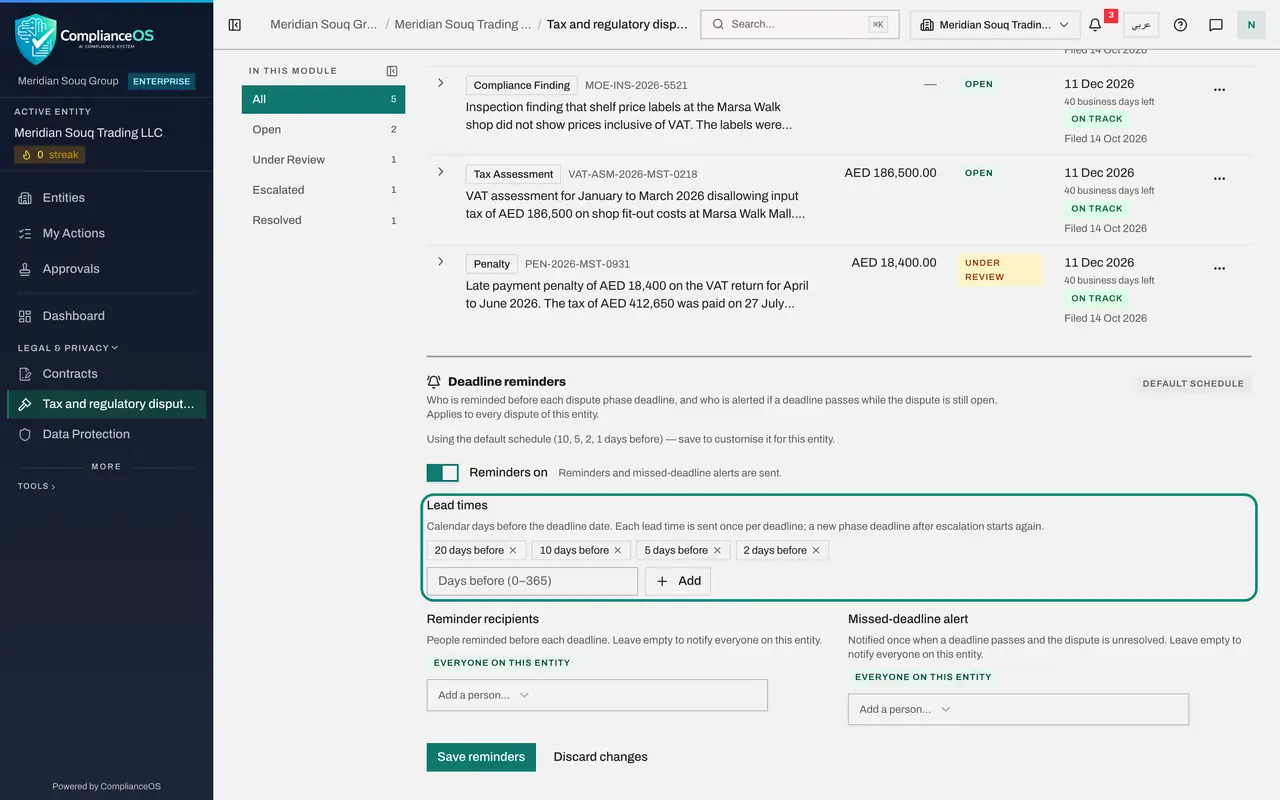
On the Tax and regulatory disputes screen, scroll down past the table to Deadline reminders. These settings decide who is reminded before each phase deadline, and who is alerted if a deadline passes while the dispute is still open. The tag on the right says Default schedule, because nothing has been saved for this company yet.
- 2
Check that reminders are on
The Reminders on switch controls everything below it. While it is on, reminders and missed-deadline alerts are sent. Switch it off only if this company handles its dispute deadlines somewhere else. Leave it on.
- 3
Read the lead times
Lead times are the numbers of calendar days before the deadline on which a reminder is sent. The default schedule is ten, five, two and one days before. Each lead time is sent once for each deadline, and an escalation starts the schedule again for the new deadline.
- 4
Add a lead time
A dispute needs more warning than a few days, so add an earlier reminder. In the box under the list, type 20 and select Add. A new entry, 20 days before, joins the list. The box takes whole numbers from 0 to 365, and 0 means on the day itself.
- Type Days before (0–365):
20 - Select Add
- Type Days before (0–365):
- 5
Remove a lead time
Each entry has a small cross. Select the cross beside 1 days before to remove that reminder. If you remove every entry, only the missed-deadline alert is sent.
- Select Remove
- 6
Choose who is reminded
Reminder recipients are the people reminded before each deadline. The tag Everyone on this entity means the list is empty, so everyone with access to this company is reminded. Open Add a person and choose Noura Salem. Her name replaces the tag, and from now on only the people listed are reminded.
- Select Add a person…
- 7
Add a second recipient
Open Add a person again and choose Fatima Noor, the tax manager, so that the tax team is reminded as well. Each name has a cross to remove it.
- Select Add a person…
- 8
Choose who hears about a missed deadline
Missed-deadline alert is sent once, when a deadline passes and the dispute is still unresolved. Send it to someone senior enough to act. Open Add a person under it and choose Mariam Aziz, the Compliance officer.
- Select Add a person…
- 9
Select Save reminders
Select Save reminders. A message says the reminder settings were saved. Discard changes, beside it, would have put the settings back as they were. The tag at the top now shows when the settings were last saved, in place of Default schedule.
- Select Save reminders
How to check it worked
the tag at the top of Deadline reminders changes from Default schedule to the date and time you last saved, and the list of lead times includes the one you added.
Common mistakes
- Leaving the recipients empty by accident. Empty does not mean nobody. It means everyone with access to this company is reminded.
- Counting lead times in business days. Lead times are calendar days before the deadline date, even though the deadline itself is counted in business days.
- Changing the settings and leaving the page. Nothing is kept until you select Save reminders.
Check your understanding
1. The Reminder recipients list is empty. Who is reminded before a dispute deadline?
- A.Nobody
- B.Everyone with access to this company
- C.Only the administrator
- D.Only the person who filed the dispute
Show answer
Answer: B. Everyone with access to this company
An empty list means everyone on the entity. Add people to limit the reminders to them.
2. What is the missed-deadline alert?
- A.A reminder sent ten days before the deadline
- B.A notice sent once when a deadline passes and the dispute is still unresolved
- C.An e-mail to the tax authority
- D.A warning shown only on the dashboard
Show answer
Answer: B. A notice sent once when a deadline passes and the dispute is still unresolved
It is a single alert to the people you choose, sent when a phase deadline has passed and the dispute is not resolved.