Lesson 2 of 29
Read a contract's page
What you will be able to do
This lesson is for the legal team. You will find an analysed contract in the list, open its page, and read what the analysis says about it: the status tags, the key details, the two summaries, the expiry warning, the risk dimensions and the recommendations.
Before you start
- The delivery services agreement from lesson 1 has finished processing.
- You are signed in with the Legal counsel role.
Steps
- 1
Find the contract in the list
Select Contracts in the left menu and scroll down to the list. Each row shows the file name with a one-line summary under it, the contract type, the processing status, the reviewer, the risk score and the time left before expiry. The amber Review tag beside the name means a person still has to look at this contract.
- Select Contracts
- 2
Open the contract
Select the row of the delivery agreement, anywhere on its file name. The contract's own page opens. At the top, beside the file name, are a bar with the risk score out of one hundred, the risk level, the processing status Complete, and the lifecycle status Active.
- Select Barq-Line-delivery-agreement.pdf
- 3
Read the Key details
Key details shows the four things you look up most often: the parties, the effective and expiry dates, the contract value, and the vendor record the counterparty is linked to. It says Not linked until you link one, which lesson 5 does.
- 4
Read the Contract Summary
Document Info shows the size and length of the file. Under it, the Contract Summary says in a few lines what the agreement is, who it is between, its value, its dates, the governing law and the payment terms. Read it first to confirm the right file was uploaded.
- 5
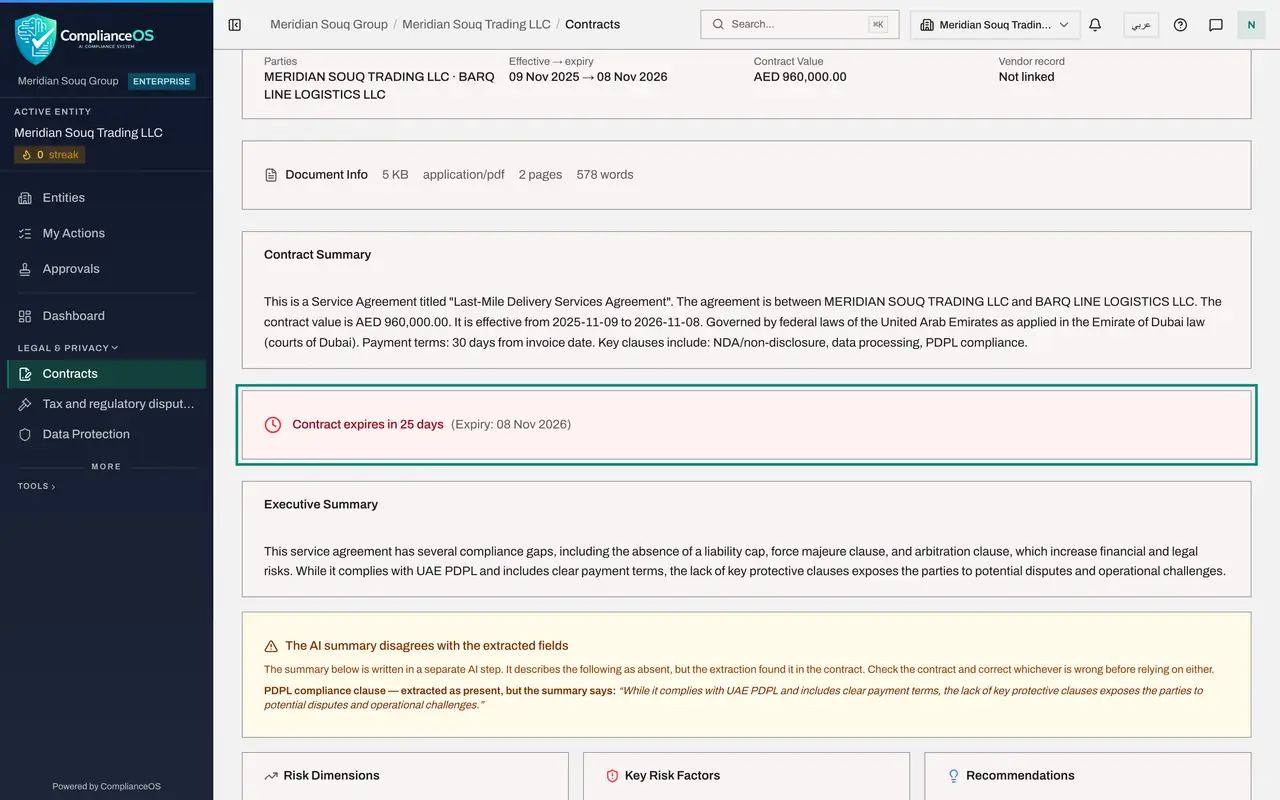
Check the expiry warning
A coloured bar appears when the contract ends within ninety days. It gives the number of days left and the expiry date. This agreement ends in under thirty days, so the bar is red.
- 6
Read the Executive Summary
The Executive Summary is the analysis in plain words: what is weak or missing and why it matters. If an amber box headed The AI summary disagrees with the extracted fields appears under it, the summary and the extracted details contradict each other on the point listed. Check the contract and correct whichever is wrong before you rely on either.
- 7
Read the Risk Dimensions
Risk Dimensions splits the score into four parts, each out of one hundred: Financial, Legal, Compliance and Operational. The highest bar shows where the contract is weakest.
- 8
Read the Key Risk Factors and Recommendations
Key Risk Factors lists the reasons for the score, one per line. Recommendations lists what to change, in the same order. Use them as the agenda for your review and for the next negotiation with the counterparty.
- 9
Download the original file
Scroll back to the top and select Download. The file that was uploaded is saved to your computer, unchanged. Use it whenever you need to read the exact wording.
- Select Download
- 10
Know the other buttons
The other buttons in this row are covered in later lessons. The dropdown and Re-analyze run the analysis again as a different contract type. Edit details corrects the key details by hand. Change Status records that the contract has ended. Evidence Vault, at the top right, opens the sealed record of this contract's analysis.
How to check it worked
the contract's page shows a risk score out of one hundred with a risk level, the tags Complete and Active, a Key details panel with the parties, dates and value, and a Contract Summary that describes the right agreement.
Common mistakes
- Treating the risk score as a legal opinion. It is a guide to where to look first. Read the risk factors and the contract itself before you decide anything.
- Skipping the amber box that says the AI summary disagrees with the extracted fields. It means two parts of the analysis contradict each other, and one of them is wrong.
- Reading the Contract Summary only. If it describes a different agreement, the wrong file was uploaded.
Check your understanding
1. What does the risk score at the top of a contract's page tell you?
- A.Whether the contract is legally valid
- B.How much attention the contract needs, from zero to one hundred
- C.How many pages the contract has
- D.How many days are left before it expires
Show answer
Answer: B. How much attention the contract needs, from zero to one hundred
The score combines financial, legal, compliance and operational risk. A higher score means look sooner and more closely.
2. An amber box says the AI summary disagrees with the extracted fields. What do you do?
- A.Ignore it; the summary is always right
- B.Delete the contract and upload it again
- C.Check the contract itself and correct whichever part is wrong
- D.Ask the other party
Show answer
Answer: C. Check the contract itself and correct whichever part is wrong
The summary and the extraction are written in separate steps. When they contradict each other, only the document can settle it.