Lesson 10 of 29
Assign a review and record your own
What you will be able to do
This lesson is for the legal team. The analysis marks the contracts that a person should review. You will assign one review to a colleague from the list, take one yourself, and record your review with notes on the contract's Review tab.
Before you start
- The contracts have finished processing. The ones the analysis wants a person to look at carry an amber Review tag.
- You are signed in with the Legal counsel role, which may assign and record reviews.
- You know who should review each contract. Here the supply agreement goes to Mariam Aziz, the Compliance officer, and you take the shop lease yourself.
Steps
- 1
Find the contracts waiting for review
Open Contracts and scroll to the list. An amber Review tag beside a file name means the analysis wants a person to review that contract, and nobody has done so yet. Contracts without the tag were judged low risk, but you can still ask someone to look at them. The Reviewer column shows who has been asked. Every row says Unassigned for now.
- 2
Assign a review from the list
The business wants a second opinion on the automatic renewal in the packaging supply agreement. In its row, open the Reviewer box and choose Mariam Aziz. A message confirms that the review is assigned to her, and she receives a notification.
- Select Assign reviewer
- Choose Mariam Aziz
- 3
See who can record a review
Open the Reviewer box in the row of the shop lease. Everyone with access to this company is listed. People marked cannot record a review yet can be asked, but they need a role that may edit contracts before they can submit the review. Assign reviews to people without that mark.
- Select Assign reviewer
- 4
Take the lease yourself
Choose your own name, Noura Salem. The message confirms that the review is assigned to you.
- Choose Noura Salem
- 5
Show only your reviews
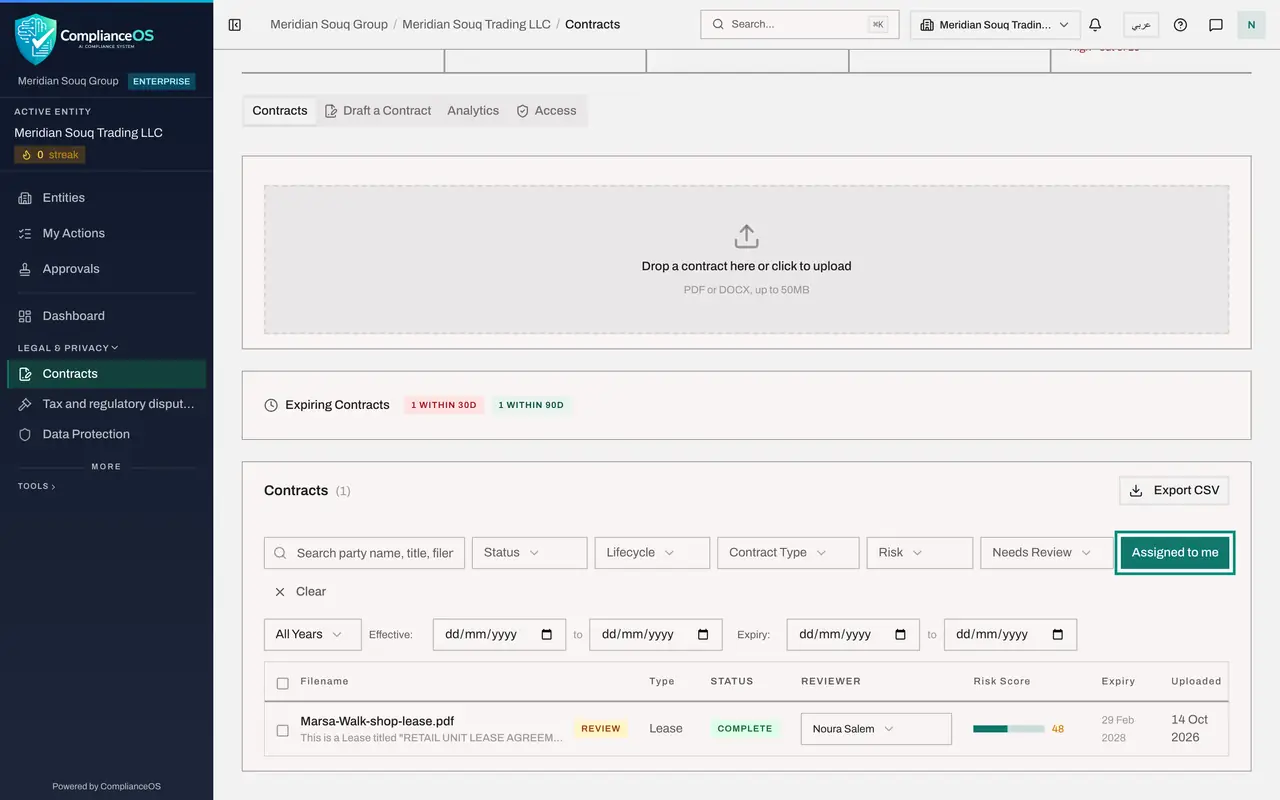
Select Assigned to me above the list. Only the contracts whose review is yours remain, which here is the shop lease. This is your review queue.
- Select Assigned to me
- 6
Open the contract's Review tab
Select the lease to open it, scroll down to the tabs and select Review. The Submit Review panel shows who the review is assigned to, a tick box, a Notes box and the Submit Review button. Before you submit, read the summaries, the extracted details and the compliance checks, as in lessons 2 to 4.
- Select Marsa-Walk-shop-lease.pdf
- Select Review
- 7
Decide about Requires further review
Requires further review keeps the amber Review tag on the contract after you submit. Tick it when a colleague still has to look, for example the finance team on the rent. This review is complete, so leave it unticked.
- 8
Write your review notes
In Notes, record what you checked and what you concluded. Keep it short and factual, so that a colleague or an auditor can follow your reasoning later.
- Type Notes:
Lease terms checked against the signed copy. Rent, dates and the 90 da…
- Type Notes:
- 9
Select Submit Review
Select Submit Review. A message confirms it. A grey box appears above the tick box with the date of the review, your name as the reviewer, and your notes.
- Select Submit Review
- 10
Check the list
Go back to Contracts and scroll to the list. The lease has lost its Review tag. Open the Needs Review filter and choose Reviewed to list the contracts that are not waiting for a review.
- Select Contracts
- Select Needs Review
- Choose Reviewed
How to check it worked
the lease no longer has the Review tag in the list, its Review tab shows the date, your name and your notes, and the supply agreement shows Mariam Aziz in the Reviewer column.
Common mistakes
- Assigning a review to someone marked cannot record a review yet. They are told about it, but they cannot submit the review until an administrator gives them a role that may edit contracts.
- Ticking Requires further review when you are finished. That keeps the Review tag on the contract. Tick it only when someone else still has to look.
- Submitting a review with no notes. The notes are what tells the next reader what you checked and what you accepted.
Check your understanding
1. Where does a colleague see a contract review you assigned to them?
- A.Only in their e-mail
- B.In My Actions, and under Assigned to me on the Contracts screen
- C.Nowhere; you must tell them
- D.In the Access tab
Show answer
Answer: B. In My Actions, and under Assigned to me on the Contracts screen
The assignee receives a notification, and the review appears in their My Actions list until it is submitted. The Assigned to me button on Contracts filters to the same contracts.
2. You have finished reviewing a contract and nobody else needs to look. How do you leave Requires further review?
- A.Ticked
- B.Unticked
- C.It does not matter
- D.Ticked, with a note
Show answer
Answer: B. Unticked
Unticked clears the Review tag. Ticked keeps the contract in the needs review list for someone else.