Lesson 13 of 29
Compare a contract with your standard terms
What you will be able to do
This lesson is for the legal team. You will write down your company's standard terms as a template of clauses, then compare a contract with it to see which clauses are missing or have been changed.
Before you start
- The contract has finished processing.
- You know the clauses your company expects in this kind of contract, and the wording you normally accept.
- You are signed in with the Legal counsel role, which may create templates and run comparisons.
Steps
- 1
Open Clause Compare
Scroll down to the tabs, select Deep Analysis, and then select Clause Compare. The section is headed Compare Against Template. The Templates list at the bottom says No templates defined, because none has been written yet.
- Select Deep Analysis
- Select Clause Compare
- 2
Select New Template
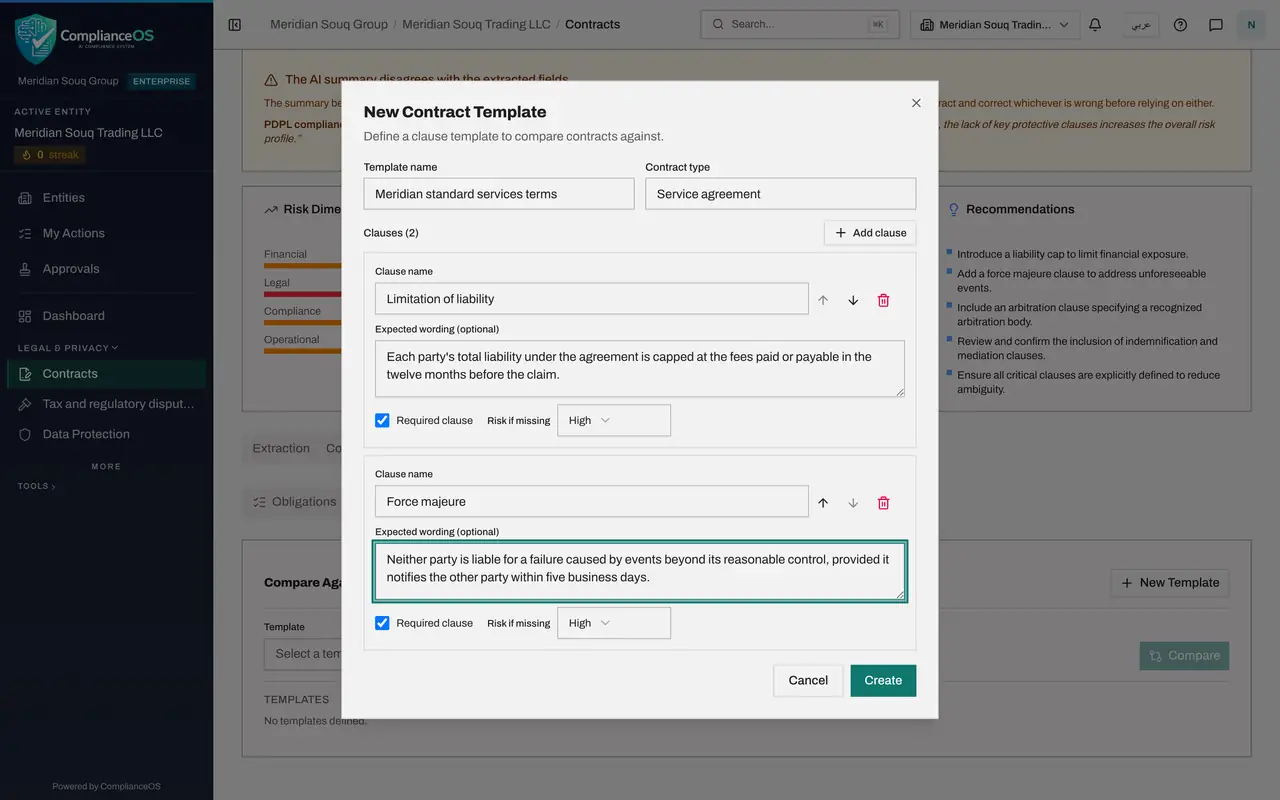
Select New Template. The New Contract Template form opens. A template has a name, a contract type and a list of clauses.
- Select New Template
- 3
Name the template and give its type
In Template name, type a name colleagues will recognise. In Contract type, type the kind of contract the template is for. This is free text and is shown beside the name when you choose a template.
- Type Template name:
Meridian standard services terms - Type Contract type:
Service agreement
- Type Template name:
- 4
Write the first clause
Each clause has a name and, optionally, the wording you expect. In Clause name type Limitation of liability. In Expected wording, type your standard position. The comparison reads the contract's clause on the same topic against this wording.
- Type Clause name:
Limitation of liability - Type Expected wording (optional):
Each party's total liability under the agreement is capped at the fees…
- Type Clause name:
- 5
Set whether the clause is required and its risk
Required clause is ticked, which means a contract without this clause counts as a deviation. Risk if missing sets how serious that is: Not set, Low, Medium, High or Critical. An uncapped liability is serious, so leave it on High.
- 6
Add a second clause
Select Add clause. A second set of boxes appears. Type Force majeure as the clause name, and the wording you expect. The arrows beside a clause name move it up or down the list, and the bin removes it.
- Select Add clause
- Type Clause name:
Force majeure - Type Expected wording (optional):
Neither party is liable for a failure caused by events beyond its reas…
- 7
Add a third clause and set its risk
Select Add clause again and type Data protection, with the wording you expect. Open Risk if missing for this clause and choose Critical, because the courier handles customers' personal data.
- Select Add clause
- Type Clause name:
Data protection - Type Expected wording (optional):
The service provider processes personal data only on our written instr… - Select Risk if missing
- Choose Critical
- 8
Select Create
Select Create. A message confirms that the template was created, and it appears in the Templates list with its type and the number of clauses. The template can now be used on any contract of this company.
- Select Create
- 9
Choose the template and compare
Open the Template box and choose the template you just created. Then select Compare. The contract's clauses are read against the template by AI, which takes a few seconds.
- Select Template
- Select Compare
- 10
Read the conformity score and the critical deviations
Conformity is the share of the template the contract meets, as a percentage. The sentence beside it sums up the result. The red box, Critical Deviations, lists the gaps that matter most. Start there.
- 11
Read the clause by clause results
Under Clause-by-clause there is one line for each clause of the template. The first tag is the result: present and matching, modified, or missing. The second tag is the risk level. Where a clause differs, the text explains how, and Ref gives the clause number in the contract.
How to check it worked
the Clause Compare section shows a conformity percentage, a short summary, and one line for each clause of the template with the result and a risk level.
Common mistakes
- Writing a template with one giant clause. Each clause is compared separately, so one clause per topic gives a result you can act on.
- Leaving Expected wording empty and expecting a comparison of the wording. With no wording, the comparison can only say whether a clause on that topic exists.
- Reading the conformity percentage on its own. A contract can score well and still miss the one clause that matters most. Read the critical deviations first.
Check your understanding
1. What is a template in Clause Compare?
- A.A blank contract to send to suppliers
- B.A named list of the clauses you expect, with your standard wording and the risk if one is missing
- C.A copy of the last contract uploaded
- D.A list of sanctions
Show answer
Answer: B. A named list of the clauses you expect, with your standard wording and the risk if one is missing
The template holds your standard position clause by clause. Any contract can then be measured against it.
2. The comparison marks a clause as Modified. What does that mean?
- A.The clause is missing
- B.The contract has a clause on that topic, but its terms differ from your standard wording
- C.The clause was edited by a colleague
- D.The clause is identical
Show answer
Answer: B. The contract has a clause on that topic, but its terms differ from your standard wording
Modified means present but different. The line under it explains how the contract's wording departs from yours.