Lesson 21 of 28
Use the suppression list: check, add, find, download and lift
What you will be able to do
Check whether a person may be contacted before a campaign, add someone to the suppression list by hand, find entries with the filters, give the marketing team the list to exclude from their sends, and lift an entry when a block no longer applies.
Before you start
- You are signed in with the Data Protection Officer role for the entity.
- You have the person's identifier exactly as your marketing or customer system holds it: email, phone number or customer number.
- Earlier lessons have already put entries on the list: from an erasure, from withdrawn consents and from an upheld objection.
Steps
- 1
Open Data Protection and select Suppression list
In Data Protection, select Suppression list. The suppression list holds people who must not be contacted, or whose data must not be used, for a stated scope. At the top is Check an identifier. Below it is the list itself, with its filters.
- Select Suppression list
- 2
Check an identifier before a campaign
In Check an identifier, type the person's email, phone number or customer number. Leave Scope as Direct marketing and select Check. A green message means the person is not suppressed for that scope, so they may be contacted.
- Type Identifier:
khalid.rashed@example.com - Select Check
- Type Identifier:
- 3
Check someone who withdrew consent
Now type the identifier of the customer who withdrew her consent in the last lesson, and select Check again. The message is red: she is suppressed for this scope, do not contact or process.
- Type Identifier:
mona.saeed@example.com - Select Check
- Type Identifier:
- 4
Select Add to suppression list
A customer phoned the store and asked for all promotional messages to stop. Select Add to suppression list. In Identifier, enter the email address exactly as your marketing system holds it. It is the only required field.
- Select Add to suppression list
- Type Identifier *:
khalid.rashed@example.com
- 5
Understand the three scopes
Open Scope to see the choices. Direct marketing blocks promotional contact, All processing blocks any use of the person's data, and Specific purpose blocks one named purpose, whose key you then type. Choose Direct marketing.
- Select Direct marketing
- Choose Direct marketing
- 6
Give the reason and save
In Reason, say why the person is suppressed and how you were told. Then select Add to suppression list at the bottom of the box. The entry appears in the list with the source Added manually and the status Suppressed.
- Type Reason:
Asked by phone on 12 October to stop all promotional messages. - Select Add to suppression list
- Type Reason:
- 7
Find one identifier in the list
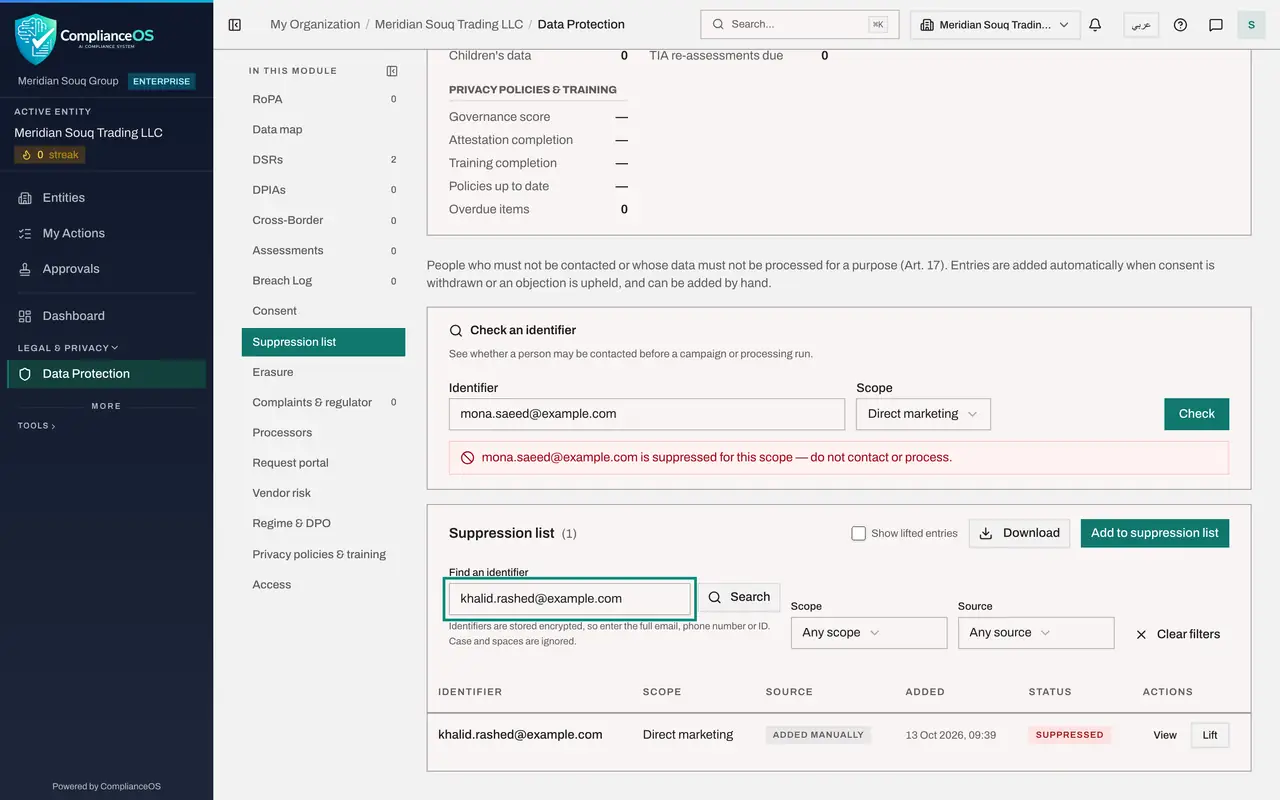
The list grows quickly. In Find an identifier, type a complete identifier and select Search. Only that person's entries are listed. Identifiers are stored encrypted, so part of an address finds nothing.
- Type Find an identifier:
khalid.rashed@example.com - Select Search
- Type Find an identifier:
- 8
Filter by source
Select Clear filters, then open the Source box. It filters the list by how an entry got there: Consent withdrawn, Objection upheld, Erased or Added manually. Choose Objection upheld. The entry listed was created when the objection request from Latifa Al Mazrouei was completed.
- Select Clear filters
- Select Any source
- Choose Objection upheld
- 9
Filter by scope
Set Source back to Any source, then open the Scope box and choose All processing. These are the strongest blocks. Here they are the two identifiers of the customer whose data was erased.
- Select Objection upheld
- Choose Any source
- Select Any scope
- Choose All processing
- 10
Give the list to your campaign tools with Download
Set Scope back to Any scope, then select Download and choose CSV, Excel, all rows. Load the file into your email or text message tool as an exclusion list before each campaign: ComplianceOS does not send the list to those tools for you. Download a fresh copy every time, because withdrawals, objections and erasures add entries by themselves.
- Select All processing
- Choose Any scope
- Select Download
- Select CSV (Excel, all rows)
- 11
Select Lift on an entry
The customer who phoned calls back: he does want the offers after all, and gives his consent again. Find his entry and select Lift. The box warns you to lift an entry only when the person has consented again or the objection no longer applies.
- Select Lift
- 12
Select Lift suppression, then tick Show lifted entries
Select Lift suppression. The entry leaves the list, and the person is no longer blocked. Tick Show lifted entries above the list to see it again, with the status Lifted. A lifted entry is kept as a record; it is never deleted.
- Select Lift suppression
- Select Show lifted entries
- 13
Add the same person again
Some weeks later he opts out once more. Select Add to suppression list, enter the same identifier with the scope Direct marketing and the new reason, and save. No second entry is made: the lifted entry becomes Suppressed again, and its Added time restarts from now.
- Select Add to suppression list
- Type Identifier *:
khalid.rashed@example.com - Type Reason:
Opted out again by phone. - Select Add to suppression list
- 14
Select View on the entry
Select View on the entry. The record shows the identifier, the scope, the source Added manually, your reason, when it was added and its status. Lift is also offered here. Select Close.
- Select View
How to check it worked
Checking the identifier shows a red message that the person is suppressed for the scope, the entry is in the list with the source Added manually, and a file of the list has been downloaded.
Common mistakes
- Adding an identifier that differs from the one in your campaign tool, such as a personal email when marketing holds a work email. The campaign check will not match; use the same identifier the tool uses.
- Checking with the wrong scope. Someone suppressed for one Specific purpose is not suppressed for Direct marketing in general; check the scope you are about to use.
- Lifting an entry to tidy up the list. Lift only when the person has given consent again or the objection no longer applies.
Check your understanding
1. Which entries reach the suppression list without anyone adding them by hand?
- A.Every new customer
- B.People whose consent was withdrawn, whose objection was upheld, or whose data was erased
- C.Everyone who makes an access request
- D.People with expired contracts
Show answer
Answer: B. People whose consent was withdrawn, whose objection was upheld, or whose data was erased
The list is fed automatically by consent withdrawals, upheld objections and completed erasures. Manual entries cover everything else, such as an opt-out taken by phone.
2. You lift an entry, and a month later the person opts out again. You add the same identifier and scope. What happens to the entry?
- A.A second entry is created beside the lifted one
- B.The lifted entry becomes Suppressed again, and its Added time restarts from now
- C.It is refused as a duplicate
- D.The person is erased
Show answer
Answer: B. The lifted entry becomes Suppressed again, and its Added time restarts from now
There is never a duplicate for the same identifier and scope. Adding it again re-activates the lifted entry, and the Added time shows when the new block started.