Lesson 12 of 28
Handle an erasure request: search, plan, dry-run and submit for approval
What you will be able to do
Work a request to delete someone's data safely: search for the person's records, build the erasure plan from the search, run a dry-run that changes nothing, read the evidence trail, and send the plan to a second person for approval.
Before you start
- An erasure request from Reem Al Falasi is in the DSRs list.
- You have checked the Erasure section (see the lesson Prepare for erasure). In this company the only system on the data map is kept by hand, so the search has no connected tables to look in. The lesson says at each step what a connected system would add.
Steps
- 1
Open the erasure request from the DSRs list
In Data Protection, select DSRs. Find the request from Reem Al Falasi with the type Erasure and select View.
- Select DSRs
- Select View: Reem Al Falasi
- 2
Find the two erasure panels
An erasure request has two panels below its details. Find this person's data runs the search. Automated erasure builds the plan from that search. Create erasure plan is greyed out for now, and the line above it says to run a search first.
- 3
Select Search and add a phone number
Select Search. The search uses the email on the request. Add the customer's mobile number in Phone, so that records filed under her number are found as well. Every identifier you search with is also added to the suppression list when the erasure finishes.
- Select Search
- Type Phone:
+971 50 555 0163
- 4
Select Search to run it
Select Search. ComplianceOS looks through the systems connected on the data map. When it has finished, the panel shows Done.
- Select Search
- 5
Read the search result
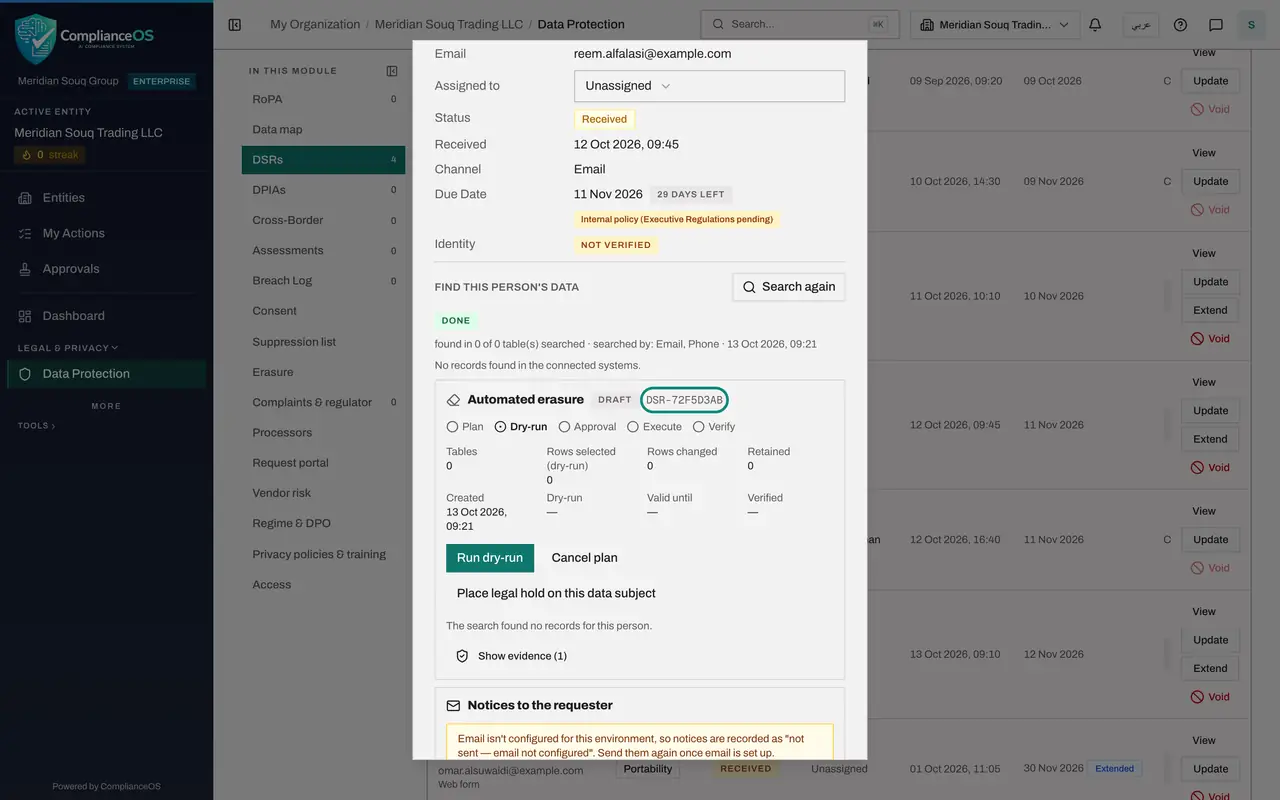
The result reads found in zero of zero tables searched. The system recorded by hand on the data map is not searched, so there is nothing ComplianceOS can erase by itself: the stores must remove this customer's forms and spreadsheet row, and you record that in the request. With a connected system, each table where the person was found is listed here with its count and an Erasure work order button for the owners.
- 6
Select Create erasure plan
Create erasure plan is now available, as soon as the search has finished. Select it. A plan is built from the search. It gets a reference that starts with DSR, the status Draft, and five stages: Plan, Dry-run, Approval, Execute and Verify.
- Select Create erasure plan
- 7
Read the plan
The plan shows four figures: Tables found by the search, Rows selected by the dry-run, Rows changed by the erasure, and Retained, which counts tables kept because of a legal hold or a legal duty. With found records, each table is listed below with its action: delete, anonymise, retain, or manual work order. Here the plan says the search found no records for this person.
- 8
Select Run dry-run
Select Run dry-run. A dry-run only reads: it counts the rows that would be erased in each table and changes nothing. When it finishes, the plan shows Ready for approval. Valid until shows how long the dry-run can be relied on, which is the limit you set on the Erasure section.
- Select Run dry-run
- 9
Select Show evidence
Select Show evidence. The table lists every event on the plan: when it happened, what it was, the system and table, the counts before and after, and who did it. It holds counts, times, people and tables only, never personal values. Scroll the table sideways to read the last columns.
- Select Show evidence (1)
- 10
Select Submit for approval
Select Submit for approval. The plan changes to Awaiting approval. A note says that you prepared it, so someone else has to approve or reject it, and that it is in the approvers' inbox. Cancel plan is there if the plan should not go ahead.
- Select Submit for approval
- 11
Check your request on the Approvals page
Select Approvals in the main menu, then select My requests. The erasure plan is listed as Pending, with the step it is waiting on. Withdraw takes it back while nobody has decided. The next lesson shows the second Data Protection Officer approving it.
- Select Approvals
- Select My requests
How to check it worked
The request's Automated erasure panel shows the plan with its reference, the status Awaiting approval and the Plan and Dry-run stages ticked, and the plan is listed under My requests on your Approvals page.
Common mistakes
- Selecting Create erasure plan before the search has finished. The button is greyed out until the panel above it shows Done.
- Treating the dry-run as the erasure. A dry-run only counts the rows that would change. Nothing is deleted until the plan is approved by someone else and executed with a typed confirmation.
- Trying to approve your own plan. Someone who did not create, dry-run or submit the plan has to approve it.
Check your understanding
1. No connected system holds tables for the search. What does the search return?
- A.Every record the company holds
- B.Zero of zero tables searched: the records must be found and erased by the system owners by hand
- C.An error that blocks the request
- D.A list of paper files
Show answer
Answer: B. Zero of zero tables searched: the records must be found and erased by the system owners by hand
The search only looks in systems connected on the Data map. Systems recorded by hand are not searched, so their owners erase the records and you record that it was done.
2. What does Run dry-run change in your systems?
- A.It deletes the rows
- B.It anonymises the rows
- C.Nothing: it only reads and counts
- D.It emails the requester
Show answer
Answer: C. Nothing: it only reads and counts
A dry-run reads only. It counts the rows each table would lose, so the approver can compare the counts with what the search found.