Lesson 9 of 28
Answer an access request: search for the person's data, respond and close
What you will be able to do
Take a request from In progress to Completed: search the connected systems for the person's records, record what you sent them, close the request, and check the notice that goes to the requester.
Before you start
- The request is In progress and the identity check is recorded (see the lesson Pick up a request assigned to you).
- You have gathered the person's data and sent it to them in a secure way, outside ComplianceOS.
Steps
- 1
Open the request from the DSRs list
In Data Protection, select DSRs. Find your request, which shows In progress, and select View.
- Select DSRs7 (7)
- Select View: Tariq Al Nuaimi
- 2
Select Search under Find this person's data
The panel Find this person's data searches every connected system for this person's records. Select Search. A form opens. The search always uses the email on the request, and you can add other identifiers.
- Select Search
- 3
Add the identifiers you have
There is a box for a phone number, an Emirates ID, a passport number, another national ID, a customer number and an employee number. Type the customer's mobile number in Phone. The tick box Also search by name finds more, but names match other people too, so those results are flagged for checking. Leave it unticked.
- Type Phone:
+971 50 555 0118
- Type Phone:
- 4
Select Search to run it
Select Search. The search runs in the background and the panel shows Done when it has finished. Results show counts and table names only, never the records themselves.
- Select Search
- 5
Read the search result
The result line says how many tables the person was found in, out of how many were searched, and which identifiers were used. Here it is zero of zero, because this company has not connected any system yet, and a system entered on the Data map by hand is not searched. When a connected system does hold the person's records, each table is listed here with its count, and a Download data export button builds the copy to send them.
- 6
Select Update
The data was gathered by the system owners and sent to the customer by secure email. Select Update at the bottom of the record to close the request.
- Select Update
- 7
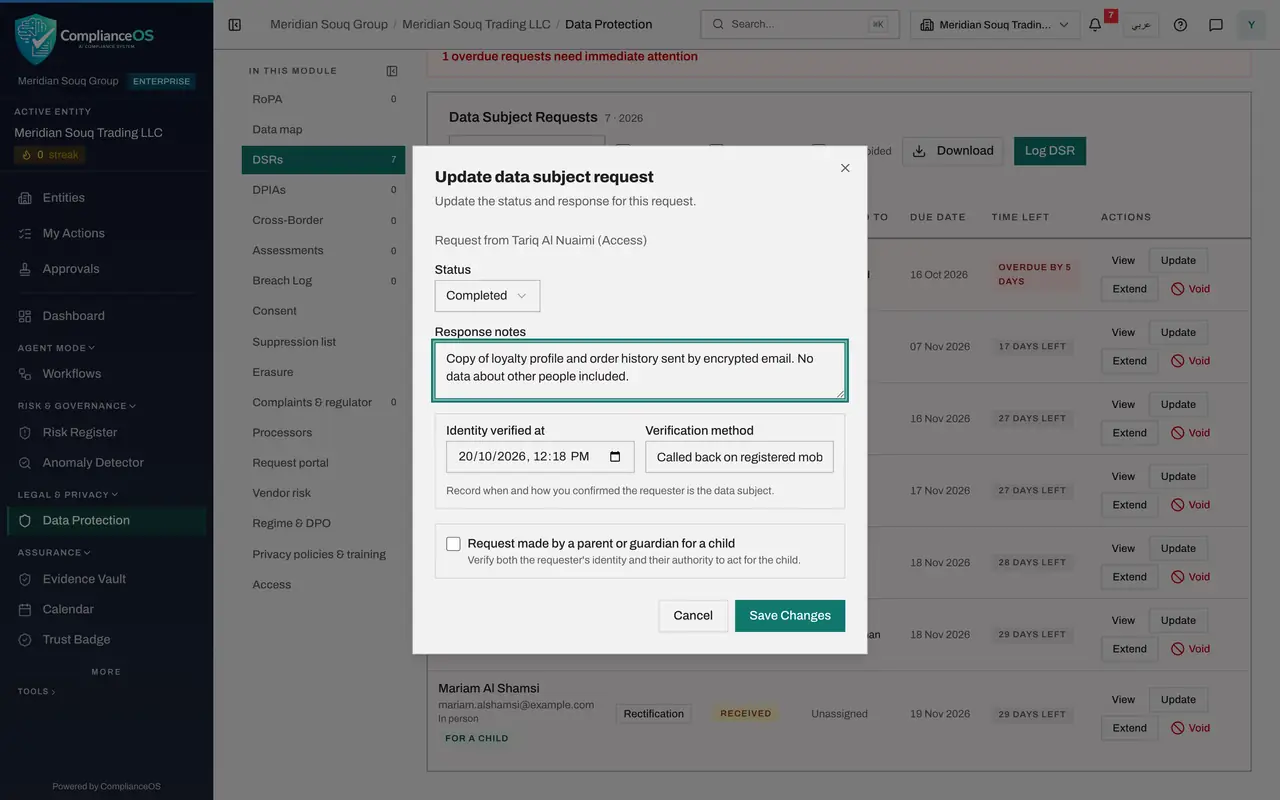
Set the status to Completed and write the response notes
Open Status and choose Completed. In Response notes, write what you sent, how and when. These notes are your record of the answer.
- Select In progress
- Choose Completed
- Type Response notes:
Copy of loyalty profile and order history sent by encrypted email. No…
- 8
Select Save Changes to close the request
Select Save Changes. The status becomes Completed and Time left shows Closed. Extend is no longer offered on this row and Void is greyed out, because a closed request is a record of what was done.
- Select Save Changes
- 9
Select View to see the response on record
Select View once more. The record now shows when it was completed, and your notes under Response and fulfilment notes.
- Select View: Tariq Al Nuaimi
- 10
Check the notice to the requester
Scroll to Notices to the requester. Completing the request created a Request completed notice, which shows who it is for and whether it was sent. Here it reads Sent, with the time it was sent. If a notice could not be delivered it reads Not sent, and Send again tries once more.
- 11
Select Message to read the notice
Select Message on the notice. It opens the exact wording, in English and Arabic, built from the template you saved on the Request portal section. Select Close when you have read it.
- Select Message
- 12
See the figures at the top change
Scroll to the top of Data Protection. Under Data subject requests, Completed has gone up by one and Answered on time shows the share of completed requests that were closed before their due date.
- 13
Check My Actions
Select My Actions in the main menu. The request has left your list, because it is closed. Completed, seven days, counts it as finished this week.
- Select My Actions
How to check it worked
The request shows the status Completed and Time left shows Closed. Opening View shows the completion time, your response notes and a Request completed notice. The request has left your My Actions list.
Common mistakes
- Expecting the search to look everywhere. It looks only in systems connected on the Data map. Systems you entered by hand, spreadsheets and paper files are not searched; their owners must look for you.
- Leaving Response notes empty when you complete a request. The notes are your evidence of what was sent, how and when.
- Reading Not sent on a notice as a fault of the request. It means the email was not delivered; check the email address on the request and use Send again.
Check your understanding
1. The search result reads found in 0 of 0 tables searched. What does that tell you?
- A.The person has no data anywhere in the company
- B.No connected system has tables to search, so the data must be found by the system owners by hand
- C.The request is invalid
- D.The search is still running
Show answer
Answer: B. No connected system has tables to search, so the data must be found by the system owners by hand
The search covers only systems connected on the Data map. Zero tables searched means nothing was connected, not that nothing is held.
2. When is the completion notice created for the requester?
- A.When the request is logged
- B.When you select Search
- C.When the status is saved as Completed
- D.Only when you select Send again
Show answer
Answer: C. When the status is saved as Completed
Saving the status as Completed creates the Request completed notice. It is listed on the request with whether it was sent.