Lesson 10 of 28
Extend a deadline, uphold an objection, reject a request, void a duplicate and export the log
What you will be able to do
Handle the cases that are not a simple answer: give yourself more time once and say why, complete an objection, refuse a request with the legal reason, remove a record that was entered by mistake, and download the request log.
Before you start
- The DSRs list holds open requests of several types (see the earlier lessons of this course).
- You know your reasons: why a request needs more time, and on what legal ground a request is refused.
Steps
- 1
Open DSRs and select Extend on the portability request
In Data Protection, select DSRs. The portability request from Omar Al Suwaidi needs data from several systems and cannot be answered in time. Select Extend on that request. The box says how many extra days your policy allows, the current deadline and the new one.
- Select DSRs
- Select Extend
- 2
Give the reason and select Extend by 30 days
Type the Reason for extension. It is required, and it is the reason the requester is given. Then select Extend by 30 days. A deadline can be extended once only.
- Type Reason for extension *:
The export has to be collated from the loyalty platform, the online st… - Select Extend by 30 days
- Type Reason for extension *:
- 3
Read the extended request in the list
The request now shows a later due date with an Extended tag. The Extend button has gone from this row, because the one extension has been used.
- 4
Select View to see the extension on the record
Select View. The record shows Extended, with the original due date and your reason. Under Notices to the requester there is a Deadline extended notice. Select Close.
- Select View: Omar Al Suwaidi
- 5
Complete the objection
Latifa Al Mazrouei objected to marketing, and marketing has stopped. Select Update on her request, set Status to Completed, and write what was done in Response notes.
- Select Update
- Select Received
- Choose Completed
- Type Response notes:
Objection upheld. Removed from all marketing lists and confirmed to th…
- 6
Select Save Changes
Select Save Changes. Completing a request of the type Objection also adds the person's email address to the suppression list for direct marketing, with the source Objection upheld. The suppression list lesson shows that entry.
- Select Save Changes
- 7
Select Update on the request you will refuse
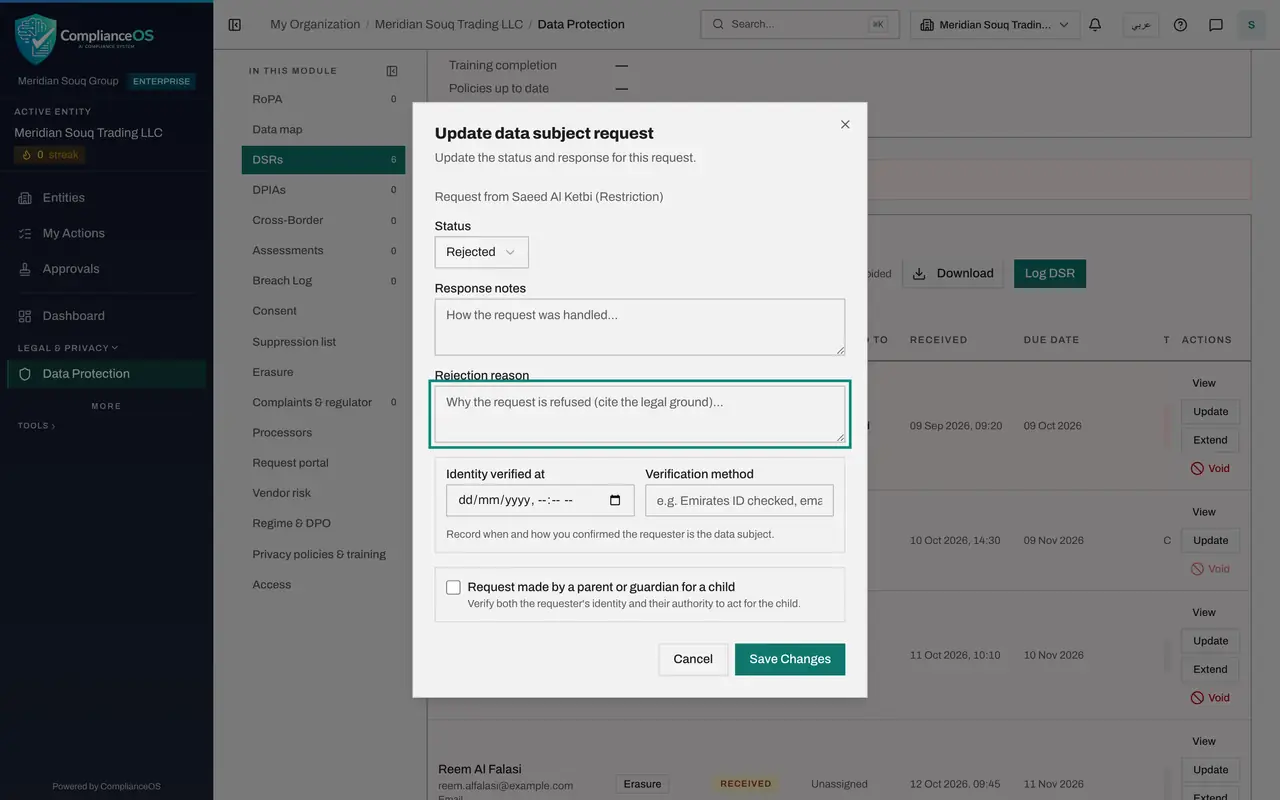
Saeed Al Ketbi asked you to restrict the use of his purchase records. Those records are needed for an open warranty claim he made himself, so the request is refused. Select Update on his request, open Status and choose Rejected. A new box appears: Rejection reason.
- Select Update
- Select Received
- Choose Rejected
- 8
Give the rejection reason and save
In Rejection reason, state why the request is refused and the legal ground. The requester is shown this reason, and the Rejected notice also tells them how to complain to the regulator. Select Save Changes.
- Type Rejection reason:
The purchase records are needed to handle the warranty claim you opene… - Select Save Changes
- Type Rejection reason:
- 9
Select Void on the duplicate
One request was typed twice: the second copy even misspells the name. Select Void on that row. The box explains that Void is only for a record entered in error. It stays in the audit trail but is removed from the registers, the exports and the figures, and it cannot be undone.
- Select Void (entered in error): Tariq Al Nuaimy
- 10
Say why and select Void record
Type why the record was entered in error, in at least three characters, then select Void record. The duplicate disappears from the list.
- Type Why was it entered in error? *:
Duplicate of the phone request from Tariq Al Nuaimi logged the same da… - Select Void record
- Type Why was it entered in error? *:
- 11
Tick Show voided
Tick Show voided above the list. The voided record comes back, greyed out, with a Voided tag beside its status. It has no Update or Extend button. Untick the box to hide voided records again.
- Select Show voided
- 12
Select Download
Select Download above the list. CSV opens in Excel and holds every row, and JSON is the full export for another system to read. The download follows the filters you have set.
- Select Download
- 13
Choose CSV
Choose CSV, Excel, all rows. The file is saved to your computer's downloads folder, and a message confirms it. Keep it as your record of requests for a regulator or an auditor.
- Select CSV (Excel, all rows)
How to check it worked
The portability request shows an Extended tag and a later due date, the objection shows Completed, the restriction request shows Rejected, the duplicate appears only when Show voided is ticked, and a file of the request log has been downloaded.
Common mistakes
- Using Extend without telling the requester. The deadline can be extended once only, and the person must be told the reason. The Extended notice does that when email is set up.
- Rejecting a request without a reason. The status Rejected cannot be saved until Rejection reason is filled in, and the requester sees that reason.
- Voiding a request to hide a late answer. Void is only for a record entered in error, such as a duplicate. A closed request cannot be voided, and a voided record stays in the audit trail.
Check your understanding
1. How many times can the response deadline of one request be extended?
- A.Never
- B.Once
- C.Twice
- D.As often as needed
Show answer
Answer: B. Once
Extend is offered only while a request has not been extended. After one extension the button is no longer shown.
2. A colleague typed the same phone request twice. What do you do with the second record?
- A.Reject it
- B.Complete it with a note
- C.Void it as entered in error, with the reason
- D.Leave it and ignore it
Show answer
Answer: C. Void it as entered in error, with the reason
Void removes a record entered in error from the registers, exports and figures, and keeps it in the audit trail with your reason.